
Windows Installation#

This chapter describes a streamlined installation method for Allegra on Windows systems using a pre-packaged ZIP file. This method is ideal for hosting Allegra on-premises.

The installation uses a convenient management script (allegra.bat and allegra.ps1) that handles all aspects of Allegra lifecycle management.

Preparation#

Permissions#

You must have the following permissions on your Windows system:

  • Permission to download and extract files

  • Permission to run PowerShell scripts

  • Administrator privileges (only if installing as a Windows service)

Hardware Requirements#

Make sure your system meets the hardware requirements for your expected number of users.

Software Requirements#

Before starting the installation, ensure you have:

  1. Java 21 installed and available in your PATH. You can download Java from Adoptium.

  2. PowerShell 5.1 or higher (included in Windows 10 and later)

  3. Sufficient disk space:

    • At least 500 MB for the Allegra application

    • Additional space for ALLEGRA_HOME (1-10 GB depending on usage)

  4. Available network port (default 8080) - ensure no other services are using it

  5. Database server - You need access to one of the supported database systems:

    • PostgreSQL

    • MySQL/MariaDB

    • Microsoft SQL Server

    • Oracle

    • Firebird (for testing only)

    Follow the database setup instructions to create an empty database before installing Allegra.

Installation Steps#

Step 1: Download the ZIP Package#

Download the Allegra ZIP package from:

https://alltena.com/en/resources/downloads

Save the file to a location of your choice, for example C:\Downloads\allegra.zip.

Step 2: Extract the ZIP File#

Extract the ZIP file to a location that works best for your environment. Consider:

  • Choose a location with sufficient disk space

  • Avoid paths with spaces if possible (although they are supported)

  • Ensure you have write permissions to the directory

Recommended locations:

  • C:\allegra - Simple, short path

  • C:\Program Files\Allegra - Standard Windows application location

  • D:\applications\allegra - On a separate drive with more space

Example extraction using Windows Explorer:

  1. Right-click on allegra.zip

  2. Select “Extract All…”

  3. Choose destination folder (e.g., C:\allegra)

  4. Click “Extract”

Example extraction using PowerShell:

Expand-Archive -Path "C:\Downloads\allegra.zip" -DestinationPath "C:\allegra"

After extraction, your directory should contain:

  • allegra.bat - Batch script wrapper

  • allegra.ps1 - PowerShell management script

  • bin\ - Directory containing allegra.jar

  • conf\ - Configuration directory

  • allegra.exe (optional) - Windows service wrapper

  • allegra.xml (optional) - Service configuration

Step 3: Verify Java Installation#

Open a Command Prompt or PowerShell window and navigate to the Allegra directory:

cd C:\allegra
allegra.bat check-java

This will display your installed Java version. You should see output similar to:

openjdk 21.0.1 2023-10-17
OpenJDK Runtime Environment (build 21.0.1+12-29)
OpenJDK 64-Bit Server VM (build 21.0.1+12-29, mixed mode, sharing)

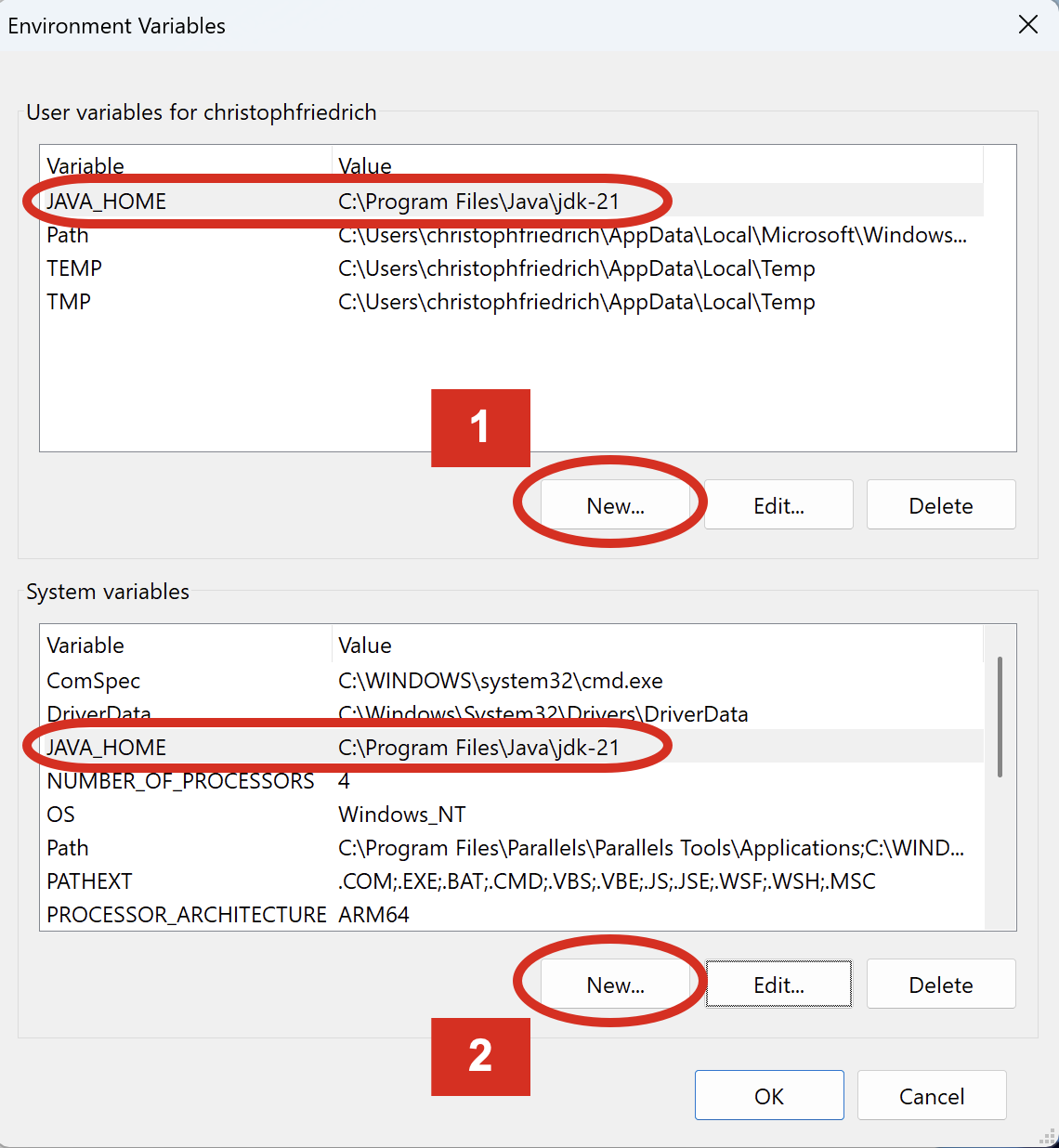
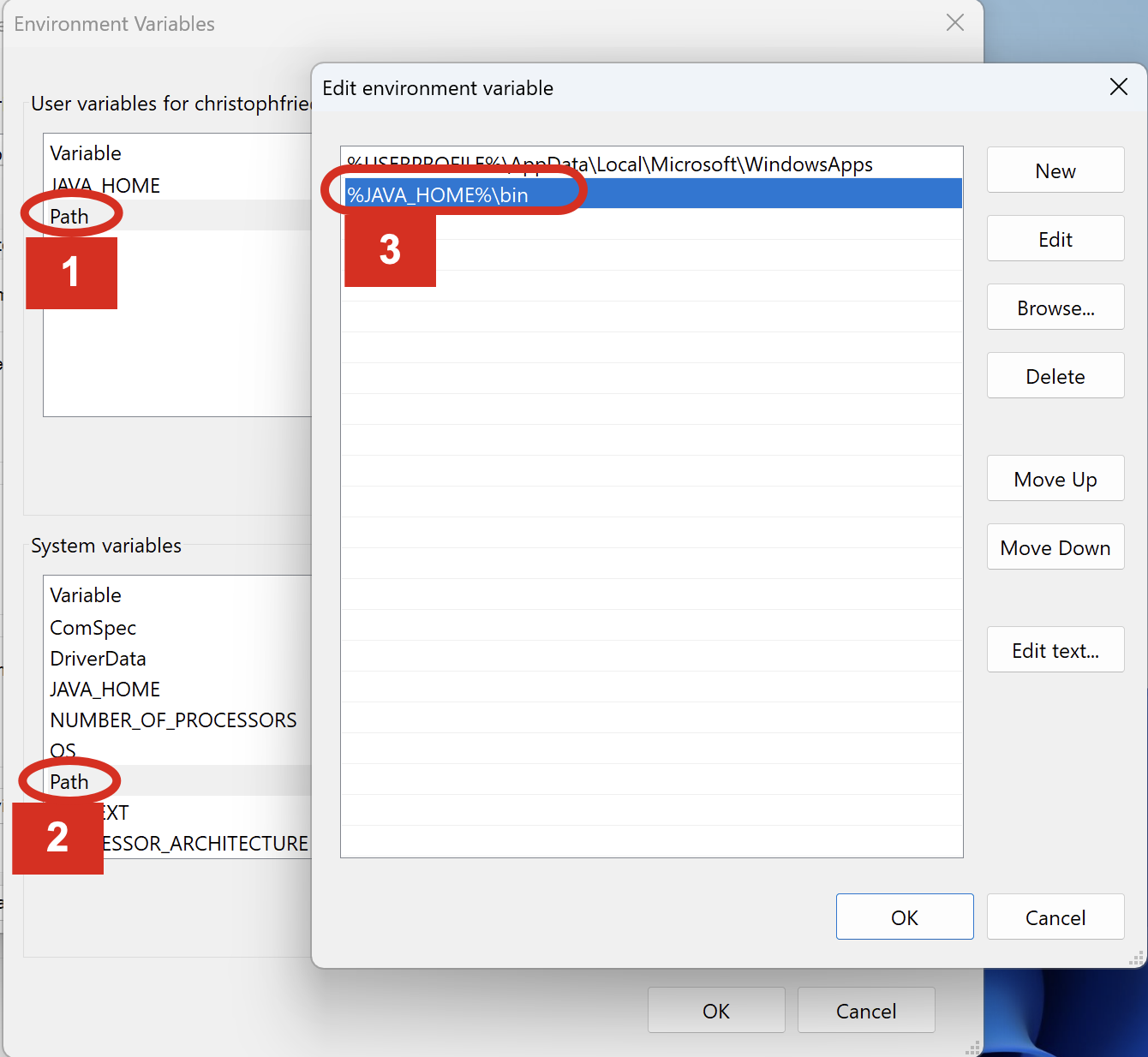
If Java is not found, install it and ensure it’s in your system PATH: JAVA_HOME is set correctly as environment variable.

Step 4: Run Initial Configuration#

Allegra provides a complete installation wizard that guides you through all configuration steps:

allegra.bat install

This interactive wizard will configure:

  1. Allegra Home Directory - Where attachments and data are stored

  2. Database Connection - Connection details for your database

  3. Server Settings - Port and context path configuration

  4. Memory Settings - Java heap memory allocation

Follow the prompts carefully and provide the requested information.

Alternatively, you can configure each component separately (see Configuration Commands below).

Step 5: Start Allegra#

After configuration is complete, start Allegra:

allegra.bat start

The script will display:

Starting bin\allegra.jar with memory: Xms=1024m Xmx=2048m
Started with PID 12345
Memory settings: Xms=1024m Xmx=2048m
Configuration: conf/application.properties
You can check the logs in allegra-startup.log and in the ALLEGRA_HOME/log folder.

Step 6: Access Allegra#

After starting, wait 1-2 minutes for Allegra to initialize, then open your web browser and navigate to:

http://localhost:8080

If you configured a different port or context path, adjust the URL accordingly.

The default login credentials are:

  • Username: admin

  • Password: tissi

Attention

Change the default admin password immediately after your first login!

Management Commands#

The allegra.bat script provides comprehensive management capabilities. All commands are executed by running allegra.bat followed by the command name.

Application Lifecycle Commands#

start#

Starts the Allegra application in the background.

allegra.bat start

Features:

  • Checks if application is already running

  • Reads memory settings from conf/application.properties

  • Starts Java process in background

  • Creates PID file for process tracking

  • Logs output to allegra-startup.log

Example output:

Starting bin\allegra.jar with memory: Xms=1024m Xmx=2048m
Started with PID 12345
Memory settings: Xms=1024m Xmx=2048m
Configuration: conf/application.properties
You can check the logs in allegra-startup.log and in the ALLEGRA_HOME/log folder.

stop#

Stops the running Allegra application gracefully.

allegra.bat stop

Features:

  • Attempts graceful shutdown first

  • Waits up to 30 seconds for process to exit

  • Forces termination if graceful shutdown fails

  • Finds all Java processes running allegra.jar

  • Removes PID file after stopping

Example output:

Stopping Allegra application (found 1 process(es))...
Stopping process 12345...
Process 12345 stopped successfully.
Allegra stopped.

status#

Shows the current status of the Allegra application.

allegra.bat status

When running:

Allegra is running with PID 12345
Running jar: bin\allegra.jar
Log file: allegra-startup.log
Additional logs: Check ALLEGRA_HOME/log folder

When stopped:

Allegra is not running

Configuration Commands#

install#

Runs the complete installation wizard that configures all aspects of Allegra.

allegra.bat install

This interactive command runs through four configuration steps:

  1. Home Directory Setup - Configure ALLEGRA_HOME

  2. Database Connection - Set up database connection parameters

  3. Server Configuration - Configure port and context path

  4. Memory Settings - Set Java heap memory allocation

After completion, displays the final configuration and instructions to start Allegra.

setup-home#

Configure the Allegra home directory where data files, attachments, and templates are stored.

allegra.bat setup-home

Interactive prompts:

  • Absolute path to home directory (or . for current directory)

  • Creates directory if it doesn’t exist

  • Validates directory is writable

  • Updates allegra.home in conf/application.properties

Example:

Define Allegra Home folder absolute path.
Allegra stores in this folder all important data files like attachments templates etc.
Make sure the folder is writable.

Enter absolute path (or . for current directory): C:\allegra-data
Updated allegra.home in application.properties to: C:/allegra-data

setup-db#

Configure database connection parameters interactively.

allegra.bat setup-db

Supported databases:

  1. PostgreSQL

  2. MySQL

  3. Microsoft SQL Server

  4. Oracle

  5. Firebird (testing only)

Interactive prompts:

  • Database type selection

  • Database host (default: localhost)

  • Database port (default varies by database type)

  • Database name or Oracle SID

  • Database username

  • Database password (hidden input)

Configuration updates:

Updates the following properties in conf/application.properties:

  • allegra.db.username

  • allegra.db.password

  • allegra.db.adapter

  • allegra.db.driver

  • allegra.db.url

Example:

Define Allegra database connection information
Choose a database vendor:
[1] PostgreSQL
[2] MySQL
[3] MSSQL
[4] Oracle
[5] Firebird (Only for testing)

Enter choice [1-5]: 1
Selected: postgresql

Database host [localhost]: dbserver.example.com
Database port [5432]: 5432
Database name: allegra
Database username: allegra_user
Database password: ********

Database configuration:
=======================
Type: postgresql
Host: dbserver.example.com
Port: 5432
Database: allegra
Username: allegra_user
URL: jdbc:postgresql://dbserver.example.com:5432/allegra

Update application.properties with these settings? (y/n): y
Updated application.properties successfully!

setup-server#

Configure Allegra server settings including port and context path.

allegra.bat setup-server

Interactive prompts:

  • Server port (default: 8080)

  • Server context path (default: /)

Configuration updates:

Updates the following properties in conf/application.properties:

  • server.port

  • server.servlet.context-path

Example:

Define Allegra server configuration

Server port [8080]: 9090
Server context path [/]: /allegra

Server configuration:
====================
Port: 9090
Context path: /allegra

Update application.properties with these settings? (y/n): y
Updated server configuration in application.properties successfully!

setup-memory#

Configure Java heap memory allocation for Allegra.

allegra.bat setup-memory

Interactive prompts:

  • Total memory allocation in megabytes (default: 2048)

  • Minimum: 512 MB

  • Validates reasonable values

  • Calculates Xms (initial heap) as 50% of total

  • Sets Xmx (maximum heap) to total value

Configuration updates:

Updates allegra.server.memory in conf/application.properties.

Example:

Define Allegra server memory configuration

How much memory do you want to allocate for Allegra (in megabytes)? [2048]: 4096

Memory configuration:
====================
Total memory: 4096 MB
Initial heap (Xms): 2048 MB
Maximum heap (Xmx): 4096 MB

Update application.properties with these settings? (y/n): y
Updated memory configuration in application.properties successfully!

show-config#

Display the current contents of conf/application.properties.

allegra.bat show-config

This command simply outputs the entire configuration file to the console for review.

Information Commands#

check-java#

Check if Java is installed and display the version information.

allegra.bat check-java

Example output:

Java version:
openjdk version "11.0.16" 2022-07-19
OpenJDK Runtime Environment Temurin-11.0.16+8 (build 11.0.16+8)
OpenJDK 64-Bit Server VM Temurin-11.0.16+8 (build 11.0.16+8, mixed mode)

version#

Display the installed Allegra version by reading Version.properties from the JAR file.

allegra.bat version

Example output:

Allegra version is 9.0.0b59

Update Commands#

update#

Update Allegra to the latest available version.

allegra.bat update

Attention

CRITICAL: Updating Allegra requires replacing the allegra.jar file.

Before running any update, you MUST create backups of:

  1. The complete database - Full database backup

  2. ALLEGRA_HOME directory - All attachments, templates, and configuration files

This ensures you can recover if any issues occur during the update.

What gets updated:

When you run the update command, only the bin\allegra.jar file is replaced with the new version. All your configuration, data, and settings remain unchanged.

For detailed update instructions, including:

  • Step-by-step backup procedures

  • Manual update process

  • Rollback procedures

  • Troubleshooting update issues

  • Best practices for production updates

See: Updating Allegra

check-script-updates#

Check if there are updates available for the management script itself.

allegra.bat check-script-updates

Example output:

Checking for script updates...
Script update available!
Current checksum:  abc123...
Available checksum: def456...

There is an update for the script. Please download the latest version.

update-script#

Update the management script (allegra.ps1) to the latest version.

allegra.bat update-script

Process:

  1. Fetches latest script checksum from server

  2. Compares with current script checksum

  3. Prompts for confirmation

  4. Downloads new script to temporary file

  5. Verifies downloaded checksum

  6. Creates backup of current script

  7. Replaces script with new version

Example output:

Checking for script updates...
Script update available!
Current checksum:  abc123...
Available checksum: def456...

Do you want to update the script? (y/n): y

Downloading updated script...
Created backup: allegra.ps1.backup
Script updated successfully!
New checksum: def456...

Please run the script again to use the updated version.

Windows Service Commands#

install-service#

Install Allegra as a Windows service for automatic startup.

allegra.bat install-service

Requirements:

  • allegra.exe must be present in the directory

  • allegra.xml must be present in the directory

  • Administrator privileges required

Process:

  1. Prompts for memory allocation (default: 2048 MB)

  2. Creates backup of allegra.xml

  3. Updates memory settings in allegra.xml

  4. Installs the service

  5. Attempts to start the service

Example output:

Installing Allegra as a Windows service...

How much memory do you want to allocate for Allegra (in megabytes)? [2048]: 4096

Memory configuration: 4096 MB

Created backup: allegra.xml.bak
Updated allegra.xml with memory: -Xmx4096m

Service installed successfully!

Starting Allegra service...
Service started successfully!

Note

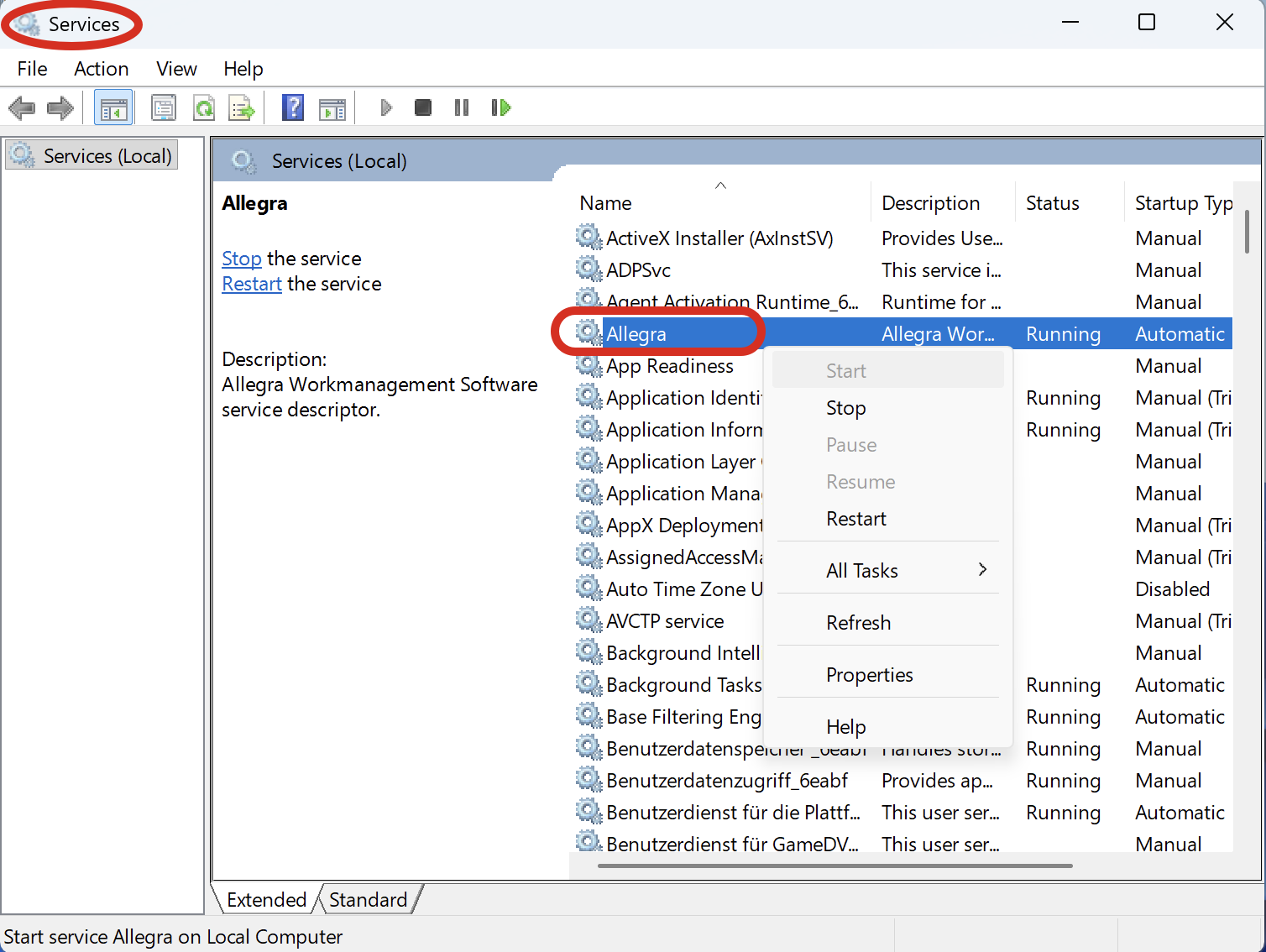
Once installed as a service, you should use Windows Services Manager or sc.exe commands to control the service instead of the allegra.bat start/stop commands.

uninstall-service#

Uninstall the Allegra Windows service.

allegra.bat uninstall-service

Requirements:

  • Administrator privileges required

Process:

  1. Attempts to stop the service

  2. Uninstalls the service

  3. Removes service registration

Example output:

Uninstalling Allegra Windows service...

Stopping Allegra service...
Service stopped successfully!

Service uninstalled successfully!

help#

Display usage information and list all available commands.

allegra.bat help

PowerShell Script Details#

The allegra.bat file is a simple wrapper that calls the PowerShell script allegra.ps1. All functionality is implemented in the PowerShell script.

Script Features#

  • PowerShell 5.1+ required - The script uses modern PowerShell features

  • Execution Policy Bypass - The batch wrapper automatically bypasses execution policy

  • PID file management - Tracks running processes via allegra.pid

  • Configuration in Java properties - Uses conf/application.properties

  • Automatic updates - Built-in update mechanism for both Allegra and the script

  • Version checking - SHA256 checksums verify updates

  • Process management - Graceful shutdown with fallback to forced termination

  • Memory management - Configurable heap settings with validation

Configuration File Location#

All configuration is stored in:

conf\application.properties

This file uses standard Java properties format and includes settings for:

  • Database connection

  • Server port and context path

  • Allegra home directory

  • Memory allocation

  • Additional Spring Boot properties

Key Properties#

# Allegra home directory
allegra.home=C:/allegra-data

# Database configuration
allegra.db.adapter=postgresql
allegra.db.driver=org.postgresql.Driver
allegra.db.url=jdbc:postgresql://localhost:5432/allegra
allegra.db.username=allegra
allegra.db.password=secret

# Server configuration
server.port=8080
server.servlet.context-path=/

# Memory configuration (in MB)
allegra.server.memory=2048

Log Files#

Allegra generates several log files:

  • allegra-startup.log - Application startup output (in Allegra installation directory)

  • ALLEGRA_HOME/log/*.log - Detailed application logs (in home directory)

  • ALLEGRA_HOME/log/allegra.log - Main application log

To troubleshoot issues, check these log files in order.

Common Usage Scenarios#

Quick Start (Interactive)#

For first-time installation:

cd C:\allegra
allegra.bat install
allegra.bat start

Browse to http://localhost:8080 and log in with admin/tissi.

Development Setup#

For development with custom port and context:

allegra.bat setup-server
# Enter port: 9090
# Enter context: /allegra-dev
allegra.bat start

Access at http://localhost:9090/allegra-dev

Production Setup with Service#

For production deployment:

# Configure everything
allegra.bat install

# Test the configuration
allegra.bat start
# Verify everything works, then stop
allegra.bat stop

# Install as Windows service
allegra.bat install-service

# Service is now running automatically

Updating Production Instance#

Attention

Before updating, ALWAYS backup your database and ALLEGRA_HOME directory.

For complete update instructions, see: Updating Allegra

Quick update command:

# Backup database and ALLEGRA_HOME first!
allegra.bat update
# Follow the prompts

Changing Memory Allocation#

allegra.bat stop
allegra.bat setup-memory
# Enter new memory value
allegra.bat start

Troubleshooting#

Application Won’t Start#

  1. Check Java installation:

    allegra.bat check-java
    
  2. Check if port is already in use:

    netstat -an | findstr :8080
    
  3. Review startup logs:

    type allegra-startup.log
    
  4. Check application logs:

    Check ALLEGRA_HOME\log\allegra.log for detailed error messages.

  5. Verify database connectivity:

    Ensure your database server is running and accessible.

Application Won’t Stop#

If allegra.bat stop doesn’t work:

  1. Find the Java process manually:

    tasklist | findstr java.exe
    
  2. Kill the process by PID:

    taskkill /PID <process_id> /F
    
  3. Remove stale PID file:

    del allegra.pid
    

PowerShell Execution Policy Errors#

If you get execution policy errors, the allegra.bat wrapper should handle this automatically. If you’re running allegra.ps1 directly, use:

powershell -ExecutionPolicy Bypass -File allegra.ps1 <command>

Or permanently change the execution policy (requires administrator):

Set-ExecutionPolicy RemoteSigned

Out of Memory Errors#

If you see OutOfMemoryError in logs:

  1. Stop Allegra

  2. Increase memory allocation:

    allegra.bat setup-memory
    
  3. Restart Allegra

Database Connection Errors#

If Allegra can’t connect to the database:

  1. Verify database server is running

  2. Check firewall settings

  3. Verify database credentials:

    allegra.bat show-config
    
  4. Test database connection using database client tools

  5. For MS SQL Server, ensure SQL Server Browser service is running

Update Fails#

If allegra.bat update fails:

  1. Check internet connectivity

  2. Verify you have write permissions to bin\ directory

  3. Manually download from https://alltena.com/downloads/90x/

  4. Stop Allegra before updating

Security Considerations#

For Production Deployments#

This ZIP package installation is suitable for internal networks and development. For production deployments accessible from the Internet, you should:

  1. Use a reverse proxy (Apache, Nginx, IIS) in front of Tomcat

  2. Enable HTTPS/SSL - Never expose Allegra directly over HTTP to the Internet

  3. Use Windows Firewall - Restrict access to the Allegra port

  4. Regular updates - Use allegra.bat update to keep Allegra current

  5. Strong passwords - Change default admin password immediately

  6. Database security - Use strong database passwords and restrict network access

  7. Regular backups - Backup both database and ALLEGRA_HOME directory

Windows Service Security#

When running as a Windows service:

  • The service runs under the Local System account by default

  • Consider using a dedicated service account with minimal privileges

  • Configure service account in allegra.xml before installation

  • Ensure service account has write access to ALLEGRA_HOME

Next Steps#

After successful installation, you should:

  1. Change admin password - Log in and change the default password immediately

  2. Configure SMTP - Set up email server for notifications See configuration guide

  3. Configure backups - Set up regular database backups

  4. Review security - Configure firewall and consider using a reverse proxy

  5. Customize Allegra - Configure projects, users, and workflows See the Allegra User Guide

  6. Optional: Set up Gantt printing - See Gantt Chart Print Server