

Upgrading from Allegra 8 to 9#
Hint
Customers with an active maintenance contract can contact Allegra Support support@alltena.com for assistance with the upgrade process. A new license key is required for Allegra 9, which can be obtained from sales@alltena.com.
This guide explains what existing Allegra 8 server administrators need to consider when upgrading to version 9.
Allegra 9 introduces significant architectural improvements that simplify deployment and maintenance. It now includes an embedded web application server and requires Java 21 (LTS) or newer to run. As a result, an external web application server no longer required. Previous installations using older Java versions will not function with Allegra 9.
Starting with this release, Allegra is distributed as a ZIP Package instead of a WAR file. Upgrades and maintenance are handled via new, user-friendly scripts provided with the installation package.
We know that these changes may require adjustments to your existing setup but they are designed to enhance performance, security, and ease of use in the long term.
Breaking Changes#
Allegra 9 introduces several important changes that may affect existing installations. Please review the following points carefully before upgrading:
Minimum Java version: Allegra 9 requires Java 21 (LTS) or later. Older Java versions are not supported.
Embedded web server: Allegra now includes its own built-in web server. External application servers such as Tomcat are no longer required and should be removed.
New distribution format: Allegra is now delivered as a ZIP package instead of a WAR file. The application runs directly from the unpacked directory.
Database support changes: Support for IBM DB2 and Firebird has been discontinued. We recommend migrating to PostgreSQL or MySQL/MariaDB for continued compatibility.
Updated operating system requirements: Allegra 9 is officially supported on Windows 11, Windows Server 2022/2025 LTS, Ubuntu 22/24 LTS, Debian 12, and other current or newer Linux LTS distributions. Older or end-of-life operating systems may still function but are tested.
Recommended Upgrade Procedure#
Because of these fundamental changes, we strongly recommend performing a clean installation of Allegra 9 and then migrating your existing data.
Back up your existing Allegra 8 installation, including the database and configuration files.
Install Allegra 9 following the instructions for your operating system.
Migrate your data by copying your ALLEGRA_HOME data directory from the Allegra 8 installation to the new Allegra 9 setup.
Reconnect the database: Configure Allegra 9 to use the same (or cloned) database previously used by Allegra 8.
Verify functionality go through your usual workflows to ensure everything operates as expected.
After completing these steps, Allegra 9 should be fully operational with your existing data.
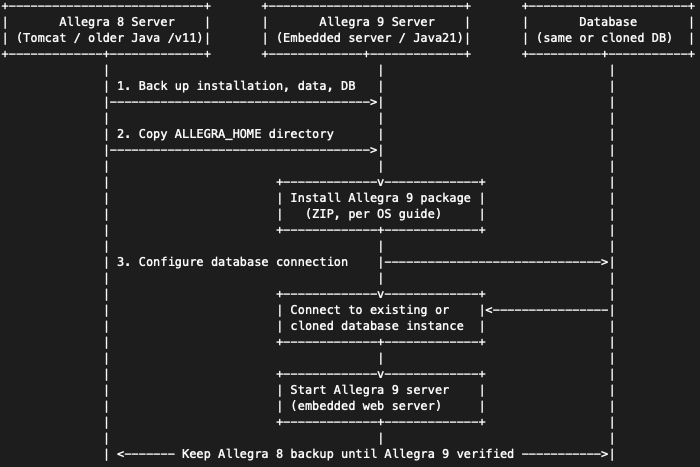
Recommended Upgrade Path from Allegra 8 to Allegra 9#