
Managing filters#
In the navigation pane on the left of the item browser, you select the filter for the current view. This is also where you manage filters. Filters are either:
marked as favorites
private
public
workspace-specific
You can:
create folders for private, public, and workspace-specific filters
edit filters
remove filters
cut and paste filters
mark filters as favorites and unmark them
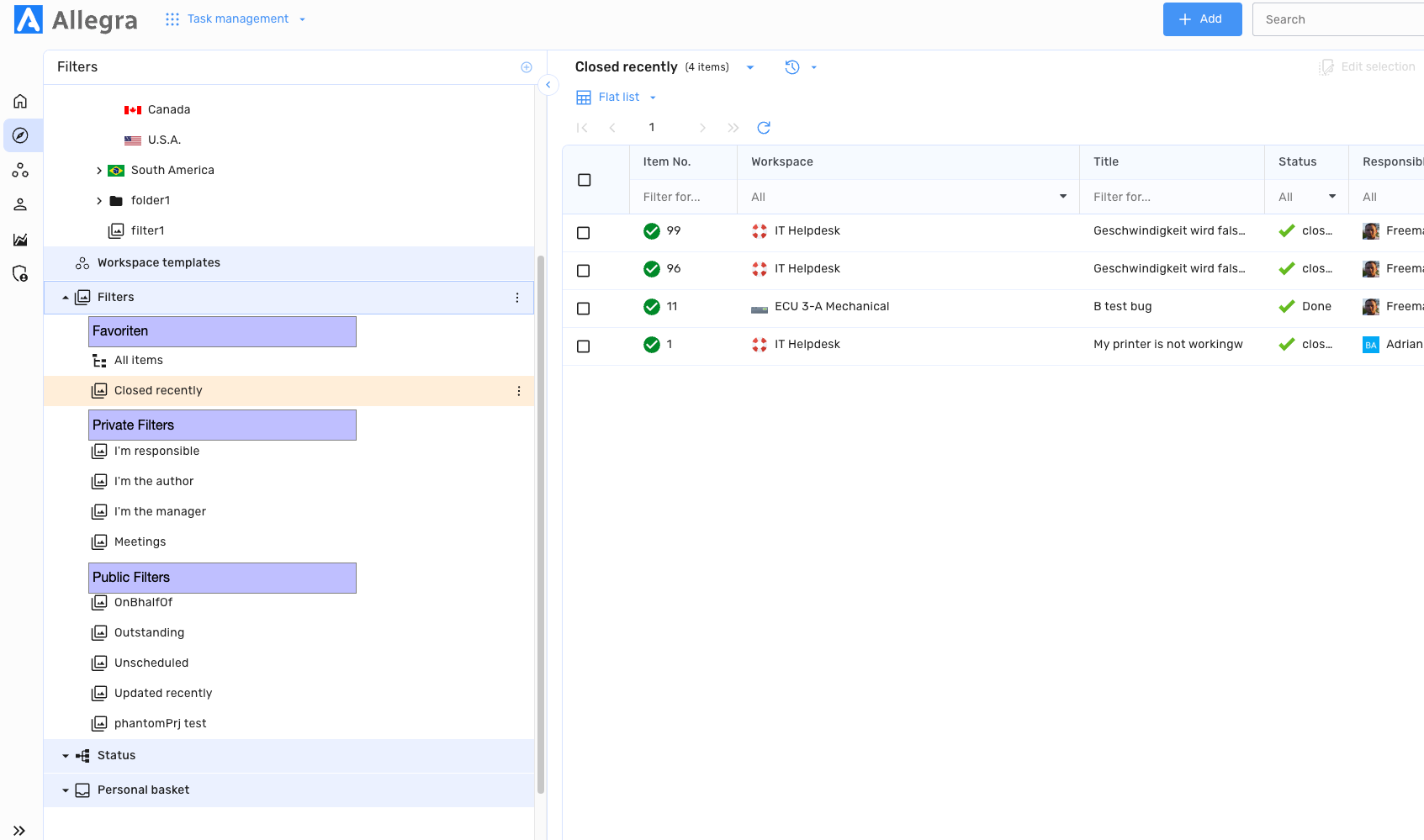
Favorites appear at the top of the filter list — and additionally at their original position. Workspace-specific filters can be edited only by users with workspace administrator rights; public filters only by system managers or system administrators.
Editing filters#
Right-click a filter and choose Edit filter. You can change or add:
the filter name
the associated view (if any)
the filter criteria (status, responsible, end date …)
If you link a filter to a view (see Item browser views), Allegra applies that view as the current view whenever you apply the filter.
For more on editing filter criteria, see Filters and views.