
Adding and editing roles#
sysman sysadmin
As a system administrator, you can add any number of roles to your installation.
You must be logged in as a system manager or system administrator.
When defining a role, consider four areas:
general permissions (see table below)
assignment of RACI selection lists (see table below)
access to item types (see Restricting access to item types)
hiding fields or making them read-only (see Restricting access to item attributes)
Permission |
Description |
|---|---|
read all |
You read all items in this workspace, not just your own. Without this flag, you read an item only if you are its author, current manager, current responsible, editor or reader. |
change all |
You change all items in this workspace, not just your own. Without this flag, you change an item only if you are its author, current manager, current responsible or editor. |
create item |
You create items in this workspace. |
close all |
You close any item you are allowed to change. This flag does not imply change permission — it only supplements it. |
close as responsible |
You close an item only if you are its current responsible. This flag does not imply change permission. |
close as manager/author |
You close an item only if you are its current manager or author. This flag does not imply change permission. |
read/change own |
You read or change items with an assigned RACI role, even without general read/change permission. If you are, for example, only the reader of an item with no further rights, you see exactly that one. |
Workspace admin |
You act as workspace administrator or manager: you assign
users to the workspace, set all project parameters,
archive and delete items, retrieve them from the archive,
change other users’ comments and their effort bookings.
You create sub-workspaces — top-level workspaces are created only by
users with system administrator rights, e.g. |
Selection list |
Description |
|---|---|
Manager |
Not a permission flag in the strict sense. It indicates that your name appears in the Manager selection list when you create or change items. |
Responsible |
Not a permission flag in the strict sense. It indicates that your name appears in the Responsible selection list when you create or change items. |
Editor |
Not a permission flag in the strict sense. It indicates that your name appears in the Editor selection list when you create or change items. |
Reader |
Not a permission flag in the strict sense. It indicates that your name appears in the Reader selection list when you create or change items. |
Go to
Administration>Users & Groups>Workspace Roles.Click
Addor double-click a role to edit it. Fill in the form. You will find explanations of each checkbox in the tables above.
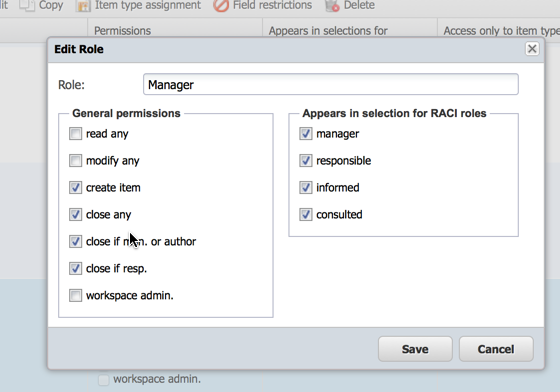
Add workspace role#
Attention
When you rename an entry, the change may not appear in the user interface. This happens when localizations exist for the selection entries — which is the case for all predefined entries. Allegra then shows the localized value, not the label you assigned.
Click
Save.
You now have a new role with its associated permissions. You or any workspace administrator can assign users in this role to workspaces.