
Editing a set of items#
You edit several items at once — for example, to change their state or responsible.
Make sure the selection column is active. It is usually located at the far left of the item overview.
In the first column, mark the items you want to change at the same time. Expand the entire tree so you can also select child items. Selecting a parent item does not automatically select its children.
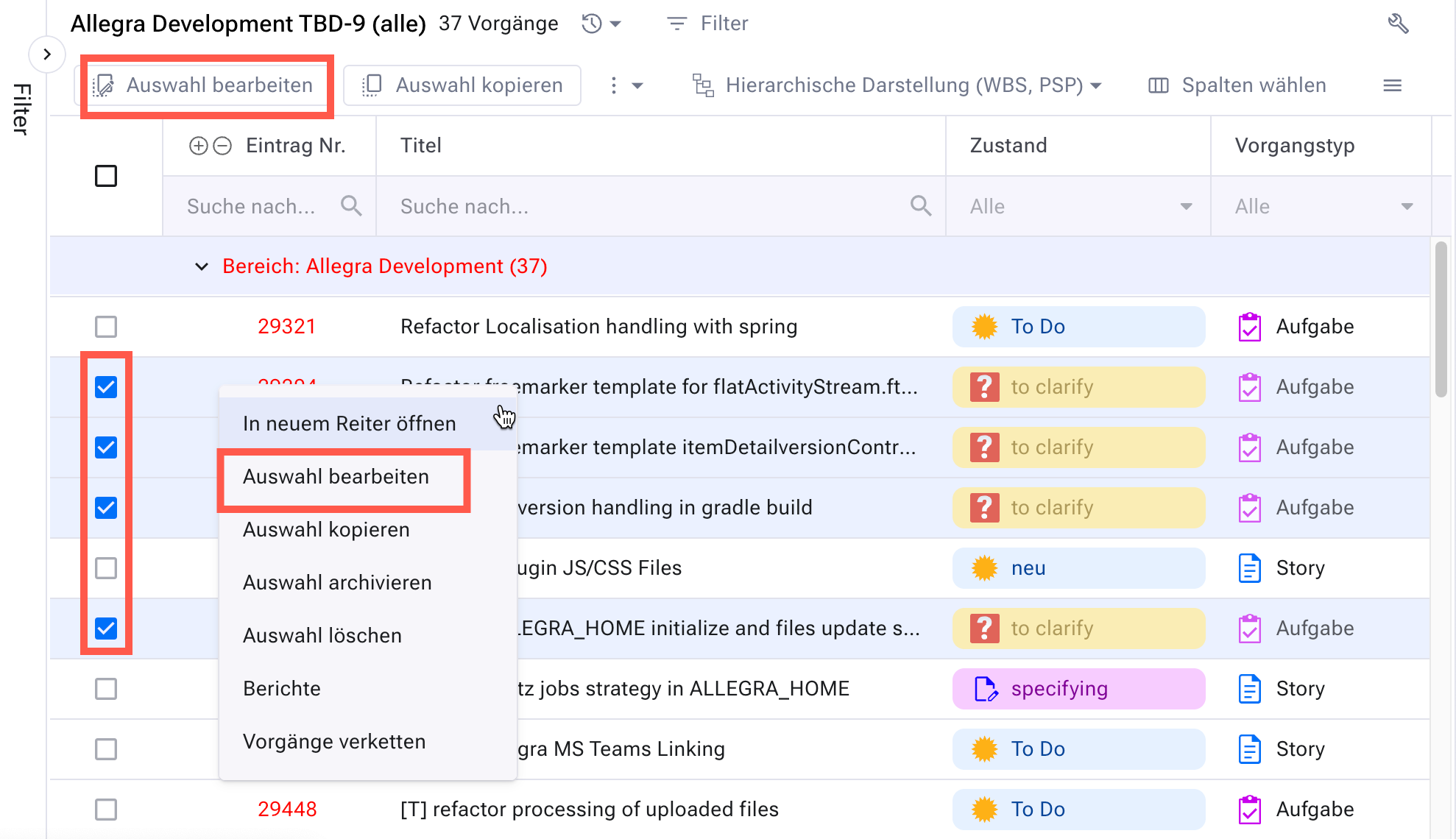
In the toolbar, click
Edit selection— or choose the entry from the context menu.In the form, mark the item attributes you want to change (at least one). As soon as you select an attribute on the left, Allegra activates the matching input field.
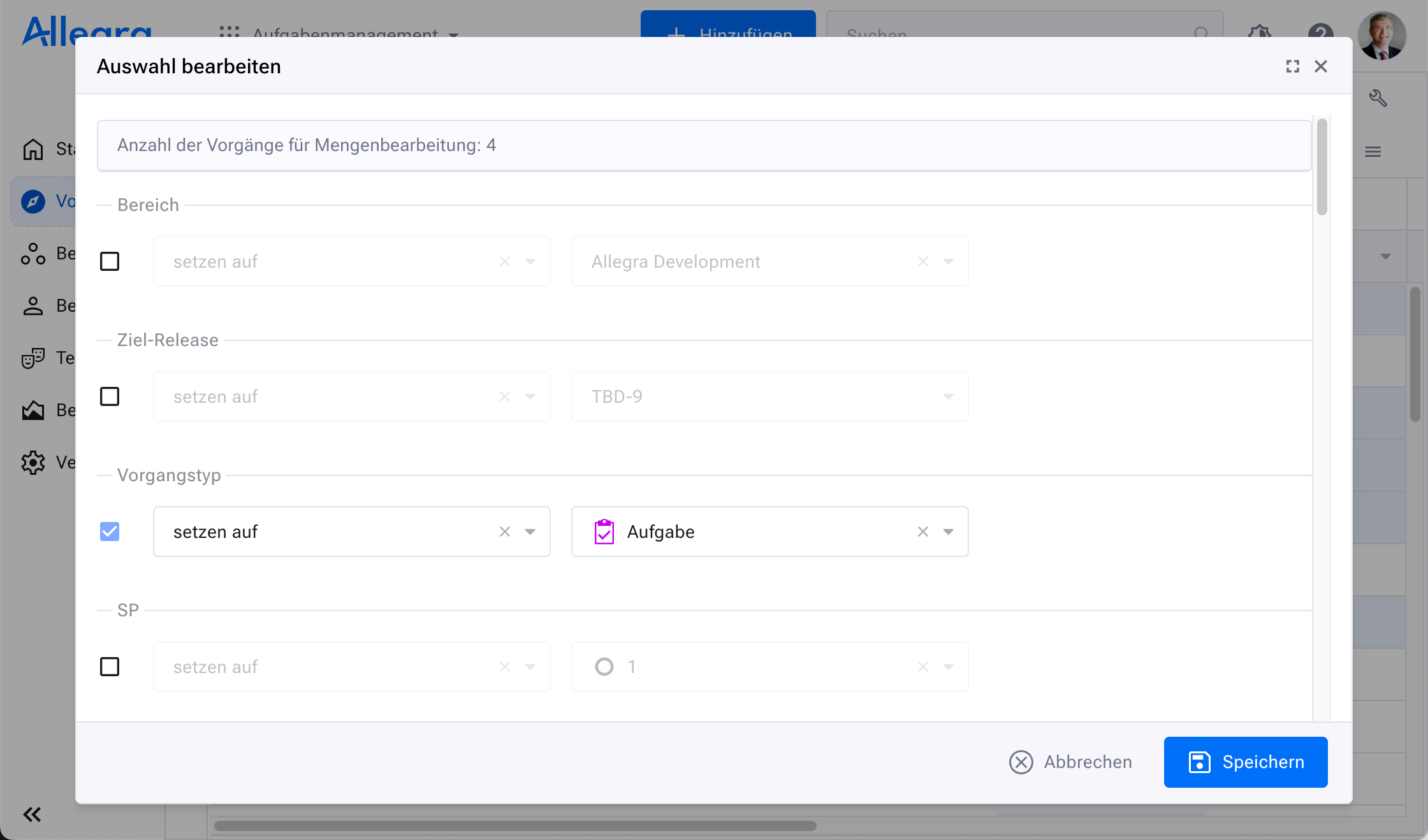
Click
Save.
Allegra now changes all selected items to the new values, as far as possible. If a change cannot be carried out, you see a note.
You also shift the start and end dates of the selected items relative to the earliest date. Choose the start or end date as the reference: if you shift the earliest start date, for example, all other start dates keep their previous time offset to the earliest one. If the time offset is also to be preserved for the end dates, select the corresponding checkbox.