
Exporting in the Allegra format#
You transfer data from one Allegra installation to another. Allegra transfers items and all associated data. In the following, the originating instance is called the source system and the receiving one the target system.
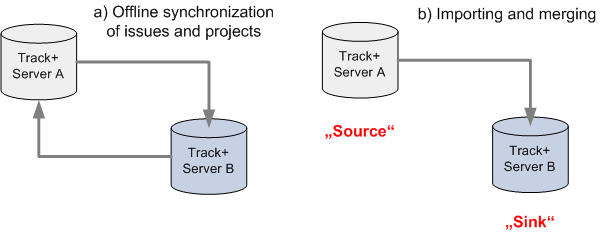
Exporting items to another instance#
Prerequisites:
You are logged in as a user with system administrator or system manager rights (e.g.
admin).You have at least read access to every workspace from which you want to export items.
To prepare the export, first use a filter in the item browser to create a list of the items to export. In the selection column at the far left, mark the items to export. For a hierarchical view, it must be fully expanded.
The export creates a ZIP file containing all data and attachments, which you import into the target instance.
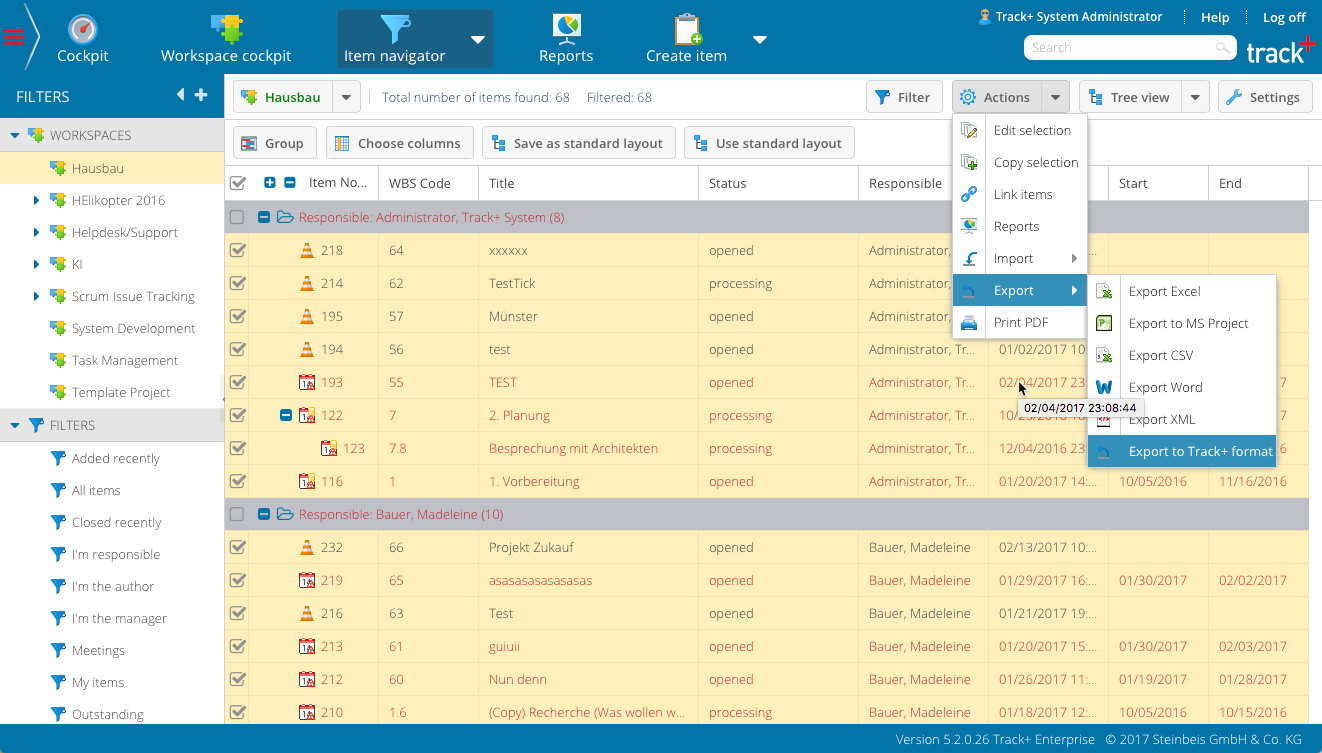
Exporting items to another instance (2)#
In the toolbar, click the extended menu
Export>Export to Allegra format.Download the file to your computer.
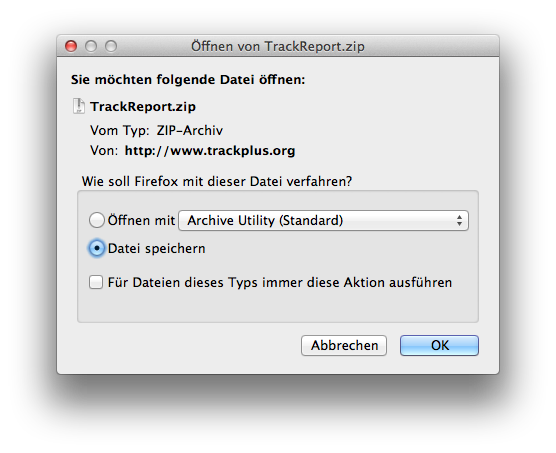
Exporting items to another instance (3)#
Save the file locally. In our example, it is about 9 MByte in size; the actual size depends mainly on the volume of attachments. You import the file into the target system later.