
Item browser right area#
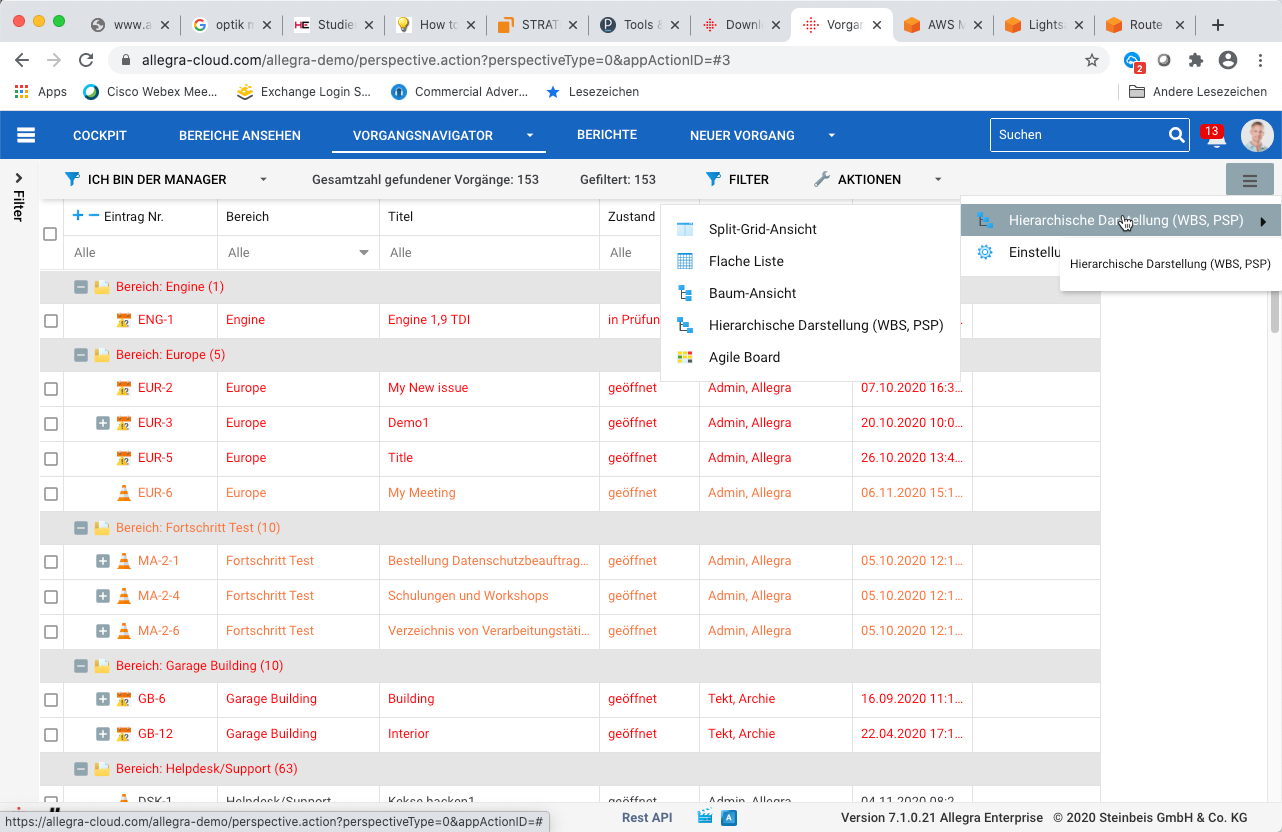
Depending on the app, the right area of the item overview offers different view types — flat list, Gantt view or board.
You switch the view using selector A:
flat list view (table-based)
tree view (table-based)
hierarchical display — work breakdown structure or product structure (table-based)
agile board (card view)
In some apps, additional views are available through symbols at the far left of the main menu bar (C):
Gantt view
resource view
agile board view
Flat list#
The flat list view shows items across all workspaces without regard to their hierarchy. You group and sort by any attributes. This view supports pagination across multiple pages.
Hierarchical display#
The hierarchical display shows items within workspaces. You drag items to any new position within a workspace — including within the same hierarchy level. The behavior is like structuring text documents or like that found in tools such as MS Project.
Use this view when you want to structure items hierarchically and the order matters.
Gantt chart (time line)#
The Gantt view resembles the hierarchical display but adds an area in which you can graphically view and change start and end dates, work progress and dependencies between items — and display the critical path.
Use this view to create or revise project plans.
Tree display#
The tree view shows items across all projects including their hierarchy. In addition, you see the change history, comments and the full description. You drag items to other positions in the tree — but within the same hierarchy level you do not move them. The order on a level is determined by the applied sort criteria.
Board view#
The agile board view shows items as “cards” in columns. You define the column property — such as status or responsible — and choose which of the available values appear as columns.
Use this view as a Scrum or Kanban board for agile work.