
Forms#
wsman sysman sysadmin
In Allegra you define any number of forms — for creating, editing, and moving items, for changing the status, or for adding comments.
Forms contain fields that map system attributes and custom attributes. When an attribute appears on a form, it is a field there. You assign forms to actions — such as creating items. You configure these assignments:
globally
item-type-specific
workspace-type- and item-type-specific
workspace- and item-type-specific
This approach supports efficient configuration with full flexibility.
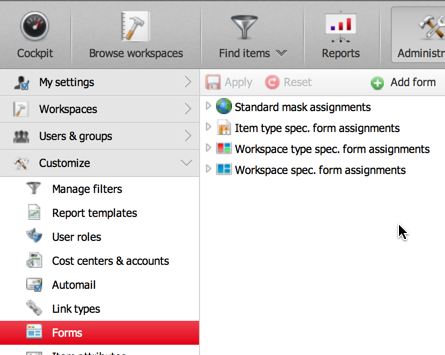
Every form consists of:
tabs
panels
fields
This is how you create a new form and put it to use:
Create the form with the interactive form designer.
Assign it to the desired action — globally or at a more specific level.
You can change forms at any time.
Tabs#
Every form consists of at least one tab. Tabs contain panels, panels contain fields. The illustration shows a form with three tabs. You design the first tab freely. Allegra added the other two automatically — because the project has enabled watcher lists and billing. These tabs are predefined by the system and cannot be changed interactively.
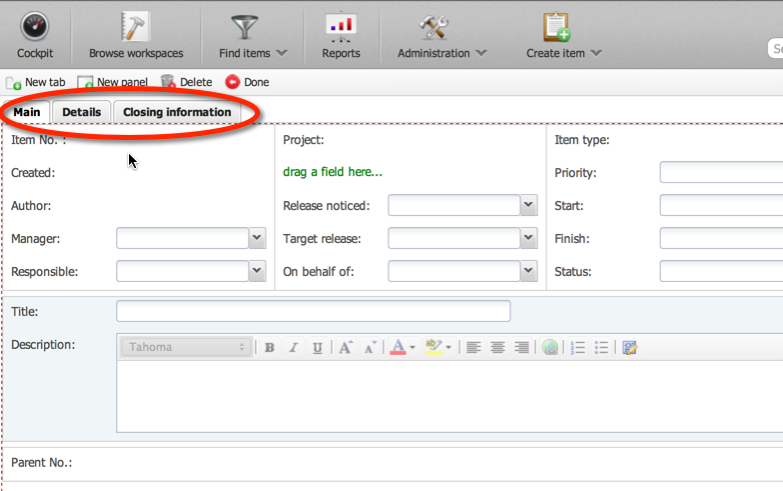
In practice, you face hardly any limit on the number of custom tabs. You choose the label freely.
Panels#
Tabs contain panels. All fields sit on panels. A panel consists of rows and columns — it organizes the space for fields in a grid.
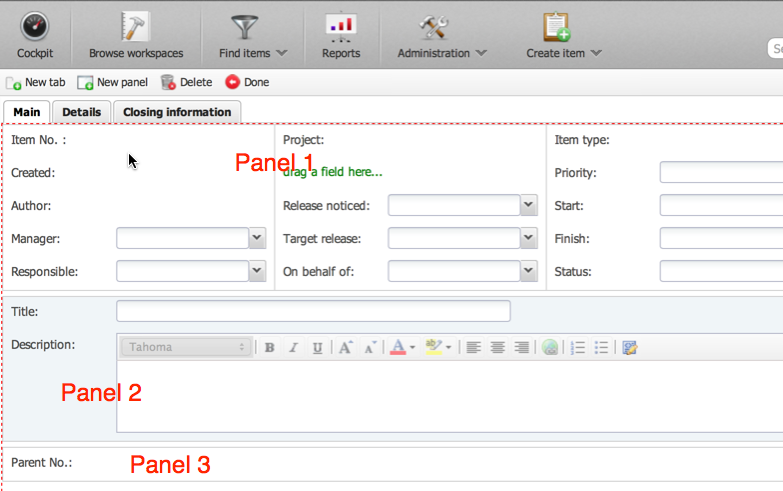
The form designer marks unused grid positions specially; in the finished form they remain empty.
In practice, you face hardly any limit on the number of panels. You can move panels at any time by drag and drop.
Actions#
In Allegra, forms attach to actions. For example, you keep the form for creating an item as simple as possible, while the form for editing shows all available properties. Adding a comment contains only a comment field — nothing else. When changing a status you usually need a comment, the status, and the responsible.
Allegra knows these actions:
create item
edit or change item
move item to a new project or new item type
add comment to item
change item status
add child item to an existing item
You assign a separate form to each action.
Managing forms#
wsman sysman sysadmin
You create, assign, change, and delete forms as follows.
Assigning forms to actions#
This is how you assign a form to an action.
You must be logged in as a system manager or system administrator.
Go to Administration. In the main menu, choose
Customize>Forms.
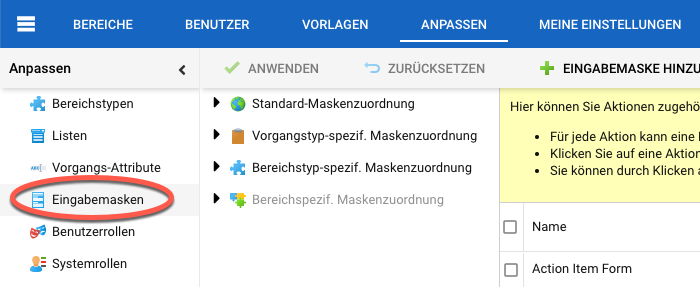
In the tree pane, select the node to which you want to assign a new form — global, item-specific, workspace-type-, or workspace-specific. In the example, we change the assignment only for the item type “Action item” — for creating, editing, and moving.
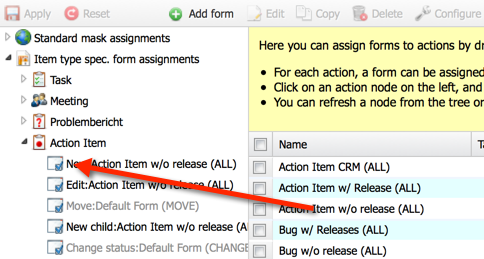
Drag the desired form onto the corresponding node in the tree.
Now, when you create a new action item in the workspace, you get not the default form “New item” but the modified form without the release field.
Creating forms#
This is how you create a new form.
You must be logged in as a system manager or system administrator.
Go to
Administration>Items>Forms for items.
On the new screen, click
Addin the action menu.
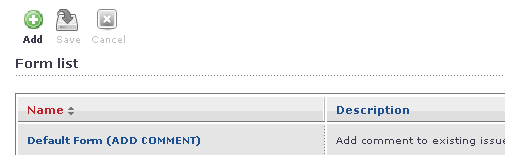
Enter a name and description for the form.
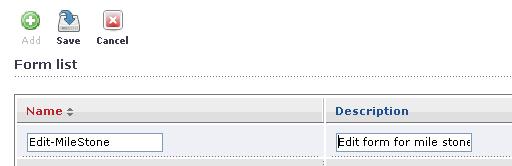
Click
Savein the action menu. Select the new form in the list and then click theConfigurebutton.The interactive form designer opens the new form. Now drag the desired attributes from the attribute list on the right to the positions marked for them in the form.
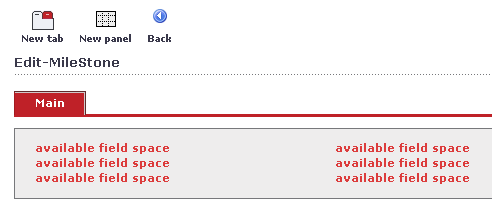
You change the properties of the tabs and panels by selecting the element in question and using the Layout Attributes tab on the right.
Attention
All changes take effect immediately, not only when you leave the editor.
Assign the form to an action. To do so, go to
Administration>Items>Forms for items.
When you invoke the action, you see your newly designed input mask. You can change the layout at any time.
Changing forms#
This is how you change an existing form.
You must be logged in as a system manager or system administrator.
Go to
Administration>Items>Forms for items.
On the right, select the form to be changed and click the
Configurebutton. The interactive form designer opens.Make the desired changes and click
Done.
You have changed the form. The next time the associated action is invoked, Allegra uses the new form.
Copying forms#
This is how you copy a form.
You must be logged in as a system manager or system administrator.
Go to
Administration>Items>Forms for items.
On the right, select the form to be copied and click the
Copybutton.
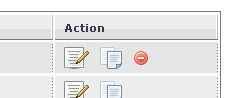
You have created a copy. You edit the copy without changing the original.
Deleting forms#
This is how you delete a form.
You must be logged in as a system manager or system administrator.
Attention
You only delete forms that are no longer in use. For a form that is in use, Allegra does not display the delete icon.
Go to
Administration>Items>Forms for items.
On the right, select the form to be deleted and click the
Deletebutton.
Allegra has deleted the form.