
Creating Word templates#
To create a new Word template, you merge an existing Word document of your choice with a special XML file using the OpenDoPE authoring tool plug-in for MS Word.
You can get the OpenDoPE plug-in for MS Word here: Http://www.opendope.org/downloads/authoring-friendly/setup.exe. After installation, you will have a new tab in the top menu ribbon called “Authoring”.
To add fields to your own document that are filled with content from the wiki, proceed as follows:
In MS Word, open the document you want to use as a template.
In the menu area, click the “Authoring” tab.
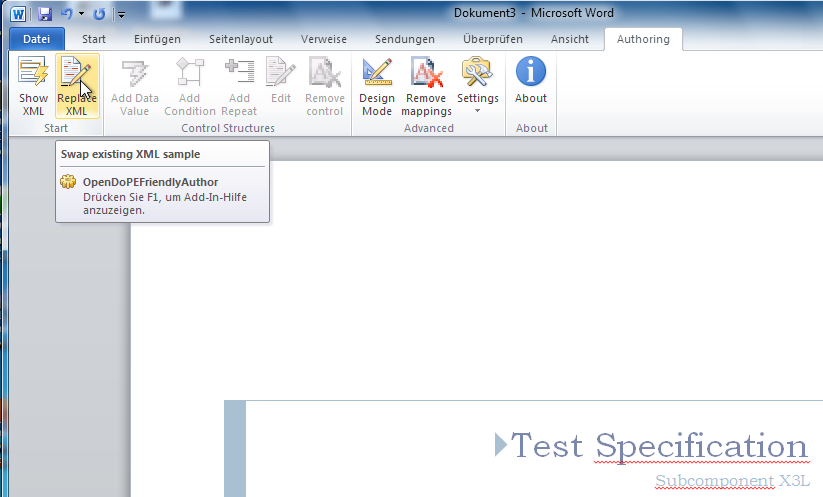
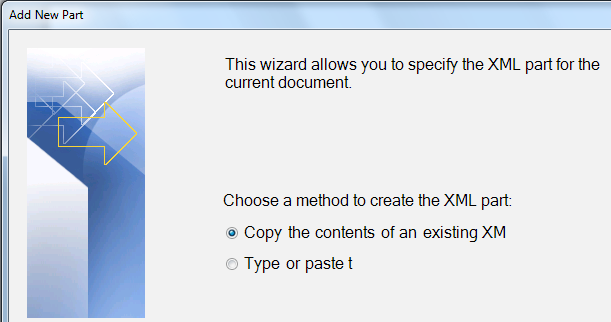
On the ribbon, click “Replace XML”. Choose to copy the content of an existing XML into the
Word document. You will find the file in the TRACK_HOME/wordTemplates directory.
It is the only XML file there.
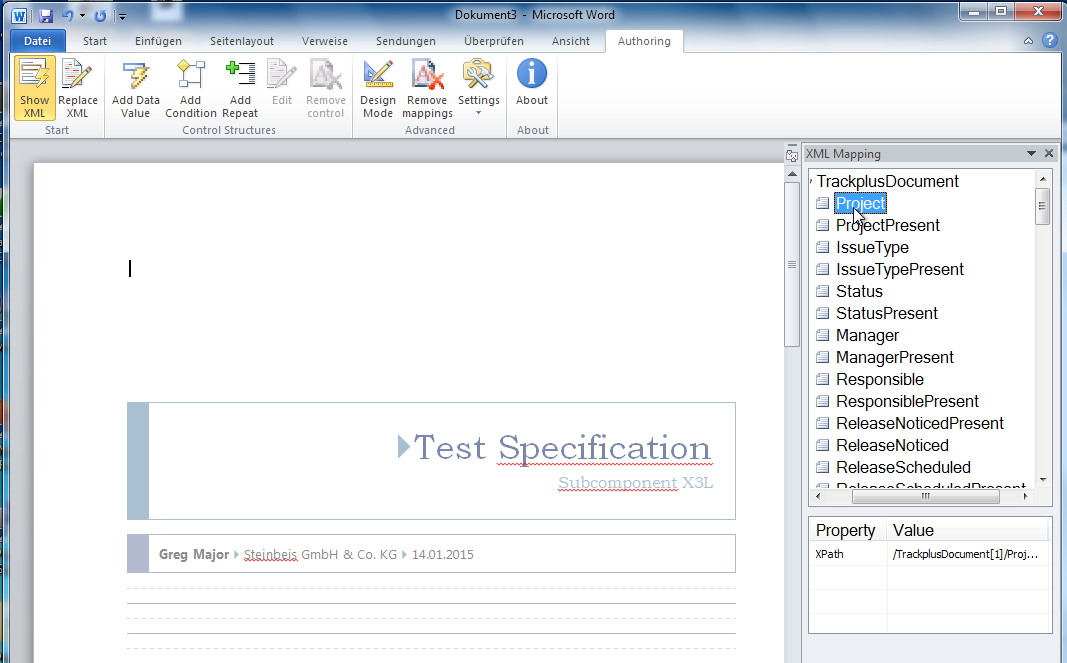
Now you can drag the desired fields into your document and format them as you wish.
To make the template generally available, you can upload it to the server when loading a document (see Exporting documents).