

Search Results#
Search results open in a tab of their own. You can keep several searches open side by side and switch between them like between other tabs.
There are two kinds of search tabs:
The Search tab shows the results for all object types. You open it with Enter in the search field or with All in the search menu.
A tab for one object type, for example “Items: test”. You open it with Show all or with one of the “Go to” links in the search menu.
The Search Tab#
The search tab has a sub-tab for each object type. The number of hits is shown in the title of each sub-tab, so you see at a glance where your text was found.
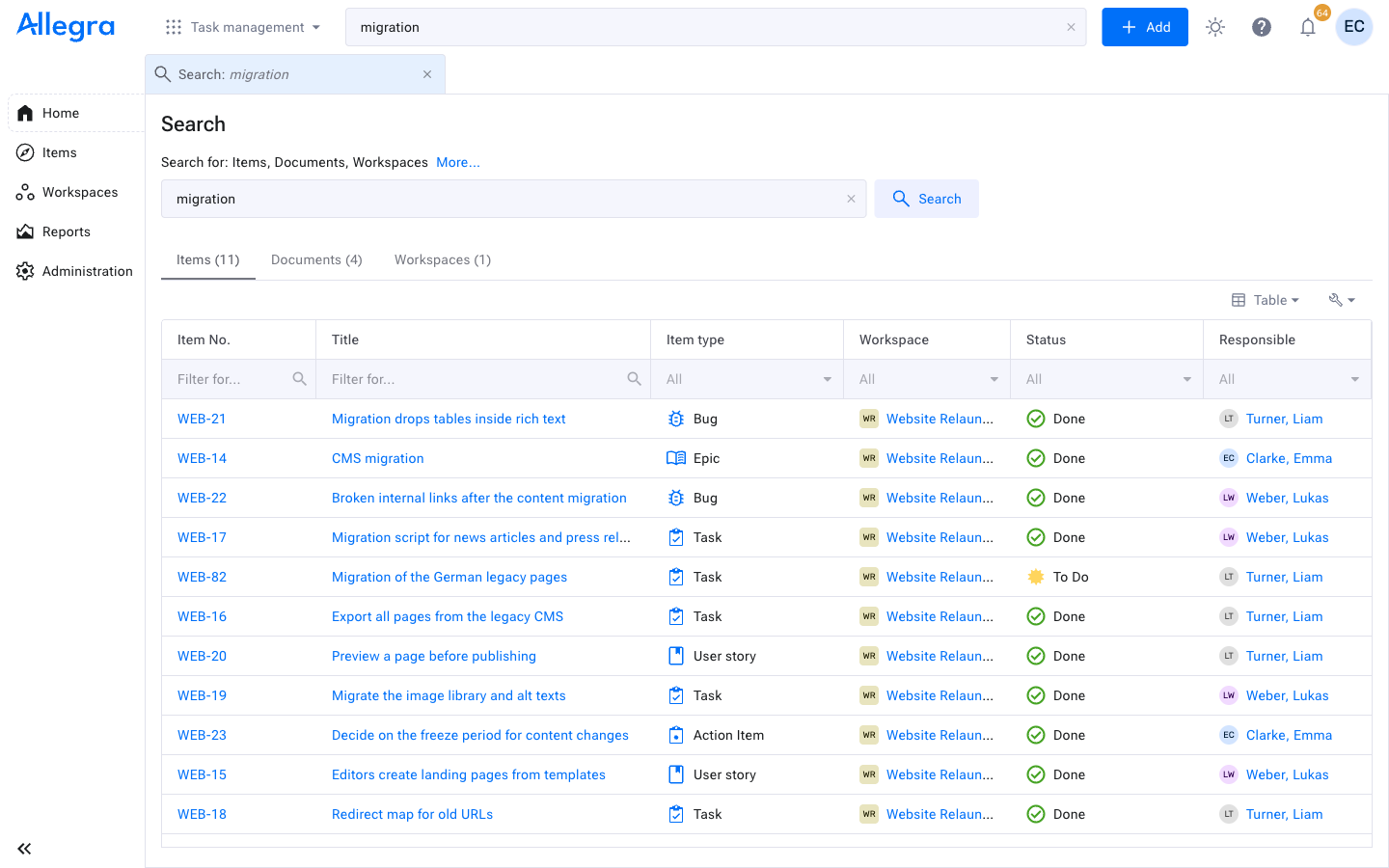
The search tab with one sub-tab per object type#
To change the search, edit the text in the field at the top of the tab and click Search or press Enter. All sub-tabs are updated. Allegra remembers the sub-tab you selected last.
Search Tabs for One Entity Type#
A tab for one object type shows the number of results above the list. For items and documents it also has a filter bar below the search field.
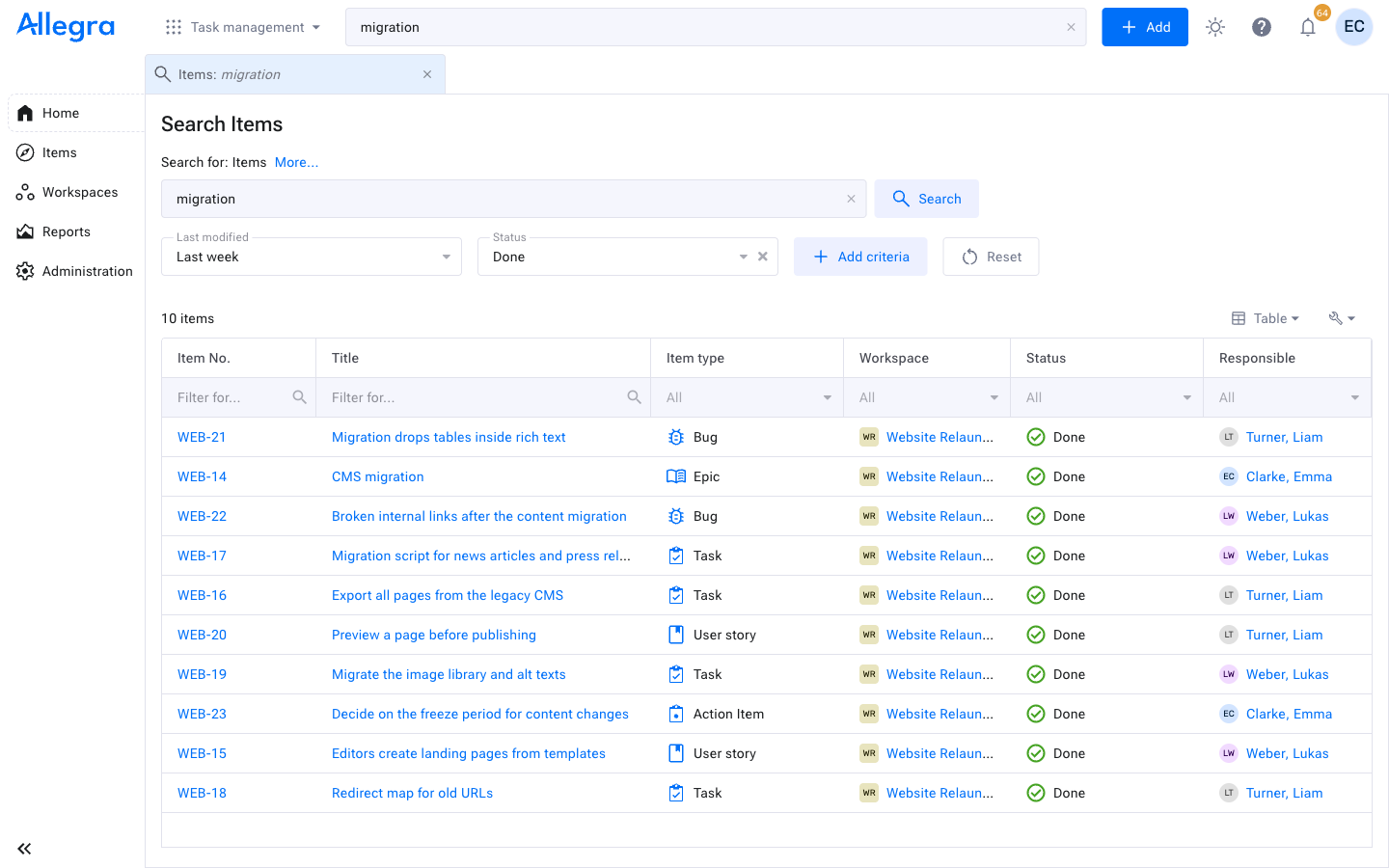
Search tab for items with the filter bar#
In the filter bar you can
limit the results by the last modified date,
select values for an attribute, for example one or more statuses,
add further attributes with Add criteria,
clear all criteria with Reset. Your search text remains.
If you set filters in the search menu before opening the tab, they are taken over.
List and Table View#
With the view button above the results you switch between two views. Allegra remembers your choice for each object type.
View |
Description |
|---|---|
List |
One entry per result with the same information as in the search menu. For documents, the entry includes an excerpt of the text with the words found in bold. This is the standard view for documents. |
Table |
One row per result with attributes in columns. This is the standard view for all other object types. |
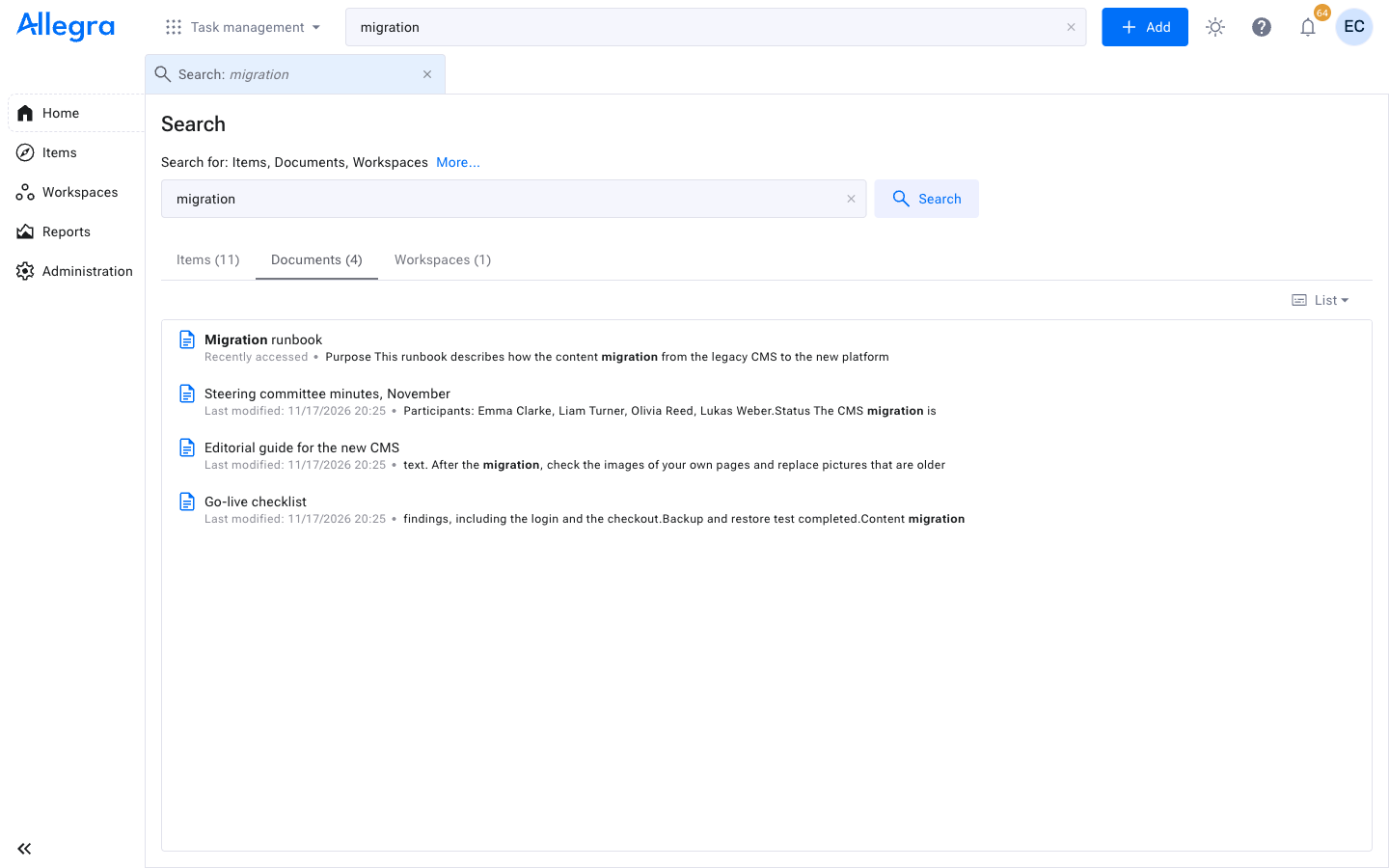
Documents in the list view with excerpts#
Click a result to open it. In the list view, the details card appears when you rest the mouse pointer on an item or document.
Working with the Table#
In the table view you can adapt the table to your needs:
Filter a column: Type a text or select a value in the field below the column heading.
Sort: Click a column heading. The sorting applies to the results shown. A new search is sorted by relevance again.
Choose columns: Open the layout settings (wrench symbol) and select Choose columns. Reset layout restores the standard columns.
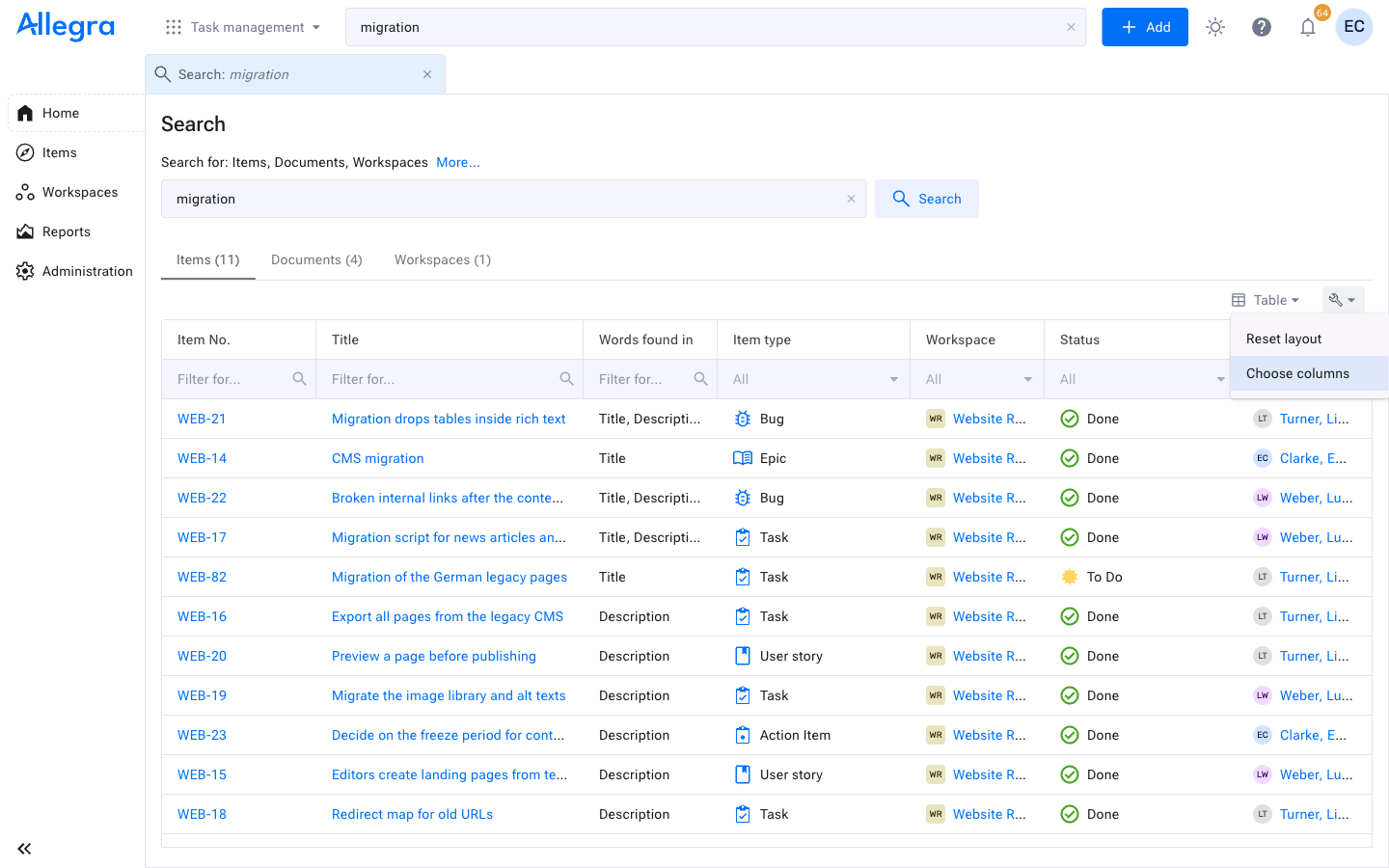
The layout settings of the result table#
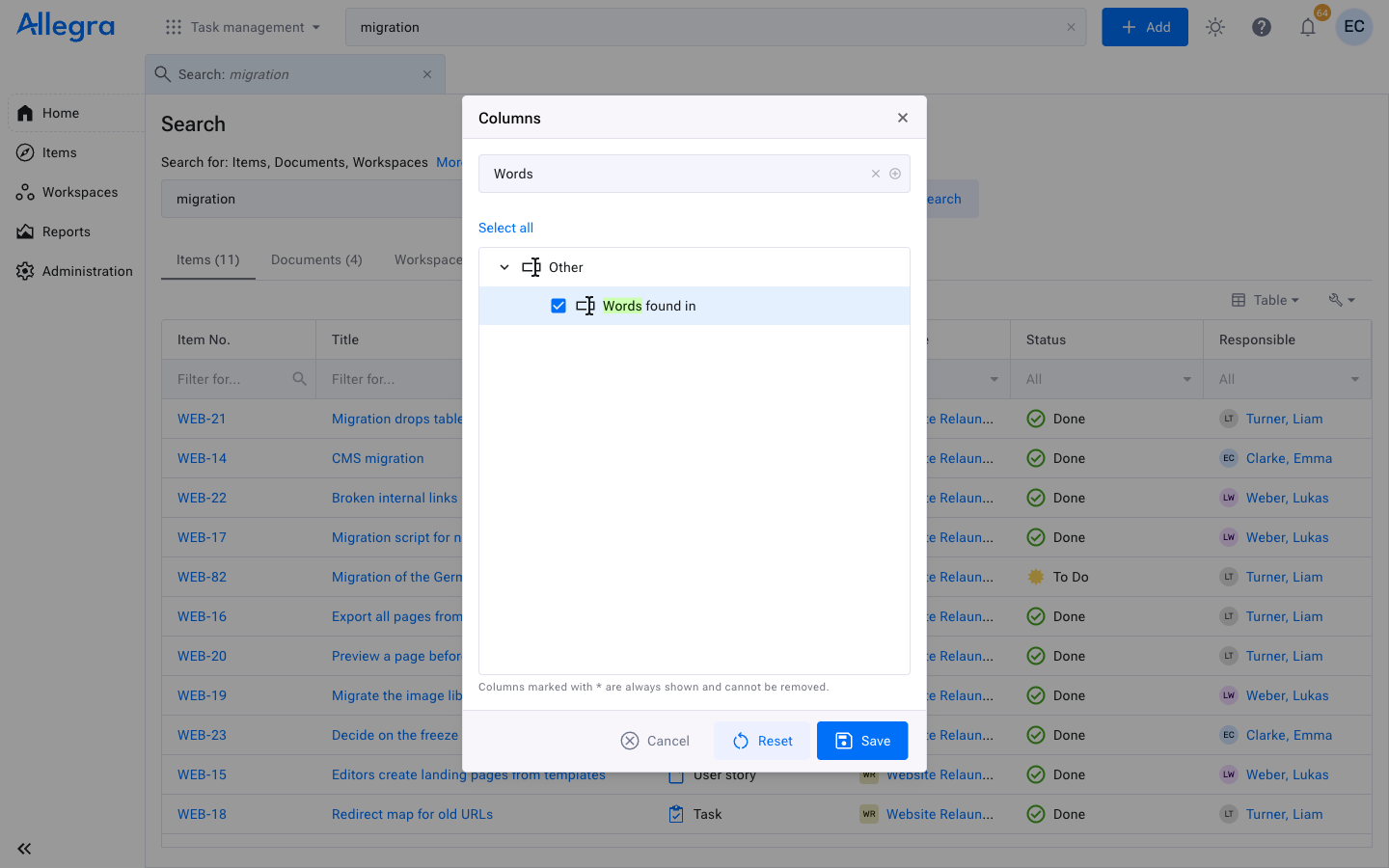
Choosing the columns of the result table#
Tip
Add the column Words found in to see in which attributes of an item your search text was found, for example in the title, the description or an attachment.
Order and Number of Results#
Results are ordered by relevance. A match in the title counts more than a match in the description or in an attachment, and recently changed objects rank higher than old ones.
A search tab shows up to 1000 results. If there are more, the note “Limited to” appears next to the number of results. Click Show all to load up to 10000 results. In most cases it is more helpful to make the search text more specific or to add a filter.
Note
The system administrator can change both limits.
Reusing a Search#
Each search tab has its own address in the browser, which includes the search text and the filters. You can save it as a bookmark or send it to a colleague. Your colleague sees the results that their permissions allow.
Search tabs stay open when you reload the page or log in again. Use Reload Tab to repeat the search and see the latest results.