

Rich text: mentions, checklists and reading views#
The description of an item, comments, rich text attributes and wiki documents are all written with the same rich text editor. This page describes the functions that are available in these places.
Mentioning people#
You draw a person’s attention to an item by mentioning them in the text.
Type
@in the text, followed by the first letters of the name. A list of matching people appears.Select the person from the list.
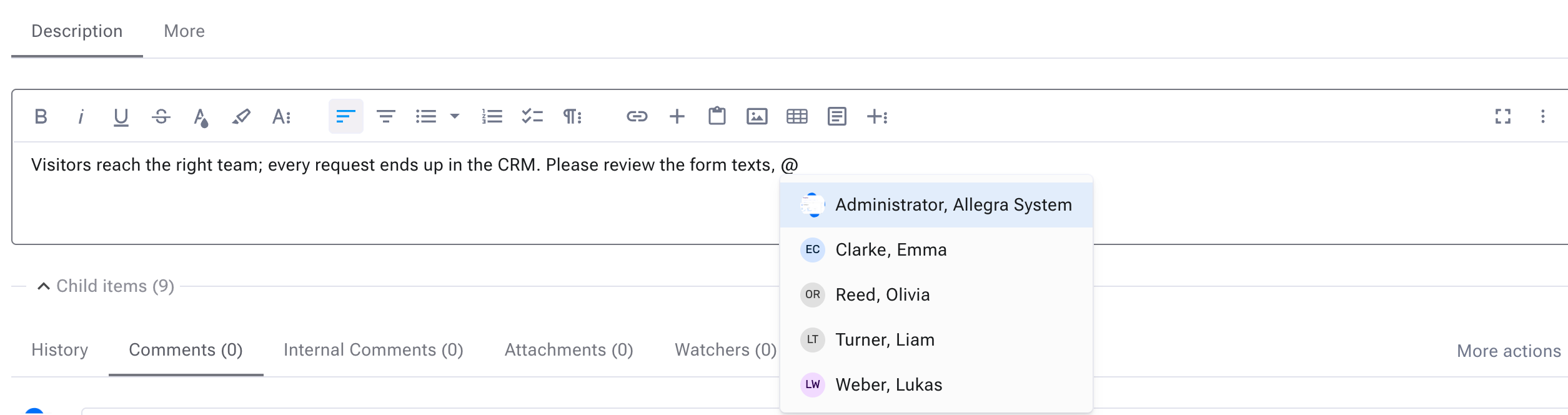
Mentioning a person in the item description#
You can mention people in the following places:
the item description
comments and internal comments
rich text attributes
wiki documents and comments on wiki documents
When the text is read, mentions are highlighted.
Notifications for mentions#
If you mention a person in a comment, an internal comment, the description or another rich text attribute of an item, the person receives an e-mail and a notification in Allegra when you save. This also applies to a new item. The e-mail lists every place in which the person was mentioned, together with the text. The subject names the place, for example “You were mentioned in a new comment: …”.
Only newly mentioned people are notified. If you edit a text, a person who was already mentioned in it is not notified again. If you copy an item, the people mentioned in it are not notified about the mention again. The usual notifications for a new item are still sent.
The following people receive no notification:
people who are not allowed to read the item
people who are mentioned only in an attribute that is hidden from them
guest users who are mentioned in an internal comment
people whom a guest user is not allowed to mention (see below)
Mentions in the text of a wiki document are not notified. Mentions in comments on a wiki document are notified in the same way as mentions in item comments.
Note
The e-mail is based on the “User mentioned in item” e-mail template (see E-mail templates). If you customized this template in an earlier version, mentions in the description and in rich text attributes use the template for item changes instead, until you update your template.
Mentioning guest users#
Guest users can be mentioned everywhere except in internal comments.
A guest user can only mention guest users of their own organizational unit and of the units below it. The same applies when a guest user adds other guest users as watchers.
The anonymous user is never suggested.
Checklists#
With a checklist you keep a to-do list or track the status of steps directly in the text. Checklists are available in wiki documents, in the item description, and in comments and internal comments.
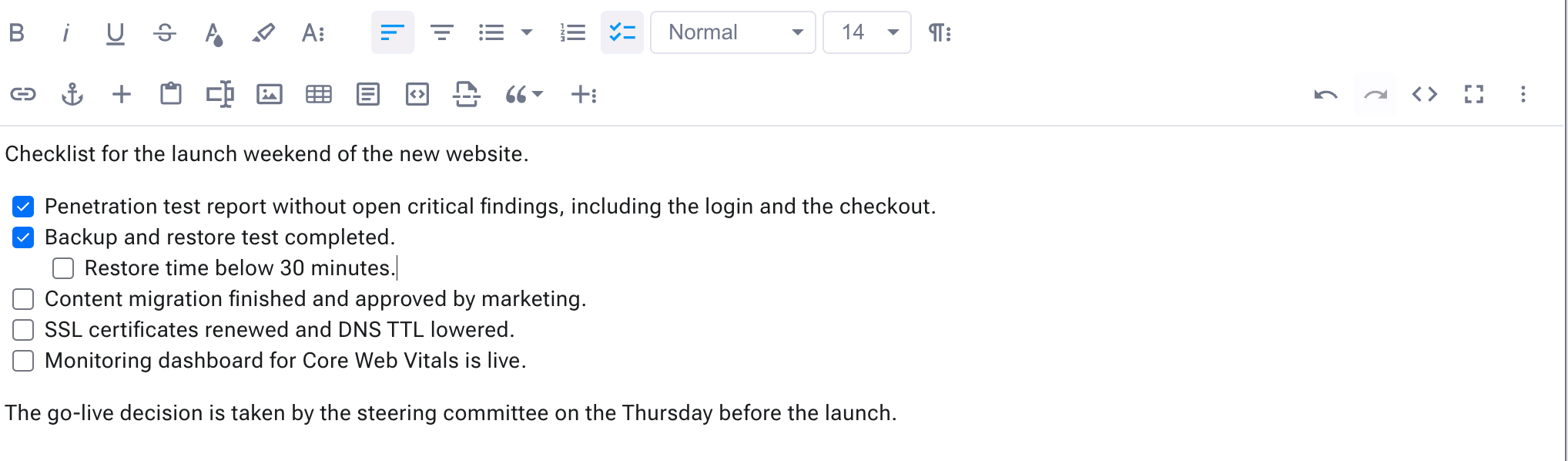
A checklist in the editor#
Creating a checklist#
There are three ways to create a checklist:
Click Checklist in the toolbar, next to the buttons for bulleted and numbered lists.
Select the checklist entry of the quick insert menu.
Type
[]or[x]at the beginning of a line.
Press Enter to add the next entry. A new entry is always unticked. With Tab and Shift+Tab you indent an entry or move it back. Nested lists remain checklists, and the ticks are kept.
To turn a checklist into a normal list, click the button for bulleted or numbered lists.
Ticking entries#
You tick entries while you edit the text: click the box, or press Ctrl+Enter (⌘+Enter on a Mac). In reading mode the boxes are shown but cannot be ticked.
Note
Checklists inside embedded inline items cannot be ticked in the editor of the surrounding document.
Checklists in tables#
A checkbox in a table cell is a checklist with one entry. To add a checkbox to several cells at once, select the cells and click Checklist.
Pasting checklists#
Checklists that you paste from Allegra, Confluence, GitHub or Google Docs remain checklists and keep their ticks. The same applies to lines that start with ☐ or ☑.
Printing and exporting#
Checklists are printed with their boxes. In an exported Word document the entries start with ☐ or ☑ instead of a bullet. In an exported PDF document the boxes are shown as images, also in table cells.
Printable width#
On a wide screen, long lines are hard to read. With Printable width you show the text on a centred sheet in A4 format, with the same line length in every place.
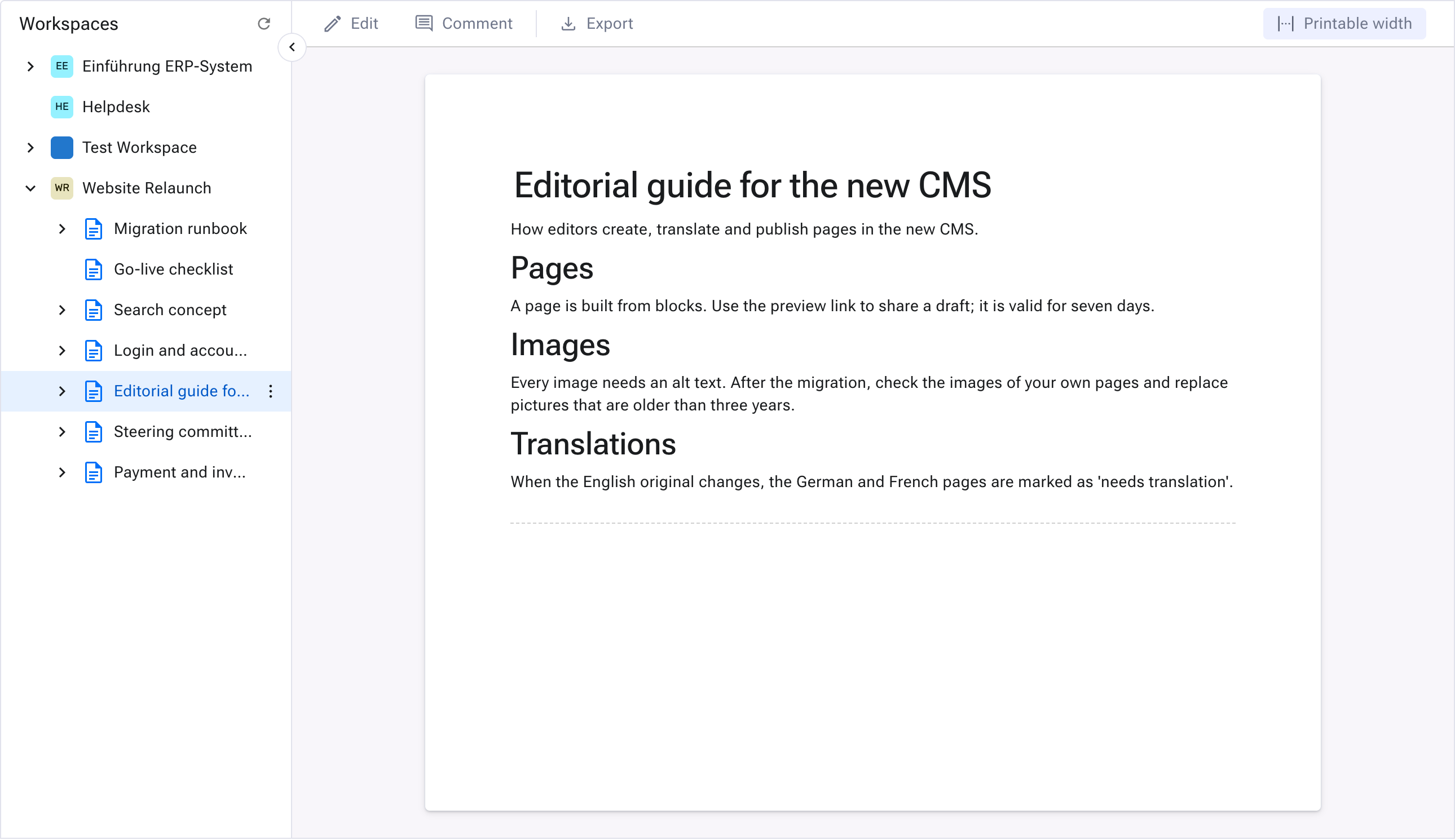
A wiki document in printable width#
You can switch Printable width on and off in the following places:
in the wiki, when you read and when you edit a document
on the document tab
in the full screen view of a rich text attribute
The setting is yours alone and applies everywhere: if you change it in one place, it also changes in the other places and in your other open tabs. Allegra keeps the setting when you log in again.
If the window is narrow, the margins of the sheet shrink first, so the text stays readable.
Full screen#
You can show the description or another rich text attribute of an item in full screen. This works when you read an item as well as when you edit it.
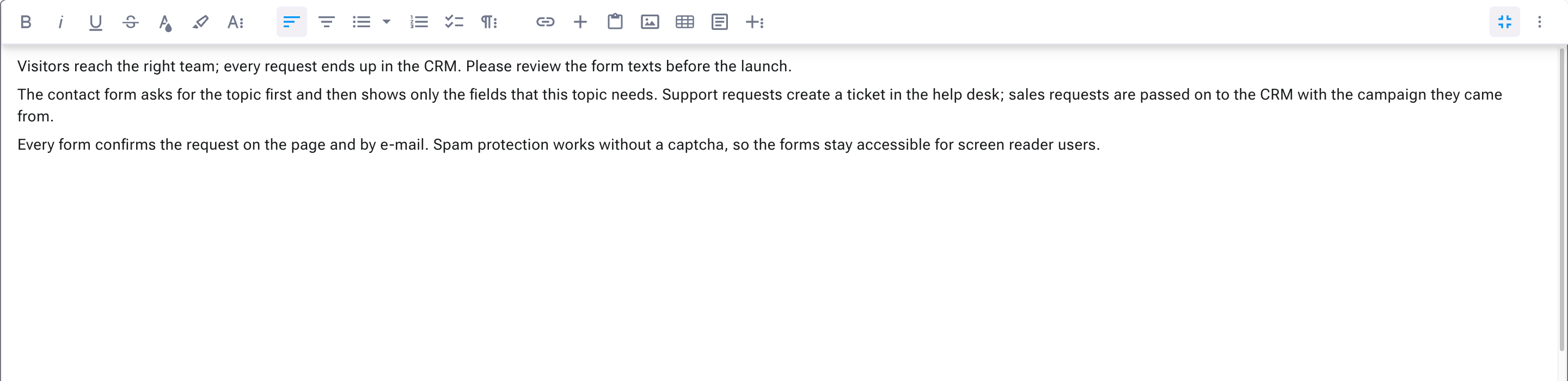
An item description in full screen#