
Importing items from Excel#
You import items from Excel spreadsheets. When Allegra recognizes an existing item, it updates that item where needed instead of creating a new one. New items must not contain an item number.
An importable Excel spreadsheet has the field names in its first row; each subsequent row describes one item. Before importing, make sure as far as possible that:
all people are given in the format “Last name, First name”
all people exist as users in Allegra
in the target workspaces, the people hold roles with the rights required to create and edit items
all dates are given in the format
YYYY-MM-DD
If the spreadsheet contains a WBS column, the WBS code determines the hierarchy level. The codes need not be unique — for example, all items on the first level carry “1”, those on the second level “1.1”, and so on.
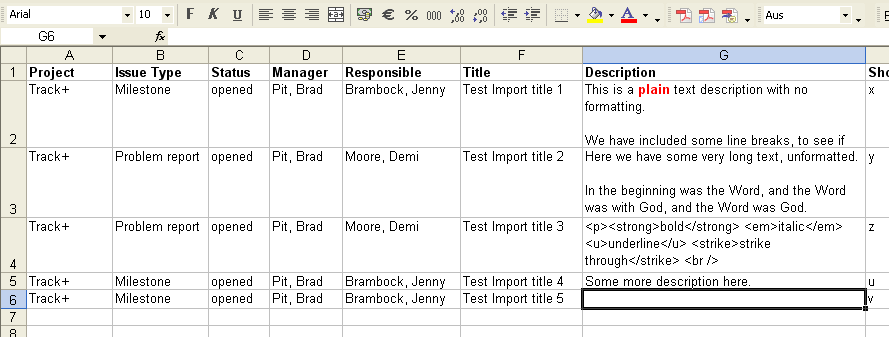
Importing items from Excel#
Work breakdown structures in Excel spreadsheets#
You specify hierarchical structures in Excel in three ways:
via the WBS code
via item number or title
via the parent item
If the spreadsheet contains a WBS code column, the structure of the WBS code determines the hierarchy level. For example: first level “1”, second level “1.1”, and so on. The digits themselves do not affect the order — you can choose them freely. The order of items derives solely from the Excel row number.
You indent items — that is, assign them to a deeper level — by prefixing the item number or title with a corresponding number of “>” characters.
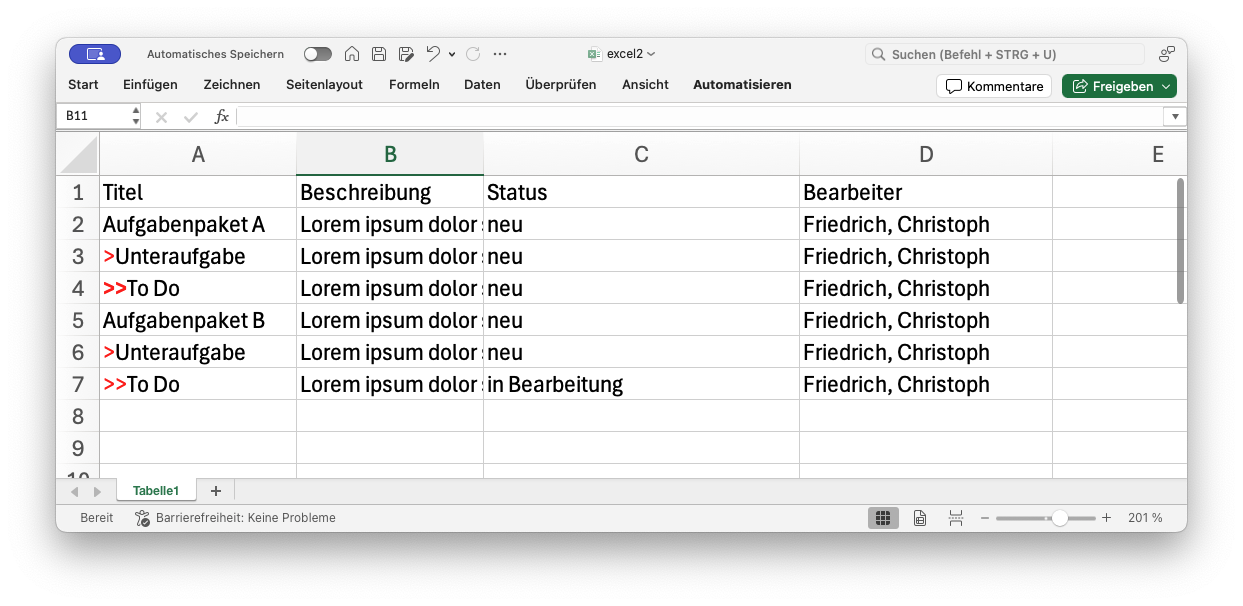
Hierarchical structure in Excel spreadsheets#
Predecessor-successor relationships in Excel spreadsheets#
For predecessor-successor relationships, the Excel spreadsheet needs a column for the item number or the WBS code as well as a column for links. The relationship then looks like this:
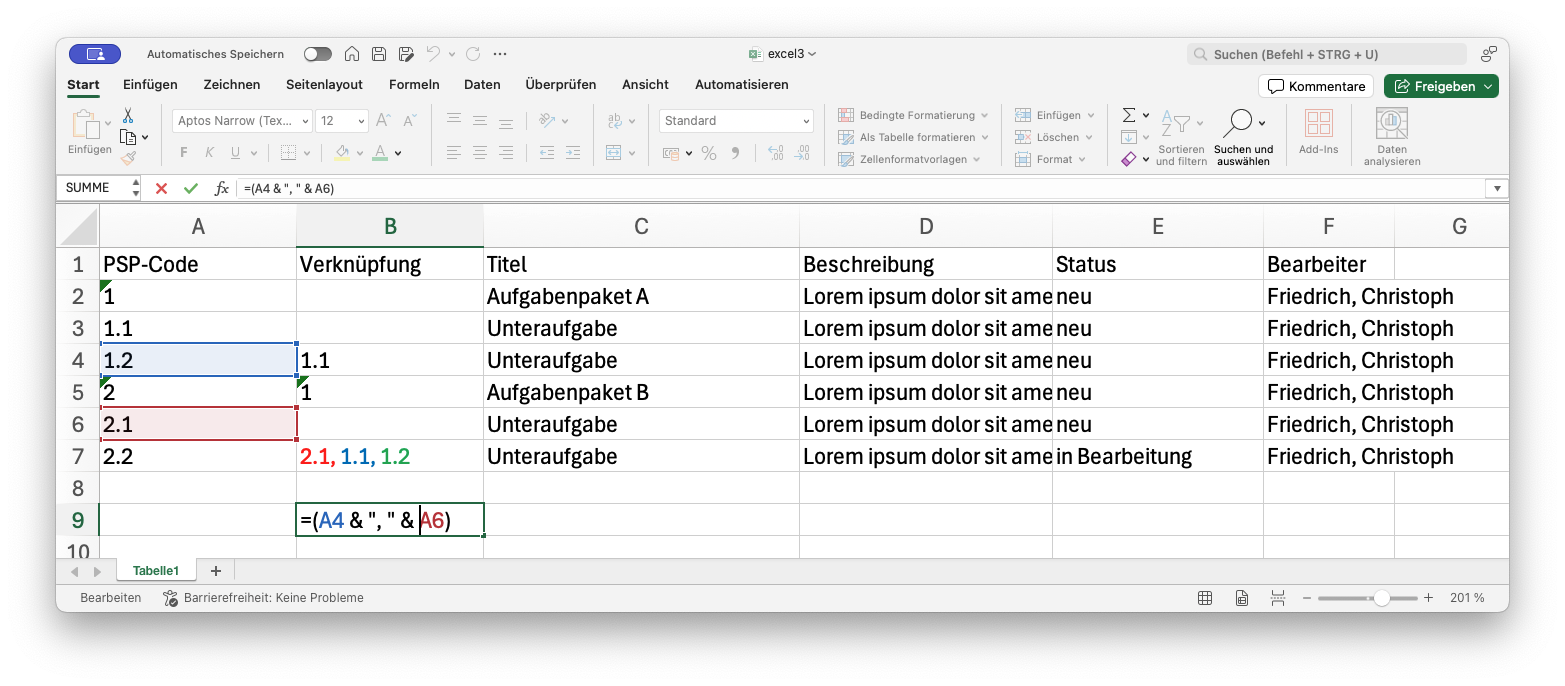
Predecessor-successor relationships in Excel spreadsheets#
Hint
Instead of hard-coding WBS codes, define variables in the Excel spreadsheet and reference them in the WBS column.
To import items from an Excel sheet, switch to the item overview and drag the file into the right-hand area of the navigator.
Select the sheet from which you want to import items.
Allegra maps all columns to matching fields as far as possible. You control the mapping manually where needed. Allegra remembers your most recent mapping definitions and reuses them in later imports — saving you the mapping step.
In the next step, you decide how Allegra handles missing required values: reject the row or insert a default value.
If there are problems with the spreadsheet, Allegra shows notes pointing to the affected row and data. You correct the spreadsheet and upload it again.
If everything runs without errors, Allegra creates one item from each row. You import system and user-defined fields. Allegra does not import editors, readers, efforts, and budgets.
You do not need to specify a project in the spreadsheet — you choose it during the import for all entries together.
The column order is not important. Keep it the same across imports, though, to minimize the configuration effort.
The column headers should match the Allegra fields. An unmapped column header means: Allegra ignores the column values.
Allegra maps column headers as well as possible — based on:
the localized field configuration (localized labels)
the non-localized field configuration (original labels)
the field names
If Allegra finds no matching mapping, you complete the mapping manually. The import wizard shows the field labels in the global scope.
As soon as you click Next, Allegra saves the mapping per user and
uses it as the default for the next import.
Composite fields go in a single column — you separate the sections
with |.
Multi-value fields contain all values in the same cell — you separate the individual values with a comma.
Before creating an item, Allegra validates each row several times:
Allegra checks whether all required fields are present — either directly in the spreadsheet or via a chosen default value.
For each cell value, Allegra checks whether it is valid. The exact handling depends on the cell type:
Label/text fields: you specify selection list entries by their label. For people, “Last name, First name” applies. Allegra checks whether an entry with this label exists and is valid — manager rights in the project, for instance.
Boolean fields: Excel cells are either boolean or contain “Y”, “N”, “true”, or “false”.
Numeric fields: Excel cells are either numeric — or the number format matches the user’s locale or is ISO. Allegra interprets other values as text.
Date fields: Excel cells are either of the date type — or the format matches the locale or is ISO (
YYYY-MM-DD).
For each row, Allegra checks whether the item already exists. This works most reliably when you carry the item numbers in the spreadsheet. If that is not possible, define a combination of columns that uniquely identifies each item — for example, author, project, and title. These three fields must not change between reimports, and their combination must be unique. If Allegra finds no matching item, it creates a new one. If it finds one, it applies the changes from the non-identifying columns.
Allegra validates each row against the regular field validators — exactly as when creating an item through the user interface.
If all validations pass, Allegra creates the row as a new item or updates the existing one.
During the import, conflicts may arise — for example, when Allegra recognizes an Excel row as an existing item but the values differ.
If the Excel spreadsheet lacks a column for the last modification date, Allegra cannot resolve conflicts chronologically.
With a modification date, Allegra allows intelligent conflict handling based on the chronological order of the changes. Allegra distinguishes between fields with an explicit history and those without. You enable the explicit history per field — the default is “without”.
For fields with an explicit history, Allegra checks whether the first old value from the history (after the last modification date) matches the current Excel value. If it matches, the change took place only in Allegra — Allegra keeps the Allegra value without prompting. Otherwise, Allegra asks you to resolve the conflict.
For fields without an explicit history, it cannot be reliably determined whether the change took place only in Allegra or also in Excel. If at least one entry exists in the shared history after the last modification date, Allegra treats every changed field without an explicit history as a conflict.
If no history data exists since the last modification, Allegra overwrites the values with those from the Excel file — without conflict resolution.