
Creating HTML templates#
You can create PDF documents from items or wiki documents using HTML/Freemarker templates. This section explains how you can convert text and metadata from your documents into PDF format using an HTML/Freemarker template.
Developing an HTML template#
To develop HTML templates, all you need is a web browser with debugging functionality. You should have project administrator rights or be logged in as a system manager or system administrator. Go to Administration > Templates > Wiki export templates. Open the “HTML templates” folder and, within it, the template folder you want.
The easiest approach is to start from an existing template when developing your own. You can change the CSS styles directly in Allegra.
The template structure#
An HTML template consists of a ZIP file with the extension “.hlx”. Authorized users can upload the template directly in the wiki or in the administration area.
The next figure shows an expanded template. The top level must contain the template files directly and must not be nested inside a folder.
Important
The template name (e.g. Framed.hlx), the main template file (e.g. Framed.html), and the optional properties file (e.g. Framed.properties) must all share the same base name.
You can create the ZIP file with the following command in the template directory:
zip -r ../Framed.hlx *
The individual files and folders are explained below.
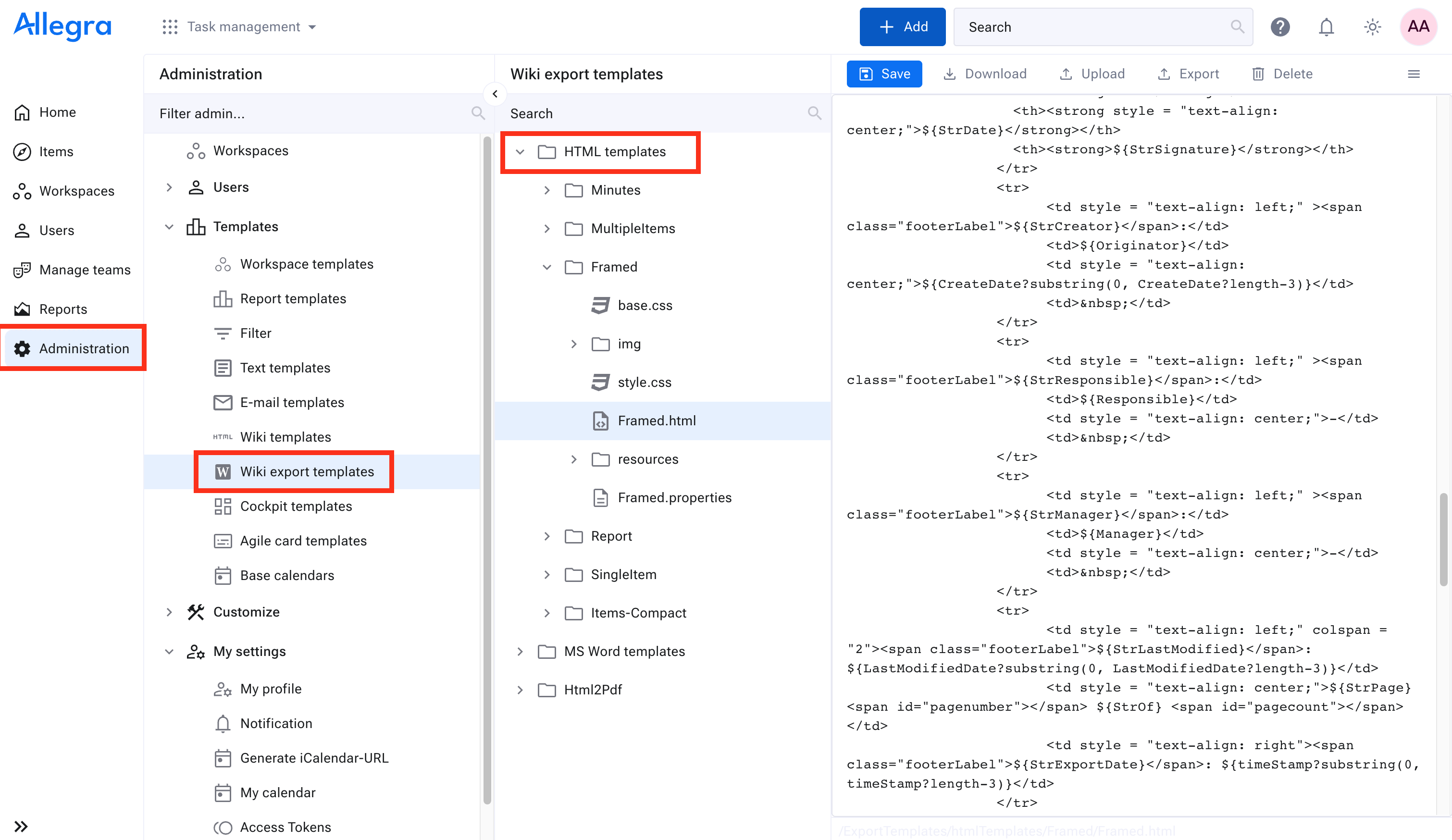
Expanded template#
{templateName}.html: Example:Framed.html. The ZIP file must contain, at the top level, an HTML template file with the same base name as the ZIP file. The HTML file may contain Freemarker expressions.{templateName}.properties: Example:Framed.properties. Optional file with parameters for controlling the display properties (see below). This file may also contain Freemarker expressions.resourcesdirectory: Must have exactly this name. Contains images and other resources.fontsdirectory: Must have exactly this name. Contains fonts for PDF document generation.imgdirectory: Optional directory for additional images.One or more CSS files for styling (e.g.
base.css,style.css).
The template file#
The template file is an XHTML file with Freemarker expressions.
Please make sure that the template file is valid XHTML (all tags must be properly closed).
The name of the template file and the template name must be identical, with the extension .html.
All item fields can be used as Freemarker expressions by entering their unique field name. You can find field names under Administration > Customize > Item attributes, or in the item overview via the column selector.
Freemarker variables#
The following Freemarker variables are available in templates:
Template and resource paths
cssBasePath: Absolute path to the template directory. Example:
href="${cssBasePath}/base.css"imgBasePath: Absolute path to the
resourcesdirectory. Example:${imgBasePath}/allegraLogo.pngserverUrl: Absolute server URL for accessing resources.
Timestamp variables
timeStamp: Full date and time of the PDF export (formatted).
timeStampDate: Only the date part of the export timestamp.
timeStampTime: Only the time part of the export timestamp.
currentYear: Current year as a 4-digit integer.
Localization variables
locale: Language code of the user (e.g. “en”, “de”).
pageLbl: Localized word for “page”.
ofLbl: Localized word for “of” (e.g. page 1 of 17).
Export metadata
reportAuthorLbl: Name of the person who exports the PDF.
licenseHolder: Name of the license holder.
Wiki/document-specific variables
wikiContent: HTML content of the wiki document (XHTML format).
summary: Summary/table of contents of the wiki document (XHTML format).
parentSynopsis: Title of the parent document, if available.
parentSynopsisElided: Title of the parent document, truncated to 40 characters with “…”.
Item variables
workItems: List of items to be exported (see WorkItem structure below).
workItemID: ID of the item to be exported.
workItemNo: Item number (workspace-specific or global).
IssueNo: The item number (takes the workspace-specific ID setting into account).
projectName: Name of the project.
projectTypeID: ID of the project type.
projectTypeLbl: Label/name of the project type.
General item field variables
These variables are available directly for single-item and wiki exports:
Synopsis: Item title/summary.
ItemType: Name of the item type (e.g. “Task”, “Bug”).
Originator: Name of the person who created the item.
Responsible: Name of the responsible.
Manager: Name of the manager.
CreateDate: Creation date of the item.
LastModifiedDate: Date of the last change.
LastEditedBy: Name of the person who last edited the item.
Custom fields are available via their configured field name (e.g. ${MeetingTime}, ${MeetingLocation}, ${Participants}).
Dynamic field access
Fields can be accessed in three ways:
By field ID:
${f123}where 123 is the field ID.By field name:
${priority}using the internal field name.By field label:
${Priority}using the localized field label.
For rich text fields, use the _unescaped suffix for XHTML content: ${f456_unescaped}
For lookup/option fields, access the raw ID with the ID suffix: ${priorityID}
WorkItem object structure#
When iterating over workItems, each element provides:
synopsis: Item title/summary.
workItemID: Unique item ID (integer).
workItemNo: Formatted item number (string).
projectName: Name of the parent project.
projectTypeID: ID of the project type (integer).
tabs: List of form tabs with field groups.
fieldIdToValue: Map of field values by field ID (e.g.
item.fieldIdToValue["f123"]).fieldNameToValue: Map of field values by field name (e.g.
item.fieldNameToValue["priority"]).comments: List of CommentRow objects (if included in the export).
internalComments: List of internal/private CommentRow objects (if included).
history: List of history entries (map with keys:
changedByID,changedByName,changedOn,diffFull,token).costs: List of effort/cost entries (map with keys:
changedByID,changedByName,description,subject,effortDateAgoFormat,account,currency,cost,hours,token).accountingBean: Budget and planning information (see AccountingBean structure below).
reportBeanLinksSet: Sorted set of linked items (see ReportBeanLink structure below).
children: List of child WorkItem objects (sub-items).
Tab structure: Each tab has a title (string) and contains panels (list).
Panel structure: Each panel has a title (string) and contains fields (list).
Field structure: Each field provides:
name: Localized field label (string).
value: Field value (string).
fieldID: Unique field ID (integer).
hidden: Whether the field is hidden due to access rights (boolean).
CommentRow structure#
Each comment in comments or internalComments provides:
id: Comment ID (integer).
comment: Comment text/HTML content.
author: Name of the last person who changed the comment.
authorID: ID of the last editor (for loading the avatar).
authorPhone: Phone number of the author.
createdBy: Name of the original comment creator.
createdByID: ID of the original creator.
created: Creation date (date object).
createdAgo: Human-readable time since creation (e.g. “2 hours ago”).
changedAt: Date of the last change (date object).
changedAgo: Human-readable time since the last change.
changedByName: Name of the person who last changed the comment.
edited: Whether the comment was edited after creation (boolean).
editable: Whether the current user can edit the comment (boolean).
like: Whether the current user has liked the comment (boolean).
noOfLikes: Number of likes (integer).
likedBy: List of names that have liked the comment.
internalComment: Whether this is an internal comment (boolean).
token: Security token for loading avatars/resources.
hasOriginalEmail: Whether an original email is attached (boolean).
attachments: List of email attachments (if from an email).
ReportBeanLink structure#
Each link in reportBeanLinksSet provides:
objectID: Link object ID (integer).
workItemID: ID of the linked item (integer).
linkedItemNo: Item number of the linked item (string).
linkedItemTitle: Title of the linked item (string).
linkedItemIncluded: Whether the linked item is included in the export (boolean).
linkedItemStatusID: Status ID of the linked item (integer).
linkTypeID: Type of the link (integer).
linkDirection: Direction of the link (integer).
linkTypeName: Name of the link type (string).
AccountingBean structure#
The accountingBean provides budget and time-tracking information:
Tracking flags
workTracking: Whether work/time tracking is enabled (boolean).
costTracking: Whether cost tracking is enabled (boolean).
Expense totals
expenseHours: Total hours spent (string).
expenseCost: Total cost spent (string).
timeUnitExpenses: Time unit for expenses (string).
currency: Currency code (string).
Budget information
budgetTimeStr: Budgeted time as a formatted string.
budgetCostStr: Budgeted cost as a formatted string.
budgetHoursDouble: Budgeted hours (double).
budgetCostDouble: Budgeted cost (double).
budgetByName: Name of the person who set the budget.
budgetDescription: Budget description.
budgetTimeUnitInt: Time unit for the budget (integer).
seeBudget: Whether the user can see the budget (boolean).
modifyBudget: Whether the user can change the budget (boolean).
Planned values
plannedTimeStr: Planned time as a formatted string.
plannedCostStr: Planned cost as a formatted string.
plannedTimeDouble: Planned time (double).
plannedCostDouble: Planned cost (double).
plannedByName: Name of the person who set the plan.
planDescription: Plan description.
plannedValueTimeUnit: Time unit for planned values (integer).
seePlan: Whether the user can see the plan (boolean).
modifyPlan: Whether the user can change the plan (boolean).
Remaining effort
remainingPlannedHoursStr: Remaining planned hours as a string.
remainedPlannedCostStr: Remaining planned cost as a string.
remainingPlanTime: Remaining planned time (double).
remainingPlanCost: Remaining planned cost (double).
remainedPlannedByName: Name of the person who set the remaining effort.
remainingTimeUnit: Time unit for remaining values (integer).
seeRemainingPlan: Whether the user can see the remaining effort (boolean).
modifyRemainingPlan: Whether the user can change the remaining effort (boolean).
Completion degree
timeCompletionDegree: Time-based completion degree (double, 0-100).
costCompletionDegree: Cost-based completion degree (double, 0-100).
timeBarGraphicsList: HTML for the time progress bar.
costBarGraphicsList: HTML for the cost progress bar.
Page layout elements#
The PDF generator supports special div elements with specific IDs for header, footer, and margin areas.
Use the margin-box class together with these IDs:
Header area
topLeftCorner,topLeft,topCenter,topRight,topRightCorner
Footer area
bottomLeftCorner,bottomLeft,bottomCenter,bottomCenterFirst(first page only),bottomRight,bottomRightCorner
Page margins
leftTop,leftMiddle,leftBottomrightTop,rightMiddle,rightBottom
Page number placeholders
Use these span elements in headers/footers for automatic page numbering:
<span id="pagenumber"></span>- Current page number<span id="pagecount"></span>- Total number of pages
Loading server resources
To load the company logo from the server:
<img src="${serverUrl}/logoAction.action?convertSVGToPNG=true&logoType=r" />
To load user avatars (e.g. in comments):
<img src="${serverUrl}/personAvatar.action?convertSvgToPng=true&personID=${comment.authorID}&token=${comment.token}" />
Localization-based content
Use Freemarker conditions for localized content:
<#if (locale)?has_content && locale=="de">
  <#assign StrPage="Seite" StrOf="von">
<#else>
  <#assign StrPage="Page" StrOf="of">
</#if>
Page breaks
To force a page break between sections:
<div style="page-break-after: always;"></div>
Or use a CSS class:
<div class="pagebreak"></div>
Example of template iteration:
<#list workItems as item>
  <h1>${item.synopsis}</h1>
  <#list item.tabs as tab>
    <h2>${tab.title}</h2>
    <#list tab.panels as panel>
      <h3>${panel.title}</h3>
      <#list panel.fields as field>
        <#if !field.hidden>
          <p><strong>${field.name}:</strong> ${field.value}</p>
        </#if>
      </#list>
    </#list>
  </#list>
</#list>
The template configuration file#
If the template directory contains a {templateName}.properties file, it is used by the system.
This file is optional and may contain Freemarker expressions. All document fields can be used as
Freemarker expressions within it. The available configuration options are:
contentMaxWidth: An integer in pixels. If the “width” attribute of an image or a table is larger than this value, the corresponding object is scaled.
watermarkImgName: The name of an image file whose image is to be used as a watermark.
watermarkText: This text is displayed as a watermark, centered on each page and rotated if applicable.
watermarkTextSize: Watermark text size in points.
watermarkTextColor: Watermark text color in hex notation (e.g.
#000000).watermarkTextRotation: Rotation angle. 0 is horizontal, 90 is vertical.
renderLinks: Set to
trueto display the list of linked items. The default isfalse.equationSize: LaTeX equation text size in points (e.g.
20).templateTarget: Specifies the template target type:
1- Wiki document export2- Single-item form export3- Multi-item form export
All configuration fields are optional. If both watermarkImgName and watermarkText are defined,
watermarkImgName takes precedence.
Example properties file:
# Content width for scaling
contentMaxWidth=600

# Watermark settings (optional)
#watermarkText=CONFIDENTIAL
#watermarkTextSize=48
#watermarkTextColor=#CCCCCC
#watermarkTextRotation=45

# Display linked items
#renderLinks=true

# LaTeX equation size
#equationSize=20

# Template target (1=Wiki, 2=Single item, 3=Multiple items)
templateTarget=2
Practical examples#
Wiki document template#
Basic structure for exporting wiki documents:
<!DOCTYPE html>
<html>
<head>
<meta charset="utf-8" />
<link href="${cssBasePath}/style.css" rel="stylesheet" type="text/css" />
</head>
<body>
<!-- Header with logo -->
<div id="topRight" class="margin-box">
<img src="${serverUrl}/logoAction.action?convertSVGToPNG=true&logoType=r" />
</div>
<!-- Footer with page numbers -->
<div id="bottomCenter" class="margin-box footer">
${pageLbl} <span id="pagenumber"></span> ${ofLbl} <span id="pagecount"></span>
</div>
<!-- Cover page -->
<div style="page-break-after: always;">
<h1>${Synopsis}</h1>
<p>Created by: ${Originator}</p>
<p>Last modified: ${LastModifiedDate}</p>
</div>
<!-- Table of contents -->
<#if summary?? && summary?has_content>
<h1>Contents</h1>
${summary}
</#if>
<!-- Document content -->
<div class="content">
${wikiContent}
</div>
</body>
</html>
Item export template#
Template for exporting multiple items with comments and history:
<#if workItems?has_content>
  <#list workItems as workItem>
    <h1>${workItem.synopsis}</h1>

    <!-- Item fields -->
    <#if workItem.tabs?has_content>
      <#list workItem.tabs as tab>
        <#list tab.panels as panel>
          <#list panel.fields as field>
            <#if !field.hidden>
              <p><strong>${field.name}:</strong> ${field.value}</p>
            </#if>
          </#list>
        </#list>
      </#list>
    </#if>

    <!-- Comments -->
    <#if workItem.comments?has_content>
      <h2>Comments</h2>
      <#list workItem.comments as comment>
        <div class="comment">
          <strong>${comment.author}</strong>
          <span class="date">${comment.changedAgo}</span>
          <div>${comment.comment}</div>
        </div>
      </#list>
    </#if>

    <!-- Linked items -->
    <#if workItem.reportBeanLinksSet?has_content>
      <h2>Links</h2>
      <table>
        <tr><th>Type</th><th>Item</th><th>Title</th></tr>
        <#list workItem.reportBeanLinksSet as link>
          <tr>
            <td>${link.linkTypeName}</td>
            <td>${link.linkedItemNo}</td>
            <td>${link.linkedItemTitle}</td>
          </tr>
        </#list>
      </table>
    </#if>

    <!-- Page break between items -->
    <#if workItem_index < workItems?size - 1>
      <div style="page-break-after: always;"></div>
    </#if>
  </#list>
</#if>
Checking for undefined attributes#
Use a macro to safely check custom fields that may not be defined:
<#macro checkdef attribute>
  <#if (attribute?eval)?has_content>
    ${attribute?eval}
  <#else>
    <span style="color: red;">
      <#if locale == "de">
        Bitte Attribut "${attribute}" konfigurieren
      <#else>
        Please configure attribute "${attribute}"
      </#if>
    </span>
  </#if>
</#macro>

<!-- Usage -->
<p>Meeting time: <@checkdef "MeetingTime"/></p>
<p>Location: <@checkdef "MeetingLocation"/></p>