
Creating a workspace from scratch#
sysman sysadmin
Every item needs a workspace or a project. So you can only start using Allegra once at least one such workspace exists and you hold a role there with the appropriate rights.
You create sub-workspaces for any workspace in which you hold workspace administrator rights.
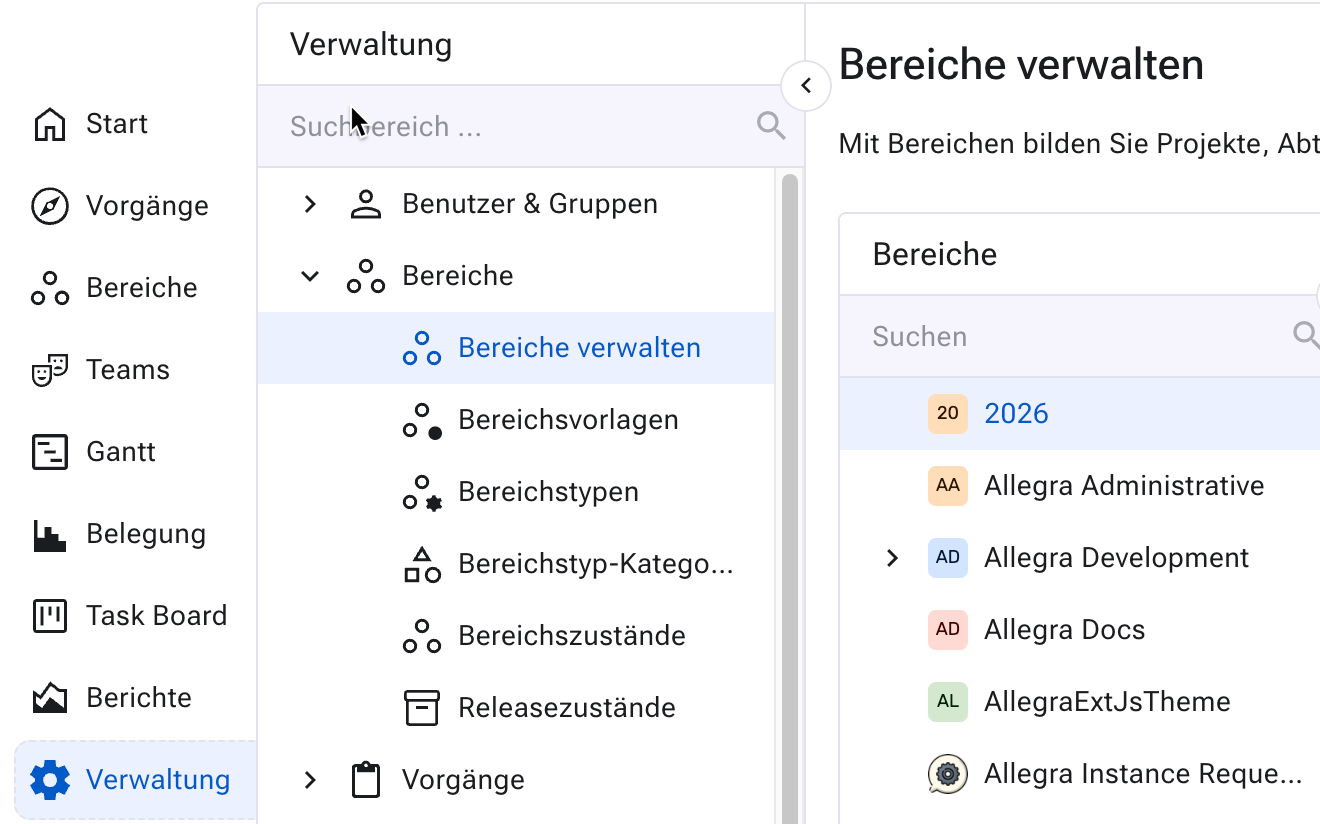
To create a project from scratch, go to Administration >
Workspaces > Manage workspaces.
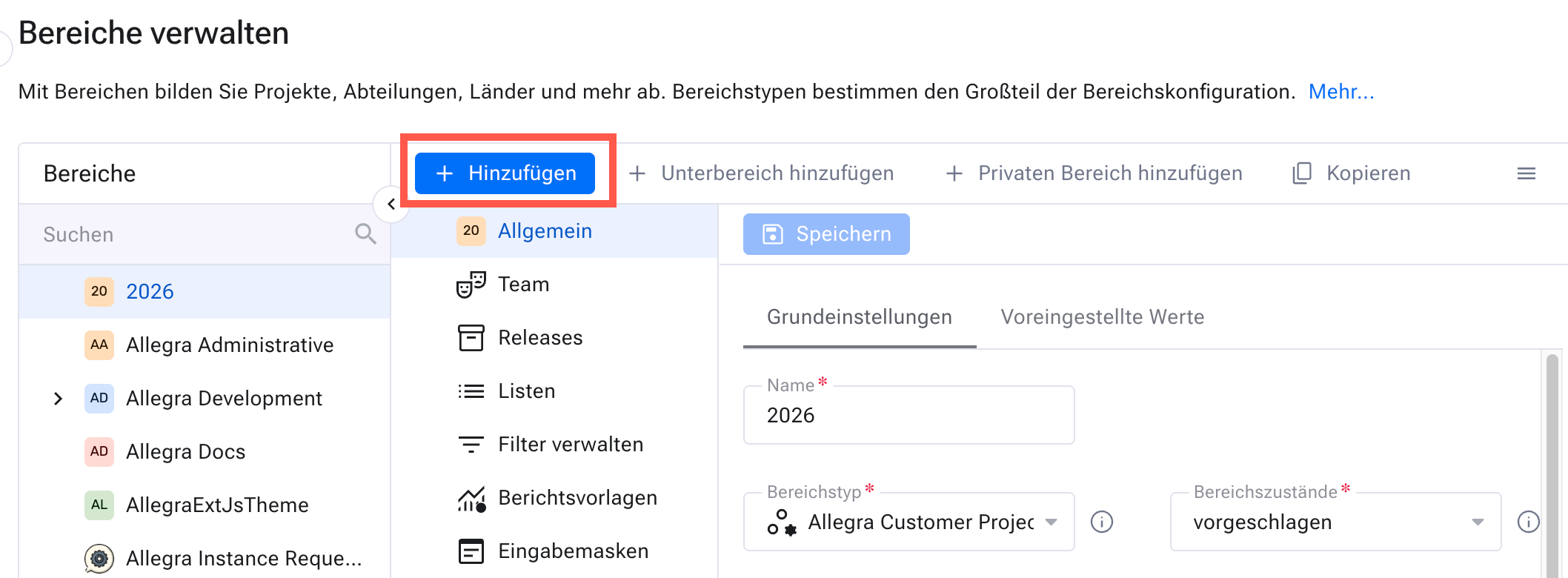
Click Add and follow these points:
Fill in the details on the
Basic settingstab. Use the context help if an entry is unclear.Choose a suitable workspace type. It largely determines the configuration of the new workspace (see Workspace types).
Attention
The selected workspace type must have the item type “Task” — or another type with the “Task” type flag — enabled if you want to use the Gantt chart.
A workspace has a workspace state that determines its visibility for regular users and defines what is allowed in the workspace. For more, see Archiving a workspace.
Upload an avatar image in PNG, JPEG or WEBP format (at least 32 × 32 pixels).
Links establish relationships between items — such as finish-to-start relationships in classic project management or “is implemented by” relationships between requirements and the tasks that realize them. For more, see Linking items.
Attention
Enable item links to use Gantt dependencies.
If your system is configured for workspace-specific item numbers, enter a globally unique prefix such as “TRP” for each workspace. The item number is then composed of the prefix, a hyphen and a sequential number.
Enable versioning if you manage documents in the wiki and want to compare them in different versions (see Version management).
Enable the management of working time and material costs if you want to plan and track efforts.
Choose a base calendar for holidays and other non-working times.
Switch to the
Default valuestab. These values take effect when a form does not contain the corresponding fields or when an item is created by email.You link each workspace to an email account. When an email arrives at this account, Allegra creates a new item (see Incoming email connection).
Important
Always use an email account for a single workspace only. So do not use the system-wide inbox account as a workspace-specific account at the same time — this leads to faulty behavior.
Attention
Set up the email account on your mail server before you use it here.
Click
Savein the toolbar.
Your workspace is now configured for creating and managing items. So that team members can access it, assign them roles (see Assigning roles).