

Releases, sprints & backlogs#
wsman sysman sysadmin
Allegra organizes all items in workspaces. You structure workspaces over time using phases.
Phase is the umbrella term for:
release
sprint
backlog
Phases can be arranged hierarchically — for example, the sprints of a release. With the right permissions, you create, change and delete phases.
Phases in classic project management#
In classic project management, you work — if at all — with releases. For software, these are classic versions such as 26.3.1. For hardware, people tend to speak of “lab sample”, “pilot series” and “series”. In the software domain, you also distinguish between released and unreleased releases — for released releases, you no longer take in any requirements or changes.
Phases in agile project management#
In agile project management, you use all three kinds of phases.
The backlog contains all requirements (epics and stories) that are not yet assigned to a sprint or release.
Over time, you move items out of the backlog into a sprint and work on them there.
A release bundles several sprints.
Adding a phase#
To add a phase:
Go to
Administration>Workspaces>Manage workspaces.Select a workspace.
In the navigation column, select the Releases node. This node appears only if the workspace type has releases enabled.
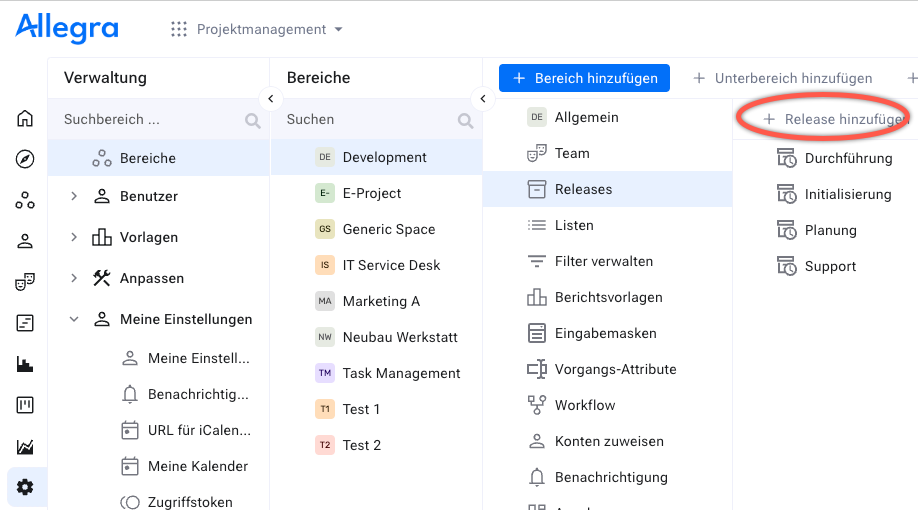
Click
Add releasein the toolbar. If releases already exist, you add subphases (sprints, iterations, etc.) by selecting the parent release and then clickingAdd releaseorAdd sprint.Fill in the form.
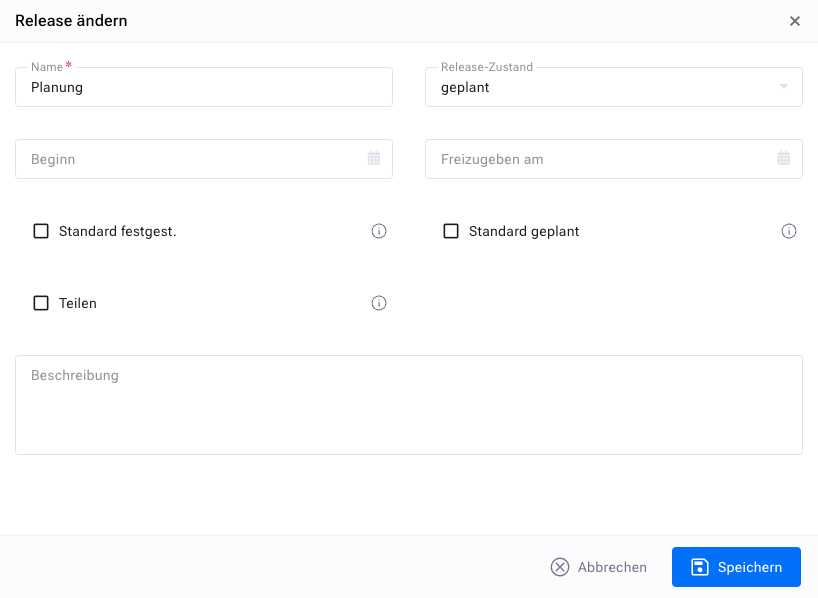
The state of the release determines its visibility in selection fields (see Release states).
The due date is informational.
You can mark the release as the default release for “Release noticed” or “Release scheduled”. Allegra applies this default when you create an item without choosing a release, or when the form contains no release field.
Click
Save.If needed, sort the releases by drag-and-drop in the right-hand list.
The new release is now available in selection fields and filters.
Deleting a phase#
You delete phases and subphases. If items are assigned to the phase, Allegra asks for a replacement phase and assigns the items to it.
Warning
Deleting a release is not reversible.
Go to
Administration>Workspaces.Select a workspace.
Select the
Releasesnode (appears only if the workspace type supports releases).Select the release to delete in the right-hand list or in the third navigation pane.
Click
Deletein the toolbar or in the context menu.Confirm the deletion. If the release contains items, choose a replacement release.
Click
Deleteagain to confirm the action.
Allegra has removed the release and assigned its items to the replacement release.
Defining container releases#
Sometimes you want to bundle items from different workspaces into a cross-workspace release. Normally, an item belongs only to a release of its own workspace.
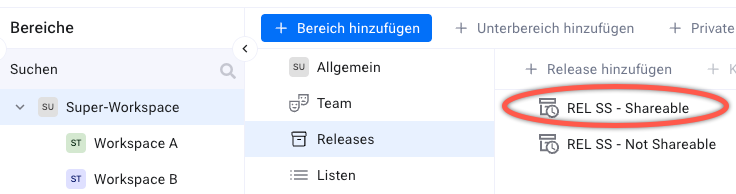
If you mark the release of a parent workspace with the “Share” checkbox, it appears in the release selection list of the child workspaces — where it can be chosen as the target release.
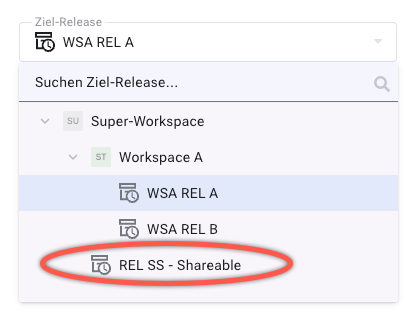
This is how you combine items from different projects into what is called a “container release”.