
Restoring data#
sysman sysadmin
As a system administrator, you can restore an installation from a backup file.
Go to
Administration > Server administration > Restore data and select
the file from which you want to restore data. Then
you must specify:
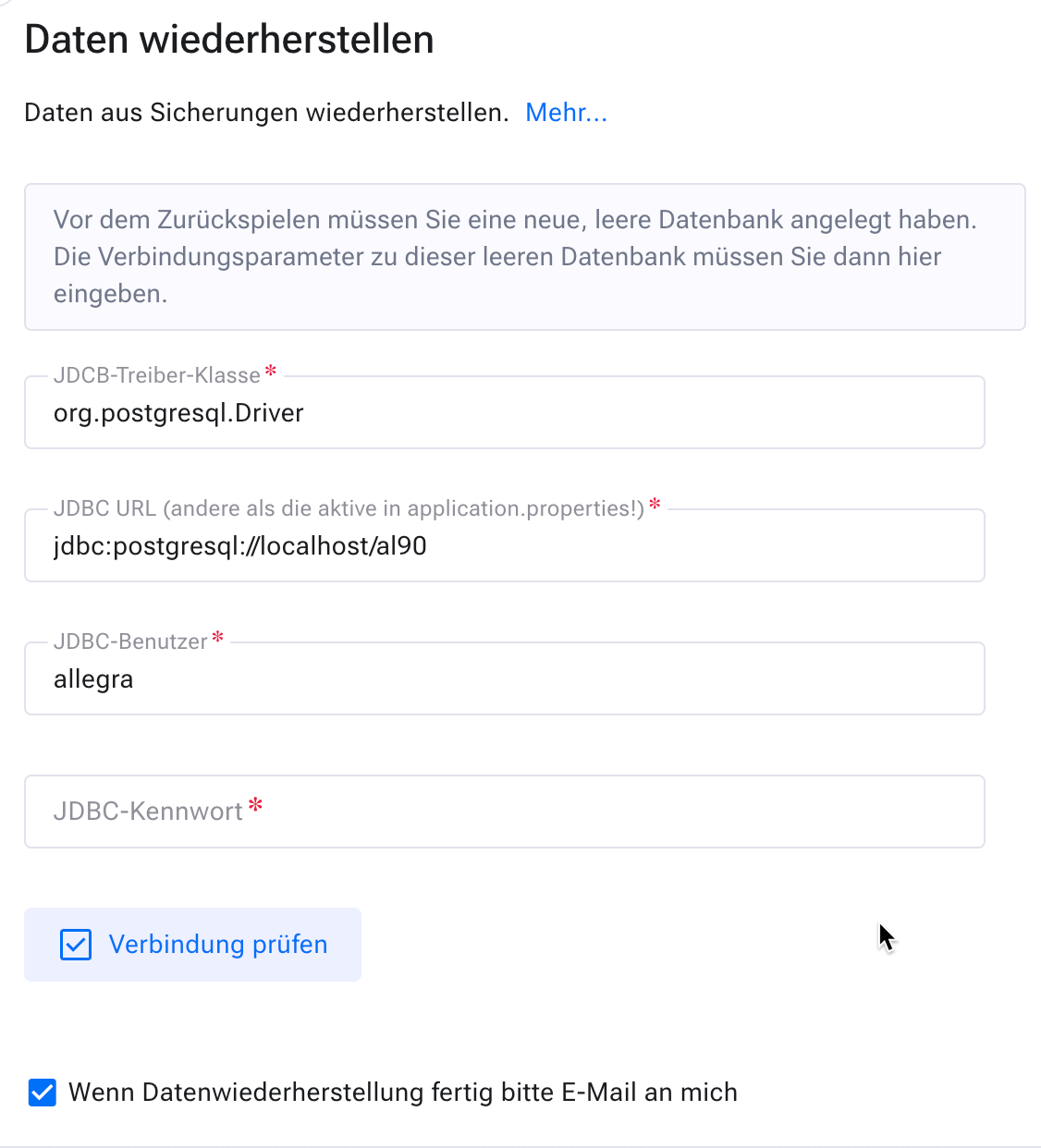
A JDBC driver class. The default is the class of the database currently in use. Only if you want to switch the database system do you need to enter the driver class for your new target database system here.
A JDBC URL. The JDBC URL of your current Allegra database instance is already entered here, but with a changed database name.
Note
Important: You must create a new empty database and enter its name here before you can proceed with the restore. It is not possible to use the currently active database, since the Allegra instance is still running.
A JDBC user name and a password, as you configured them when creating the new database.
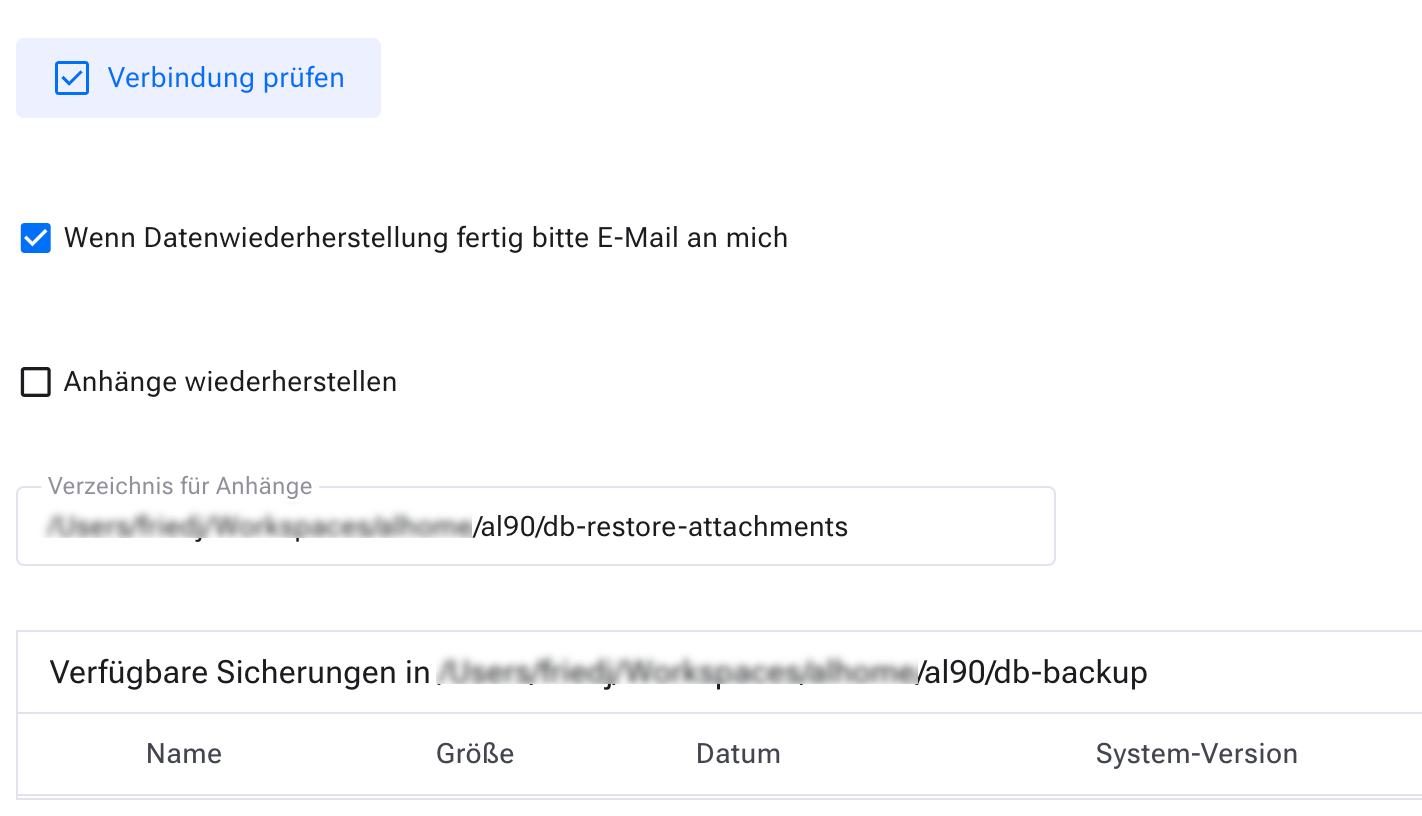
Check whether you also want to restore attachments, if they are contained in the backup file.
The directory in which you want to restore the attachments. It is not possible to restore attachments into the same directory where your current attachments are located.
After that, you can start the restore process. Once the process is complete, you must
switch to the restored database and configure the path to the new attachment directory.
You make the switch to the new database in the file
ALLEGRA_HOME/Torque.properties or ALLEGRA_HOME/conf/application.properties.
To activate it, you must stop and restart the application server (Tomcat).
Now you still need to switch the new server to your new attachment directory.
Go to the administration. To do this, go to
Administration > Server administration > Other settings and change the
directory there.