
Managing groups#
sysman sysadmin
You assign users to groups. In many places in the system, you use a group instead of an individual user — for example, when assigning a role or entering a responsible. Each group member then receives the associated permissions.
A user may belong to several groups at the same time. You can also mark groups as a default group — new users are then automatically assigned to it.
Groups with mutual RACI inheritance allow all members to access each other’s items (see Item-related roles: RACI). This is useful when a team needs unrestricted internal access while its items remain encapsulated from the outside.
Only system administrators or system managers may create, change, or delete groups.
Adding a group#
Go to
Administration>Users & groups>Groups.Click
Addin the toolbar.Enter a group name and save.
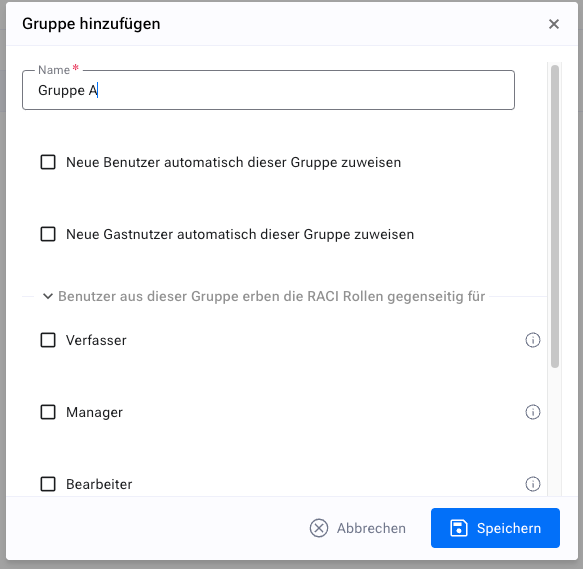
Adding a group#
Hint
Select the corresponding check boxes so that all group members can handle other members’ items as if they were the author, responsible, or manager themselves.
Hint
Select the appropriate check box so that new users automatically join this group — both self-registered users and those created by a system administrator.
Adding members#
Select the group and drag users from the right-hand “Available” column into the left-hand “Assigned” column.
Hint
Apply filters to the columns to limit the number of users displayed.
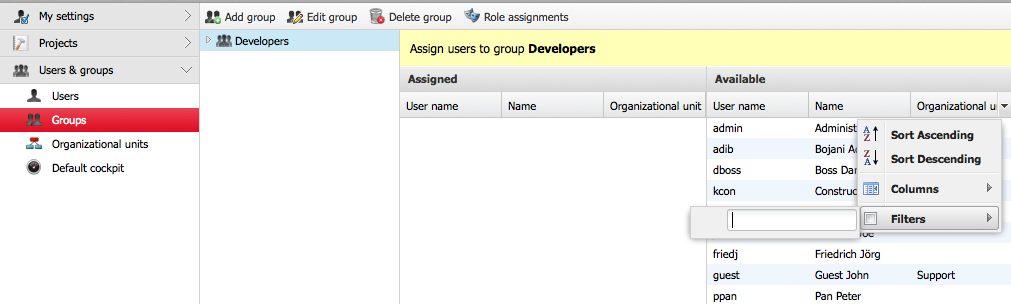
Assigning users to groups#
Caution
A user inherits all the access rights of the groups they belong to.
To remove a user from a group, drag them back into the “Available” column.
Caution
Users you remove from the group lose all access rights they previously inherited from that group.
Deleting groups#
You delete groups in the same way as users. If a group is linked to items, you specify a replacement group or replacement user when deleting it.