
Data backup#
sysman sysadmin
A system administrator can back up all data from the database and, optionally, all attachments into a ZIP archive file. In addition, it is possible to create these backups automatically on a regular basis. The backup data can be used to restore the database and all attachments at a later point in time. Note: For production environments with more than 25 users or more than 20,000 items, it is advisable to use native database and file system backup tools instead of the internal backup facility described here.
Go to
Administration > Server administration > Data backup.
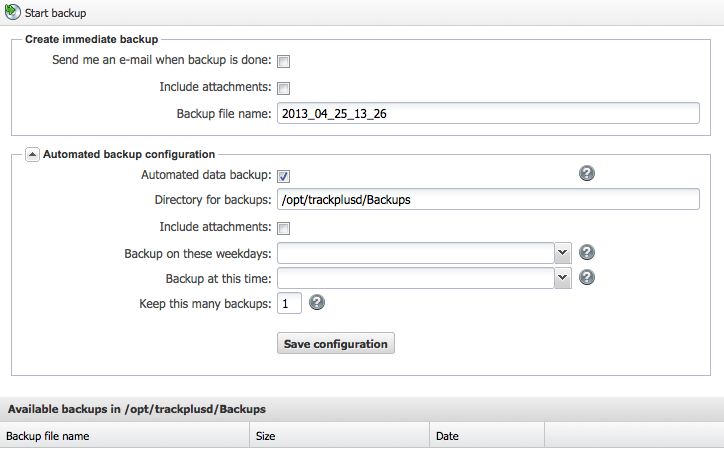
You see a list of the backups that already exist. The default naming scheme is <YYYY_MM_DD_HH_MM>. However, you can choose any name you like.
The backup process can take some time. You can choose whether you want to be informed by email when the backup is complete.
You can also choose whether you want to include the attachments in the backup process or limit the backup to the data in the database. Selecting the attachments has the advantage that the attachment metadata in the database and the attachments remain consistent. You can also decide to back up the attachments with your normal operating system backup functions.
Note
Note: You cannot run a backup while an automated backup is running at the same moment. You must wait until the automated backup process is complete before you can run your manual backup. By default, the automated backup runs from Monday to Friday at 11:15 p.m. each night (server time).
Note
Note: The backup data is placed in the directory that you have configured for attachments, in a subdirectory there called “dbBackup”.
You can enable your system to create backups regularly on its own. To enable automated backups, select the corresponding check box. You can then choose on which days of the week and at what time on each weekday you want to create a backup.