
Incoming email connection#
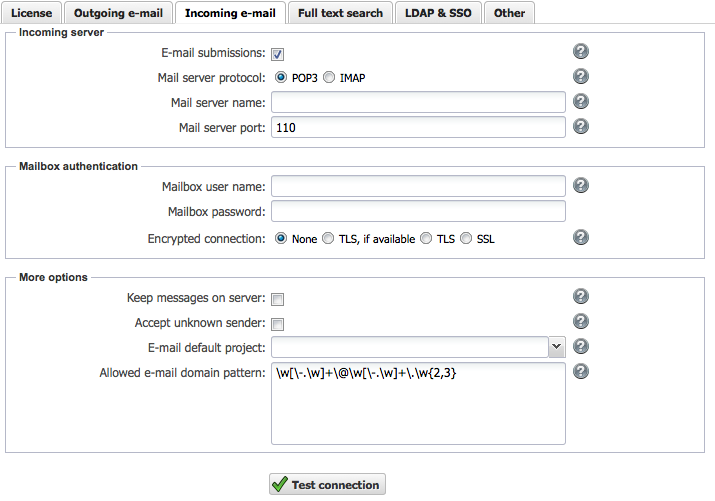
Allegra can receive emails and create new items from them or add information to existing items. To do this, Allegra behaves like a standard email client such as Outlook or Thunderbird and must therefore have a connection to a mailbox on a mail server. Allegra supports three protocols:
POP3
IMAP
MS Exchange
The first two protocols are standards; the Microsoft protocol is proprietary.
Note
Using an incoming mailbox is optional; you do not have to configure it.
Mail server protocol#
First, choose whether you want to use one of the two standard protocols or the proprietary MS Exchange protocol. Your mail server must support the protocol you choose.
MS Exchange#
To give Allegra access to an MS Exchange account, you must configure the Azure integration in Allegra correctly. After that, you link the Azure account to your Exchange mailbox (see MS Exchange Server).
Mail server name and port#
Mailboxes are managed by mail servers. Here you enter the name of the mail server on which the Allegra system mailbox is located.
Normally you should leave the default port set (110 for POP3 or 143 for IMAP, and 995 for POP3 over SSL / TLS and 993 for IMAP over SSL / TLS).
Mailbox user name and password#
All mailbox servers expect you to authenticate before you can retrieve emails. Here you enter the user name and the password.
Warning
Do not use an existing, private account that you also use elsewhere. You could lose emails.
If creating items by email is enabled, this mailbox is polled regularly for new emails. The emails are read and items are created from them. The email subject is mapped to the item title, the email body is mapped to the item description, and all attachments are added to the item as attachments.
Encrypted connections#
You should use an encrypted connection between your Allegra server and your POP3 or IMAP email server. You can choose between SSL, TLS and TLS if available.
For encrypted connections, you must first import a certificate from your email server into the local keystore of your Allegra server. How this works is described under SSL and TLS encryption.
Email submissions#
Allegra can be configured so that items can be created or extended with comments by email. This can be very useful, for example, when customers have no access to the Allegra system and can still submit items there indirectly in this way.
You can enable or disable email submissions. You can also decide whether you want to accept email submissions from users who are not registered in the system.
Allegra regularly checks the configured mailbox for new messages and either creates new items in the default project that you must configure here, or adds submissions as comments to existing items if the subject line contains a number and that number can be mapped to an item.
Leave messages on server#
Choose this option if you want to keep messages on your mail server even though your Allegra server has read them. This can be useful if you also access the same mailbox with an interactive email client such as Thunderbird or Outlook.
Allow unknown senders#
Select this check box if you want to allow unknown senders to create items by email in the Allegra system. The address of the email senders is still checked for compliance with the allowed domain patterns, but it is no longer required that the sender email address be mapped to a user within the Allegra system.
Default email workspace#
When email submissions are enabled, there must be a workspace to which incoming emails can be assigned. This could be a kind of “catch all” workspace from which the items are transferred to their final workspaces regularly. As a rule, one or two people monitor this workspace and decide how to proceed.
Each workspace can have its own email inbox configured. In that case, no global email inbox needs to be configured.
Allowed domain patterns#
To prevent users from unconfirmed domains (e.g. hotmail.com, gmx.com) from being registered, a Perl5 regular expression can be defined so that only email domains that match this expression are allowed to register. You will most likely have to change the example default on the website configuration page.
Example pattern:
[^@\T]@bosch\.com
This example allows only users from the domain “Bosch.com” to register.
Some more examples:
[^@\T]@t-online\.de | [^@\t]@computer\.org
matches all users from the domains t-online.de and computer.org. The pattern
\W[-.\W]+\@[-.\W]+\.\W{2,3}
matches all email domains without restrictions.