
Translations#
sysman sysadmin
You can change practically any term in Allegra and also add new languages. Allegra adapts to your terminology; you do not have to adopt Allegra’s own terms.
To change or translate terms in Allegra,
go to Administration > Translations.
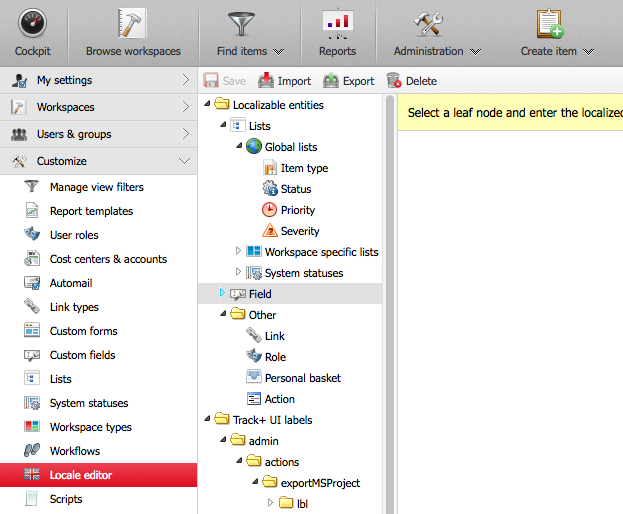
To customize an object, select it in the tree structure (second column from the left). On the right-hand side you get a window like the one shown in the figure below.
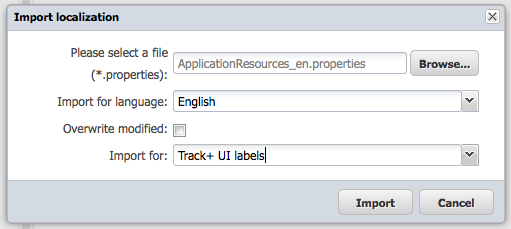
In the left column on the right-hand side you see the identifier of the object to be localized. If there is neither a default localization nor a localized text for the object, the ID is displayed.
In the second column at the top of the right-hand side you can choose the source language. For example, if you are familiar with English and need to translate into Italian, you would choose English here and Italian in the left column.
The “default” language is English and is used whenever there is no more specific localization for the desired locale.
You can only edit the target language in the left column. After making your changes, save them.
The localization facility is very powerful. You can name a property “A” in one project or workspace and “B” in another. For example, in one context you can refer to “products” and in another to “projects” for the same objects.
The localization is stored in the database; it is also preserved when you update Allegra.
Importing and exporting resources#
You can export an entire set of localized resources from Allegra into a Java properties file. You can also import a set of resources from a Java properties file. When importing, choose the file from which the resources are to be read. Choose the language this resource file is intended for. Choose whether you want to overwrite resources with the same identifier that you previously edited directly in Allegra. If not, such resources are preserved and the values from the resource file are ignored.
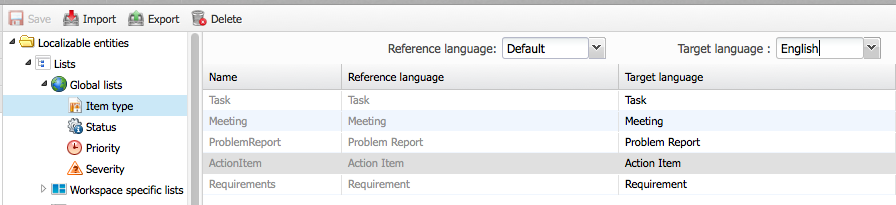
Finally, choose whether the import file is intended for standard user interface texts or for system lists, custom properties, and so on. After making your selection, click “Import” to import the resources into your Allegra system.
Automatically loading resources#
Instead of manually updating all the resources you need, you can place them in specific files and locations on disk. If Allegra finds resource files there at system startup, it loads them into the database. You must provide the following structure:
Instead of manually updating all the resources you need, you can place them in specific files and locations on disk. If Allegra finds resource files there during system startup, it loads them into the database. You must provide the following structure:
ALLEGRA_HOME/resources/MyApplicationResources.properties
ALLEGRA_HOME/resources/MyApplicationResources_en.properties
ALLEGRA_HOME/resources/MyApplicationResources_de.properties
and so on for other languages. The system lists, properties, item types, and so on must be placed in the following files:
ALLEGRA_HOME/resources/MyBoxResources.properties
ALLEGRA_HOME/resources/MyBoxResources_en.properties
ALLEGRA_HOME/resources/MyBoxResources_de.properties
and so on for other languages.