
Notification triggers#
The Allegra notification system works in two stages. In the first step a message is “triggered” and thereby created. In the second step it is checked whether the underlying item meets the configurable criteria for sending the message. Only if that is the case is the notification actually sent.
Via notification triggers you specify which events or actions trigger a message to you in a particular role. If the message meets your filter criteria, you receive the message. There are two types of actions that can trigger a message:
Creating new items
Editing items
You can define notification triggers separately for each of the two types of actions.
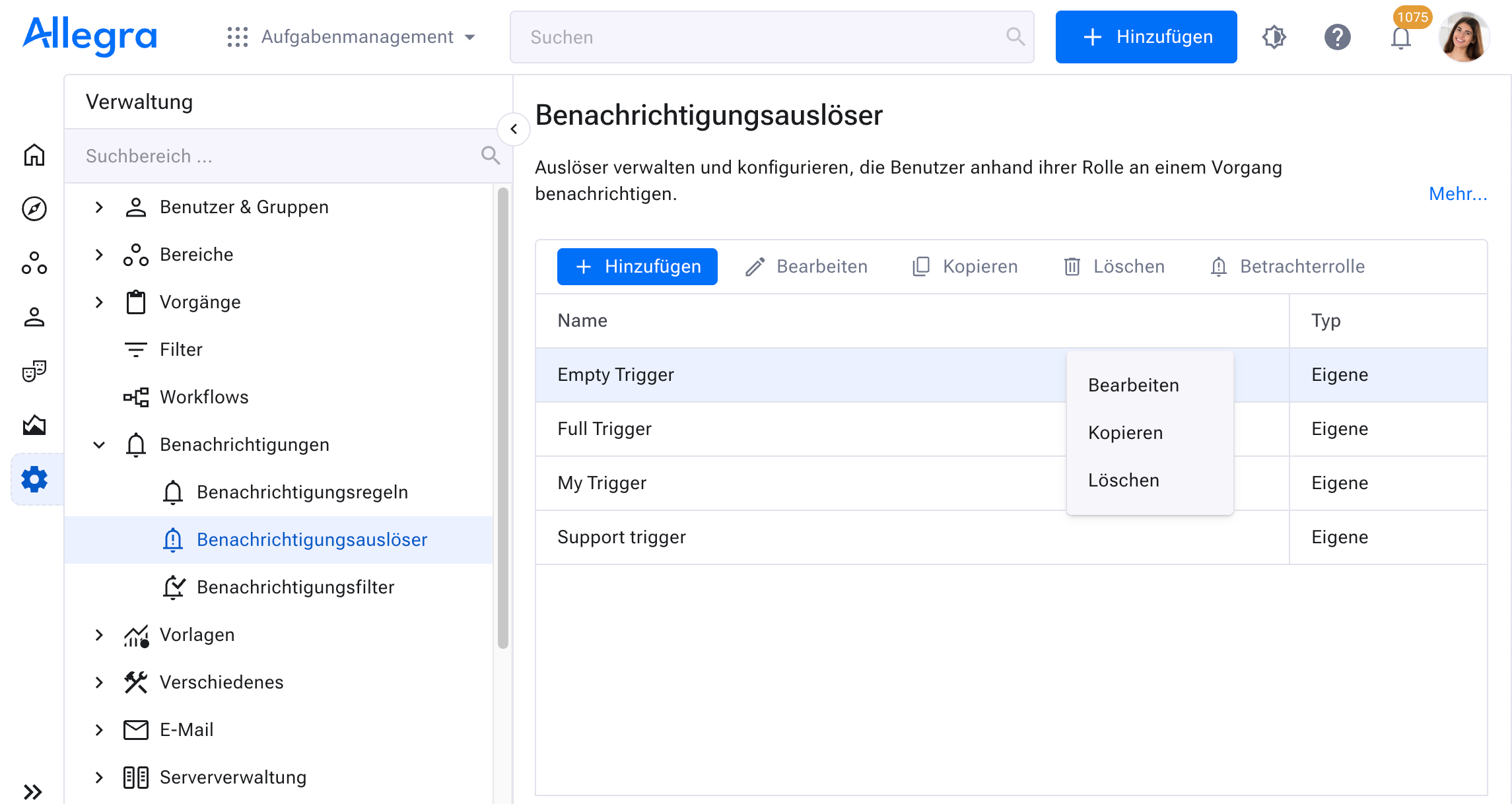
Go to
Administration>Notifications>Notification triggers.
Defining notification triggers#
To add a trigger, click the “Add” button in the toolbar. To edit a trigger, select it in the table area on the right and then use either the context menu or the “Edit” button.
Hint
Triggers provided by a system administrator are visible to all system users. Other users can copy them into their private area and modify them there. Normal users cannot directly change a system trigger.
Check the boxes according to your requirements. The first row refers to creating an item. Here, for example, we leave the box for the author unchecked, because we do not want a notification for the creation of an item that we just entered ourselves.
The other rows refer to item changes. In the example, as the manager of an item you would be notified if someone made another person the manager of this item.
In the same example, as the responsible of an item you would be notified if someone made another person the responsible of this item.
The “Observer” column allows you to keep track of changes to any item for which you have read permission, while the other columns always assume that you have a RACI role for an item. Normally this is only useful together with a notification condition that limits the flood of notifications.
Give your trigger a name and save it.
Important
These settings apply to each person who holds these roles for an item, not to anyone else!
A “loud” trigger configuration has many boxes checked. A “quiet” trigger configuration has only a few boxes checked.