
LDAP configuration#
sysman sysadmin
You connect Allegra to a directory server (LDAP, Active Directory) to manage passwords centrally. From within Allegra, you can also create users in the LDAP directory and change passwords. This gives you a complete system for self-registration and password management.
To connect Allegra to one or more directory servers, sign in as a
system administrator and go to Administration >
Server administration > LDAP & SSO.
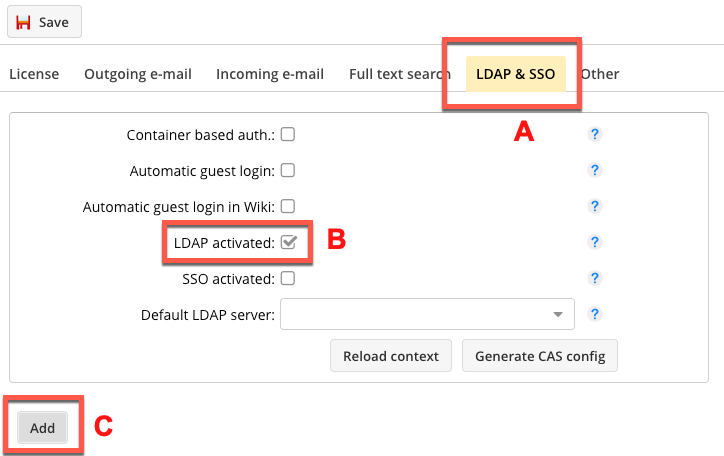
LDAP configuration#
Select the LDAP check box (B) and click the button (C) to add a connection. You can configure several connections — for example, to include employees from different regions of a large company without opening up the entire directory tree. You can also point one base DN at the list of users and a second one at groups and organizational units.
LDAP connection settings#
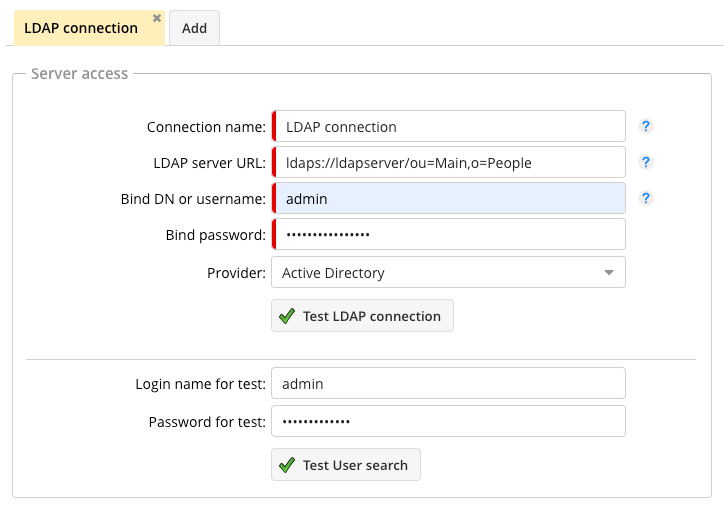
Configuring an LDAP connection#
The “bind” user name and the “bind” password are required so that Allegra is allowed to look into the directory server at all. For an “anonymous bind”, leave these fields empty.
LDAP schema position#
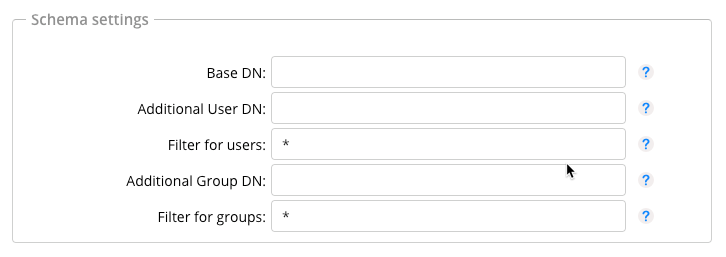
Configuring the LDAP schema#
The easiest way to determine the required entries is with an LDAP browser, such as Apache Directory Studio.
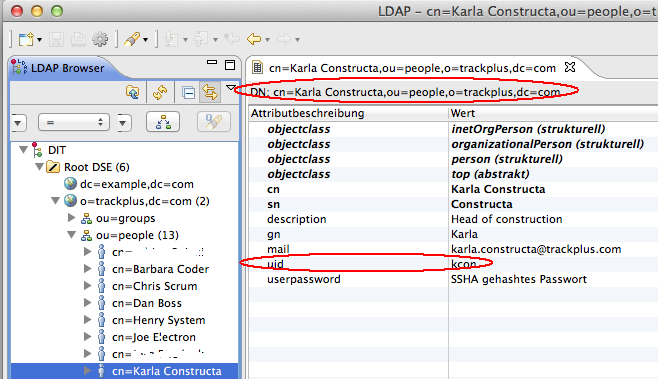
LDAP browser#
LDAP synchronization#
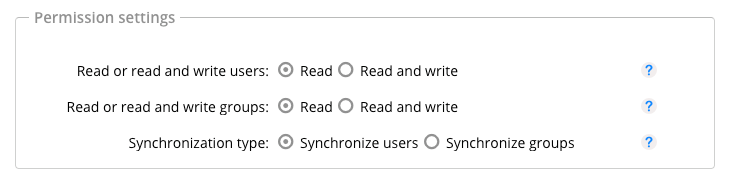
LDAP synchronization#
Here you set how Allegra synchronizes users with the directory server. Users or groups can be synchronized. With read-only access, Allegra creates users from the directory server, but not the other way around. With read and write permission, Allegra also creates users and groups in the directory server.
LDAP user and group schema#
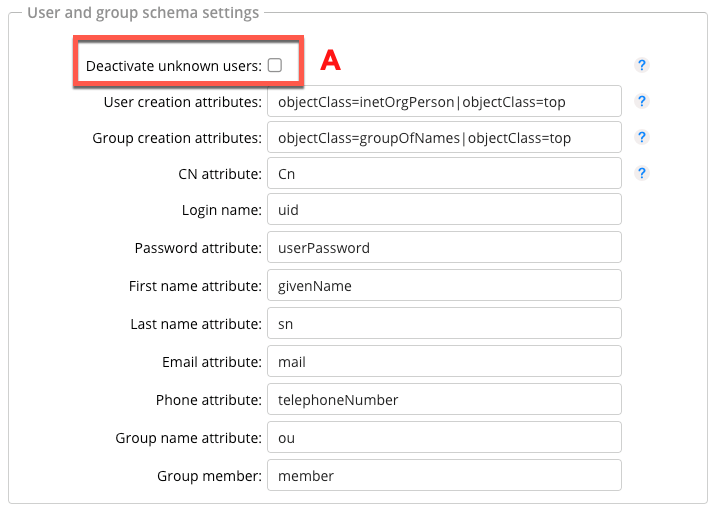
User and group schema settings#
The check box (A) determines whether users who are not found in the directory server are deactivated in Allegra. The users “admin” and “guest” are excluded from this. If you select the appropriate server type above (Open LDAP, Active Directory …), Allegra applies sensible defaults here.
LDAP behavior in read-only mode#
The following table shows how Allegra behaves during synchronization when it only has read permission for the directory.
Case |
Behavior |
|---|---|
New LDAP connection with existing users in Allegra |
All new users (unknown UID) are created |
A user is deactivated in Allegra and a new synchronization is started |
The user remains deactivated |
An attribute of the user (email, last name, first name) is changed and synchronization is started |
The Allegra attributes are overwritten by the LDAP attributes |
An LDAP user synchronized in Allegra is deleted in LDAP |
The user is retained in Allegra, no change |
Groups are synchronized |
New users and groups are created, and users are assigned to groups |
A user is removed from the group in Allegra but is still in the group in LDAP, and synchronization is started |
The user is reassigned to the Allegra group |
Group attributes in Allegra are changed and a new synchronization is started |
The changed group attributes are retained |
An existing Allegra group is deleted in LDAP |
The group is retained in Allegra |
LDAP behavior in read and write mode#
The following table shows how Allegra behaves during synchronization when it has both read and write permission for the directory.
Case |
Behavior |
|---|---|
A user is created in Allegra |
The user is created in LDAP |
A user is deleted in Allegra |
The user remains in LDAP |
The UID of the Allegra user is changed |
The UID of the same user is also changed in LDAP |
The attributes of the Allegra user are changed |
The LDAP attributes are changed |
A group is created in Allegra |
The group is created in LDAP |
A group name is changed in Allegra |
The LDAP group attribute OU is changed |
LDAPS with self-signed certificates#
Allegra supports the secure LDAPS protocol. For official certificates,
it is enough to prefix “ldaps” instead of “ldap” in the directory
server URL. For self-signed certificates, you additionally create an
LDAPS keystore file named Trackplus.ks in the directory
ALLEGRA_HOME/Keystore. You will find detailed instructions under
SSL and TLS encryption. The LDAP server must also be configured for
LDAPS.
For a Windows server, we had to extend the ApacheDS configuration file as follows:
<!-- SSL properties -->
<property name="enableLdaps" value="true" />
<property name="ldapsPort" value="10636" />
<property name="ldapsCertificateFile"
        value="C:\jdk1.5.0\bin\zanzibar.ks" />
<property name="ldapsCertificatePassword" value="secret" />
<bean id="configuration"
    class="org.apache.directory.server.\
            configuration.MutableServerStartupConfiguration">
and
<property name="workingDirectory" value="example.com" />
<!-- SSL properties -->
<property name="enableLdaps" value="true" />
<property name="ldapsPort" value="10636" />
<property name="ldapsCertificateFile"
        value="C:\jdk1.6.0\bin\zanzibar.ks" />
<property name="ldapsCertificatePassword" value="secret" />