
Accounting reports#
Allegra records work and material costs per item as soon as the item moves through a workflow. This chapter describes how to evaluate this accounting data using predefined reports — and how to extend the range of reports with your own templates when needed.
To open an accounting report:
In the main toolbar, click Reports.
Open one of the Private, Workspace or Public folders.
Select the report you want and click Create report.
Reporting period#
A typical use case is monthly time sheets. With a single click, select the current or the previous month as the reporting period — or specify an arbitrary period using a start and end date.
You also decide whether the report takes into account only your own efforts or also those of other users. Access to other users’ efforts depends on your roles in the respective workspace.
Filter criteria#
Before creating the report, you define a number of filters.
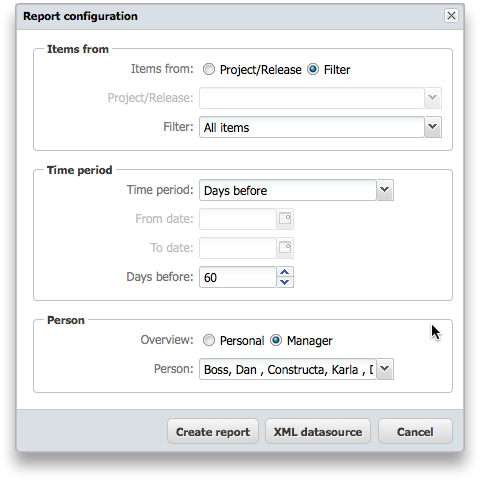
The following are available:
Workspaces — cross-workspace evaluation is possible
Departments
Users who have recorded efforts (provided you are authorized to do so)
Cost centers
Accounts
For example, a report can be limited to the efforts of a particular department. Or to a single account — for instance, if each customer is assigned its own account. You can combine each additional filter as needed.
Available reports#
By workspace and account#
Lists the efforts grouped by workspace and, within the workspace, by account. The values are accumulated over the reporting period; individual bookings — when and for what they were recorded — are not visible.
By workspace, cost center, account and person#
Groups the efforts first by workspace, then by cost center, account and person. Here too, the values are accumulated over the reporting period; individual bookings are not visible.
By workspace, invoice and person#
Groups the efforts by workspace, invoice and person — and shows them with individual bookings. Each time or cost booking appears with the associated item and the description entered when it was recorded.
This report is particularly suitable as a detailed worksheet that you can provide to customers as a work and cost report.