
Managing regular users#
sysman sysadmin
You can configure Allegra so that users create an account themselves. A system or project manager then assigns them roles in workspaces so they can see content. Alternatively, self-registered users obtain their rights through automatic group membership.
Adding users#
Go to Administration > Users & groups > Users.
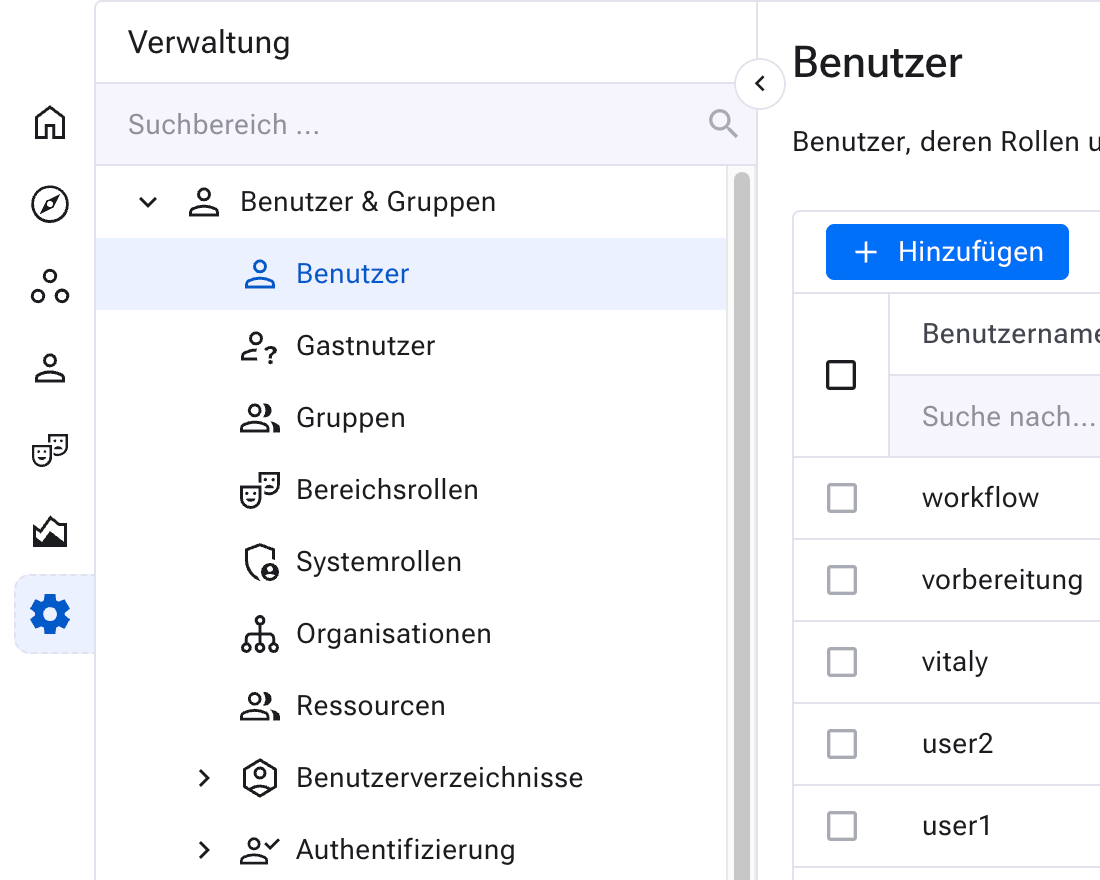
Adding regular users#
Click Add. The most important parameter is the user name — it must
be unique.
Attention
Use the same user name as for other accounts in your organization, such as the Windows user name. This is especially important when a directory server such as Active Directory or an LDAP server is in use — the name entered here must match the user name in the directory.
The second important parameter is the email address. Allegra sends the initial password to this address — which at the same time verifies that it is correct.
As a system administrator or system manager, you change additional user attributes to help configure the user. You will find a detailed explanation of all attributes under Managing your user profile.
Only the system administrator may assign a user an organization and an employee ID or configure the session timeout.
Forgotten password#
If you, as a system administrator, have forgotten your password and neither your email address nor the email connection works, the password can only be reset through direct write access to the database. You can obtain instructions for this from support.
Main menu and context menu#
The user administration supports editing several users at once. Select
users via the check boxes and click Actions or Assignments in
the toolbar.
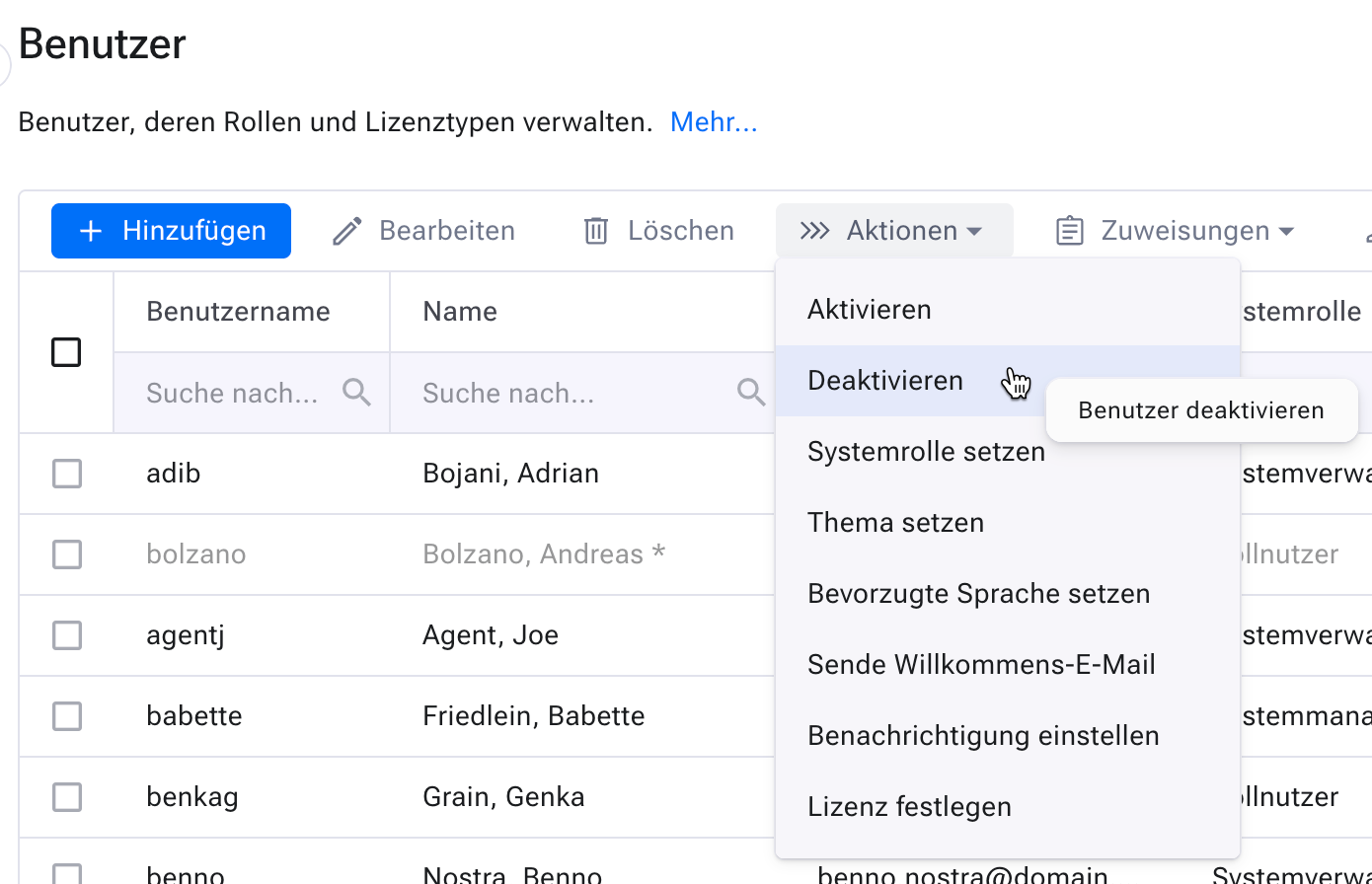
Managing users: actions#
If you want to change individual users, use the context menu.
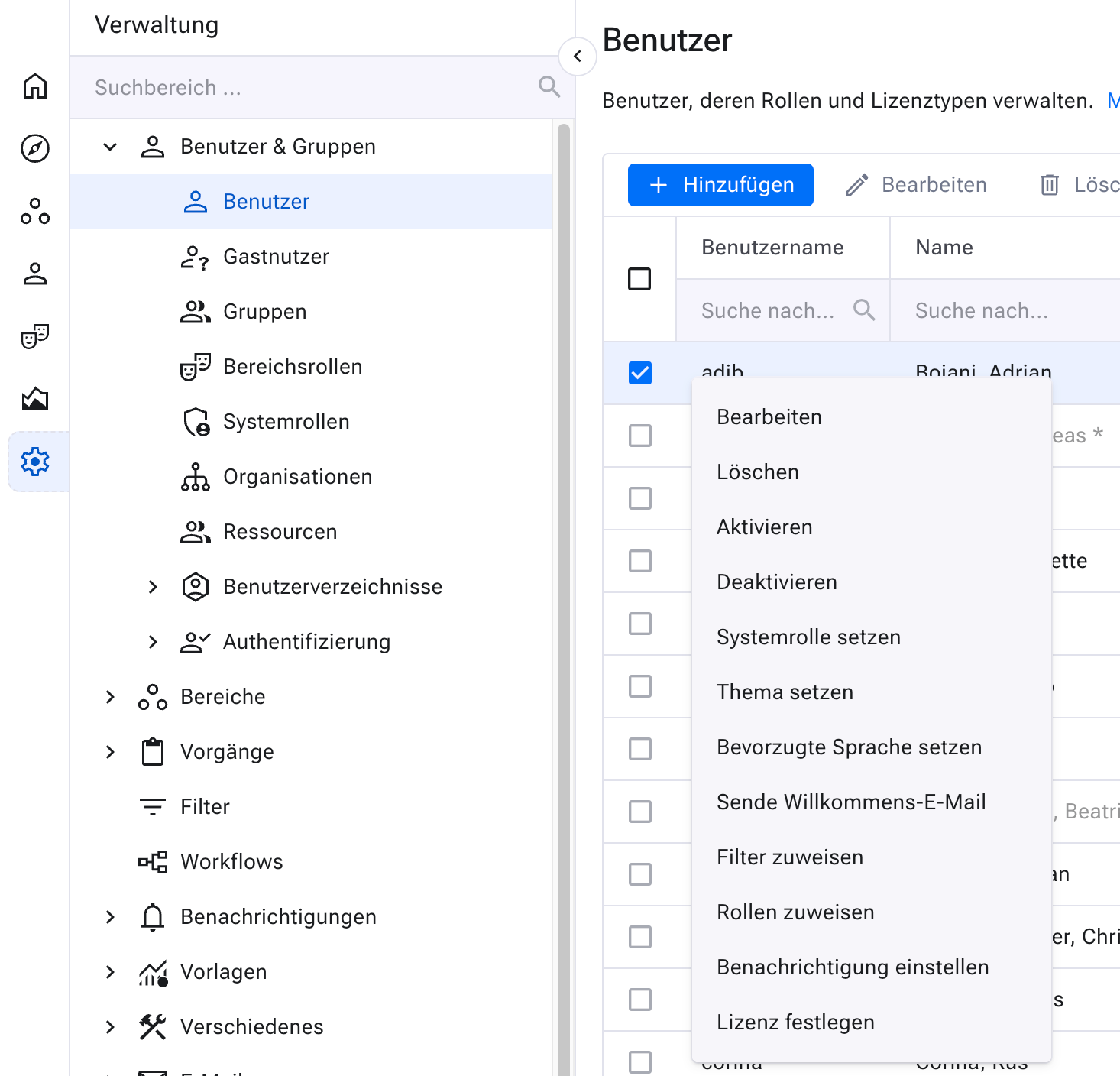
Managing users: context-sensitive actions#
Activating and deactivating users#
Over time, employees leave your organization and no longer use the system. You deactivate such users. Deactivated users do not occupy any user licenses.
The history of deactivated users is retained in the database. You can reactivate users at any time. In the list, deactivated users appear with a gray background or with an asterisk after the name.
Deactivated users can no longer sign in. When they try to sign in, they receive an error message advising them to contact the system administrator.
Assigning system roles#
As a system administrator or system manager, you assign system roles to users. The system role determines which functions are available to the user.
You define any number of system roles. For each system role, you specify which elements of the user interface are visible. For more information, see System roles & user interface.
The system treats predefined system roles differently:
System role |
Description |
|---|---|
Guest |
Guest users are managed in a separate section (not here). They have a simplified menu with reduced functionality — for example, without their own filters — and see only their own entries in the item overview. Common for users who use the system only occasionally, such as in a help desk scenario. |
Full user |
Full system functionality, but without administrative functions such as creating workspaces or managing users. |
System administrator |
Full access to the system, including creating and deleting workspaces and users. |
System manager |
Full access, including creating and deleting workspaces and users. Unlike system administrators, system managers may not change the server configuration — that is, they cannot configure index or attachment directories and cannot enable or disable LDAP or web services. |
Very simple |
A configurable role for users who prefer basic functions and a simple interface. |
Moderately complex |
A configurable role for users who do not need the full system functionality. Certain UI elements can be hidden for these users. |
Advanced |
A configurable role for users who want to use most of the system functionality. |
Deleting users#
You remove users permanently from the database. This is mainly useful for test users or for typos in the user name. In all other cases, deletion is a serious operation — it affects all items this user has ever worked on.
When deleting permanently, you specify a replacement user. Allegra enters this user everywhere the deleted user previously appeared. The replacement user takes over the entire history.
Setting the color scheme#
Choose between a light or dark color scheme — or take the setting from the operating system.
Setting the preferred language#
With this you set the user’s preferred language. The user can change it themselves at any time.
Sending a welcome email#
You send selected users an email with which they confirm their email address and set their password.
Assigning workspace roles#
With workspace roles, Allegra controls which actions users may perform in workspaces and with items. For more on this, see Workspace roles and permissions.
In the user administration, you assign roles in workspaces to individual users.
Note
It improves clarity and simplifies administration to organize teams as groups and assign the roles to the groups. The team members inherit their permissions from the group.
Showing all workspace roles of a user#
Select the user and go to Administration > Users & groups >
Workspace roles.
Assigning filters#
With filters, a user determines which items appear in their item
overview. Each user has a set of ready-to-use filters in the item
browser. As a system administrator, you assign these filters centrally,
so that the user can get started without any configuration work of
their own. To do so, click Assignments > Assign filters in the
toolbar.
Assigning a cockpit#
You assign a cockpit template to selected users. Select the users via
the check boxes and click Assignments > Assign cockpit in the
toolbar.
Exporting users to Excel#
For further processing in a spreadsheet, you export the list of users and groups to an Excel file. The export includes user name, name, email address, system role, assigned license type, and organizational unit.
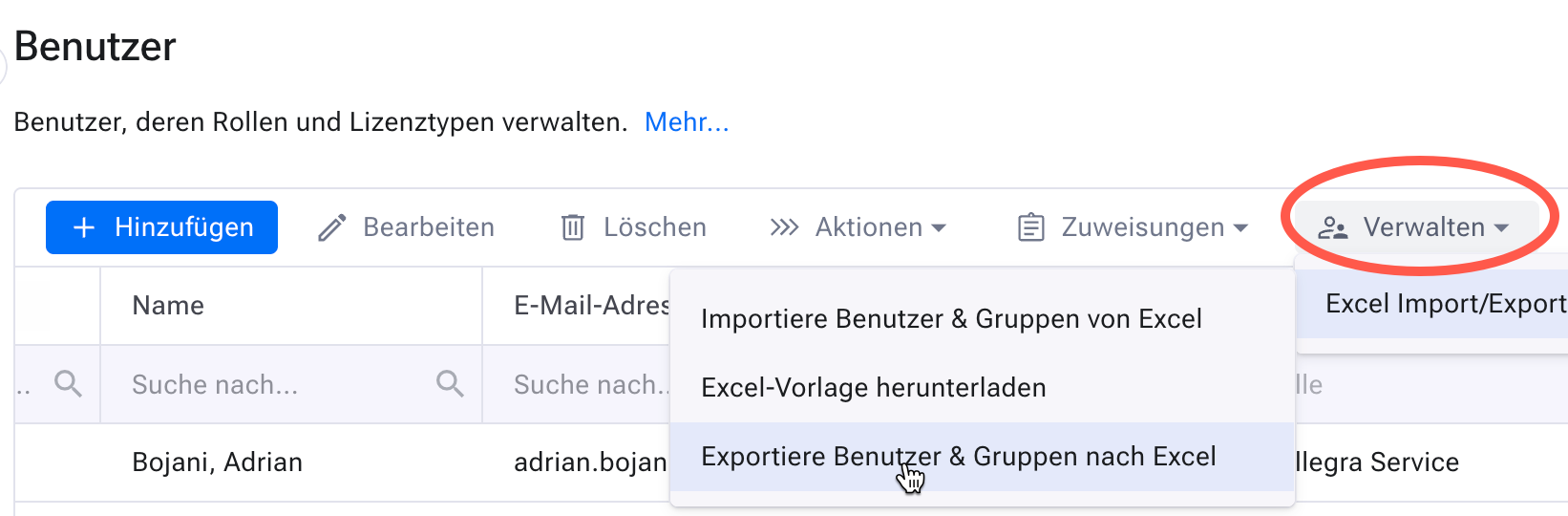
Exporting users to Excel#
Importing users from Excel#
You load user data from an Excel spreadsheet into an Allegra instance. The user name serves as the identifier; all other attributes can be updated.
Assigning licenses#
You assign special licenses to selected users, for example for ALM or Gantt functions. To do so, select the check box for the user in the corresponding column on the right. These columns appear only if you own a license for the respective function.
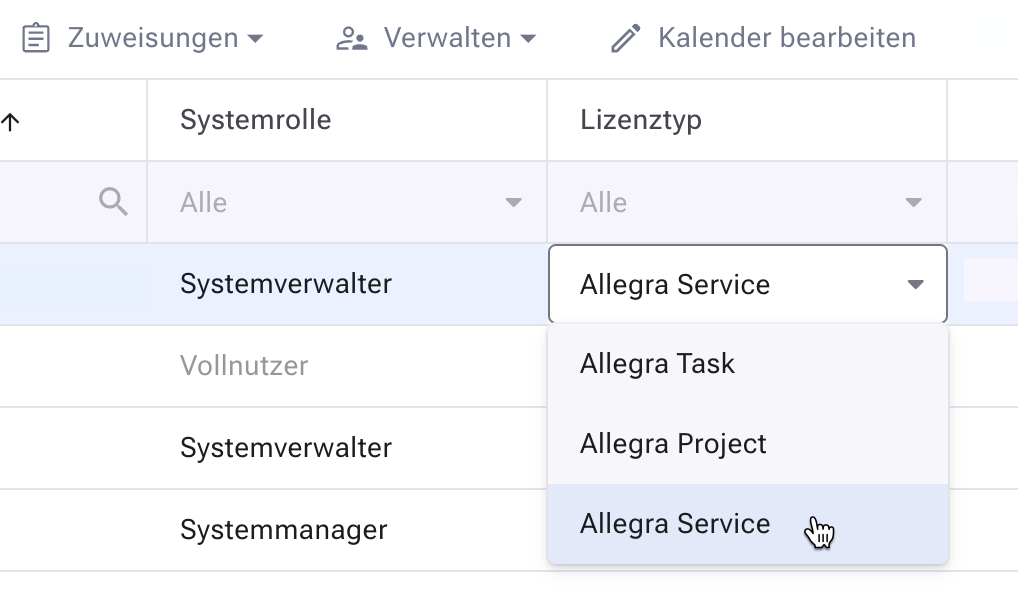
Assigning a license type#
Setting user attributes via a link#
You set user attributes for all users at once via a special link. For example:
http://localhost:8080/allegra/setUserProperty.action?field=homePage\&value=cockpit
The fields and their possible values:
Homepage: Cockpit | Item browser
LayoutEnabled: true | false
AlwaysSaveAttachment: true | false
StundenPerWorkday: in hours, e.g. 8.0
AutoloadTime: in seconds
MaxAssignedItems: 1 … 1000
PrefEmailType: Html | Plain
Session-Timeout: in minutes