
Outgoing email connection#
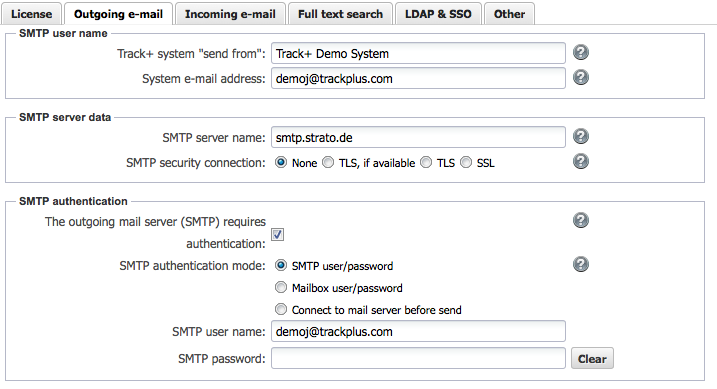
Allegra can inform users by email when events of interest to the user have occurred in the system. To do this, Allegra must be connected to a mail server, just like an ordinary email program such as Thunderbird or Outlook.
To send emails, Allegra supports two protocols:
SMTP
Microsoft Exchange
MS Exchange Server#
If you want to use an Exchange server, authentication is done via an Azure account. To do this, the corresponding Azure integration in Allegra must be configured beforehand (see “MS Azure integration”).
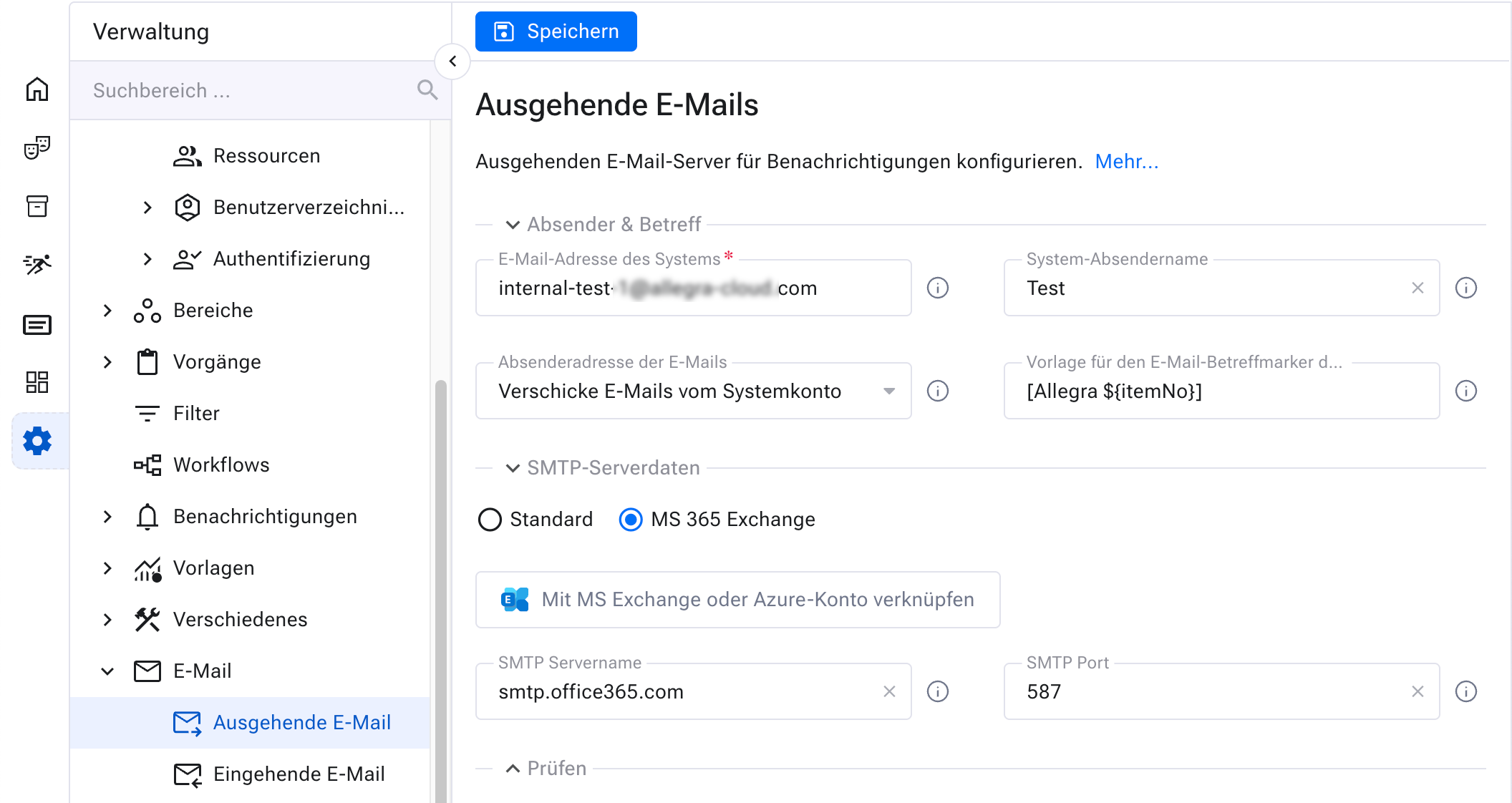
Once the Azure integration is configured correctly, you can link the MS Exchange server
to the Azure account by clicking the Link MS Exchange to Azure account button.
Based on the stored Azure integration data, Allegra creates a URL
and redirects you there automatically:
https://login.microsoftonline.com/{TENANT_ID}/oauth2/v2.0/authorize?scope=openid+profile+offline_access+{MAIL_SCOPES}&response_type=code&redirect_uri={ALLEGRA_URL}msExchangeAuthCallback.action&state={STATE}&nonce={NONCE}&prompt=select_account&client_id={MS_AZURE_APP_ID}&response_mode=query
The MAIL_SCOPES parameter is configurable. The default value is:
https://outlook.office.com/IMAP.AccessAsUser.All,https://outlook.office.com/SMTP.Send
After you have granted the required permissions and entered your login credentials, you are automatically redirected back to Allegra.
SMTP user#
As described above, the Allegra system can send emails to its users. For all system-generated emails, such as reminder emails or password emails, Allegra uses its own email address as the sender address (“Sent from”).
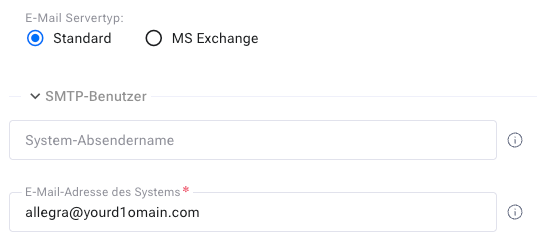
For user-triggered emails, such as when an item is changed, you can decide whether the sender address is the email address of the respective user or the Allegra system address. You must use the Allegra system address if replies to your own emails are to be added as comments to items.
All emails directly from the Allegra system will have the Allegra system email address as the “from” address and the name of the server as “from”. For example, such an email would come from “Your Server” <yourserver@yourdomain.com>.
Attention
The default setting is that all emails from the Allegra system are sent with the Allegra system address.
SMTP server name#
To send emails, Allegra must have access to an SMTP email server. This email server can be on the same machine as Allegra, or it can be placed anywhere as long as it can be reached directly. For example, it is quite possible to use an SMTP server on the internet.
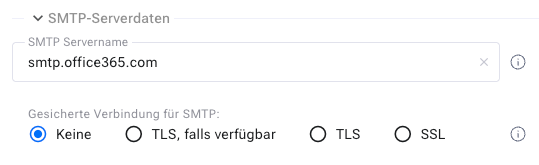
As a rule, you would enter the same parameters here that you use in your normal email client software. You should not use the same account, as this can lead to access conflicts depending on the authentication scheme you use.
Encrypted connections#
You can use an encrypted connection between your Allegra server and your SMTP email server. You can choose between “SSL”, “TLS” and “TLS if available”.
For encrypted connections, you must first import a certificate from your SMTP server into the local keystore of your Allegra server. How this works is explained under “SSL and TLS encryption”.
SMTP authentication#
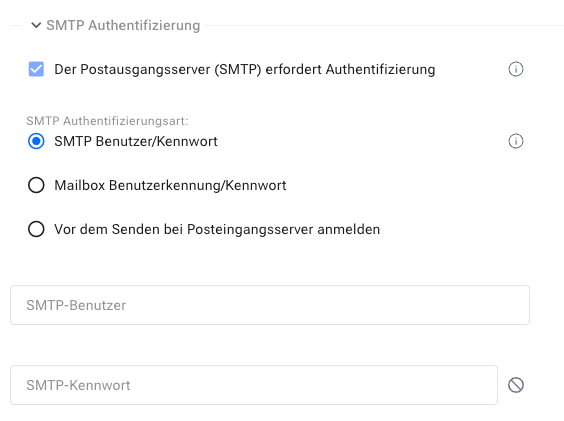
Allegra offers four ways to authenticate with an SMTP server:
No authentication
With a special user name and password for the SMTP server
With the same user name and password as for the incoming mailbox server
By first connecting to the incoming mailbox server
SMTP user name and password#
Many SMTP servers require user authentication before they can send anything. Some corporate intranet SMTP servers may have been configured so that they can be used without authentication. If you have to authenticate with a user / password combination on your SMTP server, enter the user name and your password here.
Click the “Delete” button to delete the password. If you do not enter a password, the old one is retained. ATTENTION: Some SMTP servers do not allow the “From” address to differ from the SMTP user name. In this case, you are forced to select the “Use Allegra from address” check box.
Mail encoding#
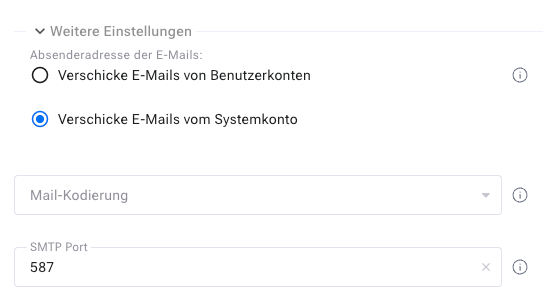
Allegra can send emails in a variety of encodings. Here you set the encoding so that it matches your users. By now, almost all mail clients support Unicode (UTF8 encoding). This encoding works with any language. The setting here is usually the same as in your email client setting. For Western languages, “ISO-8859-1” usually works well too.
SMTP server port#
Normally it is advisable to leave the default port set (25), since many SMTP servers use this port. If your SMTP server is outside your corporate intranet, the firewall must be opened to allow traffic on the port configured here. If you use an SSL- or TLS-encrypted connection, the default port is 465.
Sending emails from the system or user account#
For events generated by users, Allegra can send emails either under the name of the user (e.g. from: “Joe.Doe@doeJones.com”) or under its own email address (e.g. from: “Tracksystem@doeJones.com”). You can set this parameter as desired. However, some SMTP servers require the “From” address to match the SMTP user name. In this case, you are forced to select this box.
Test the configuration#
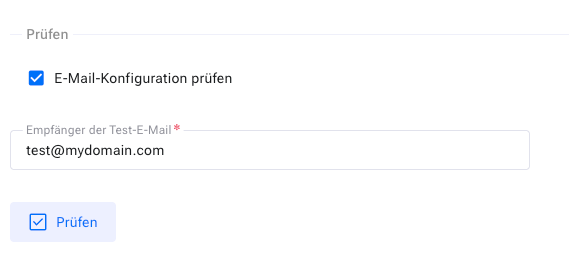
You can enter your email address in the field provided and send an email from Allegra to check whether the configuration works.
Limiting the number of connections#
Some SMTP servers accept only a few connections from the same client. To limit the number of simultaneous SMTP connections from Allegra, set the following property in the advanced properties (tab “Miscellaneous > Edit advanced settings”):
maxNoOfSMTPConnections=10
You must restart the server after this change.