
Budget overview#
The “Budget overview” widget gives you a quick overview of the current project or release status. In a table you see summaries for all overdue items, items due this week, items due next week, and all remaining items.
For each category, it shows the estimated remaining work, the degree of completion, and the actual work related to the planned value. The widget can be configured with respect to various aspects such as project, priority, state and release.
The widget must be configured in order to display anything.
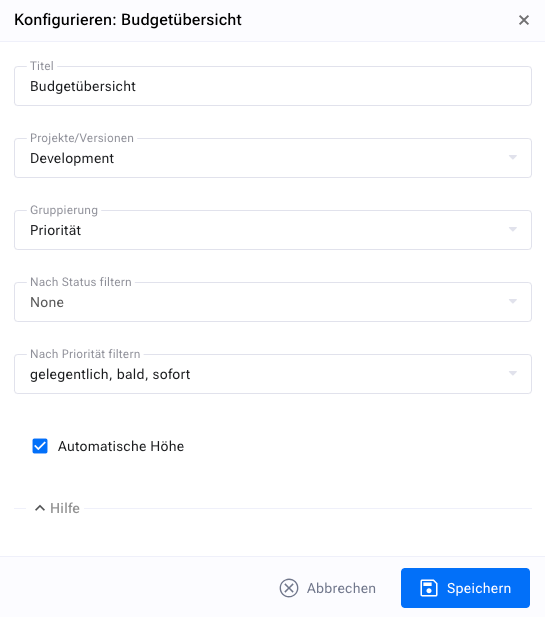
You can select the project and/or the releases you want to consider in the budget overview. If you only select the project, all releases of that project are considered.
You can summarize the overview by various criteria. Grouping is possible by:
Project and release, for an overview of each selected project or release;
Item state for an overview of each selected state;
Item priority for an overview of each selected priority;
None, for a display without grouping
In addition, you can apply a filter to consider only a subset of items, e.g. only items with a particular state or with a particular priority.
Default widget configuration#
The following figure shows the widget with a single release of a project and without grouping.
On the left side you can see the four time-based categories: overdue, due this week, due next week and all others. “All others” means that they either have no due date or that the due date lies beyond the end of next week.
Each time-based category is split into items that you process yourself, items for which you are registered as manager, and all items. The “all” row includes the two preceding rows.
Completion is calculated as the sum of the logged work (sum of logged work + estimated remaining work). Note that the original planned value is not taken into account when calculating completion.
The right-hand column shows how much of the original planned work has already been spent. If this value exceeds the completion, the project will most likely cost more than planned.
At the bottom, two more numbers are displayed. The first number gives an indication of how far a project is behind schedule. The second number gives an indication of how well a project is performing when looking only at the current week. If this number is close to the number of people currently working on the due tasks times the remaining number of working hours in this week, the project is pretty much on schedule.
Grouped by priority#
You can group the budget overview by various criteria, such as priority.
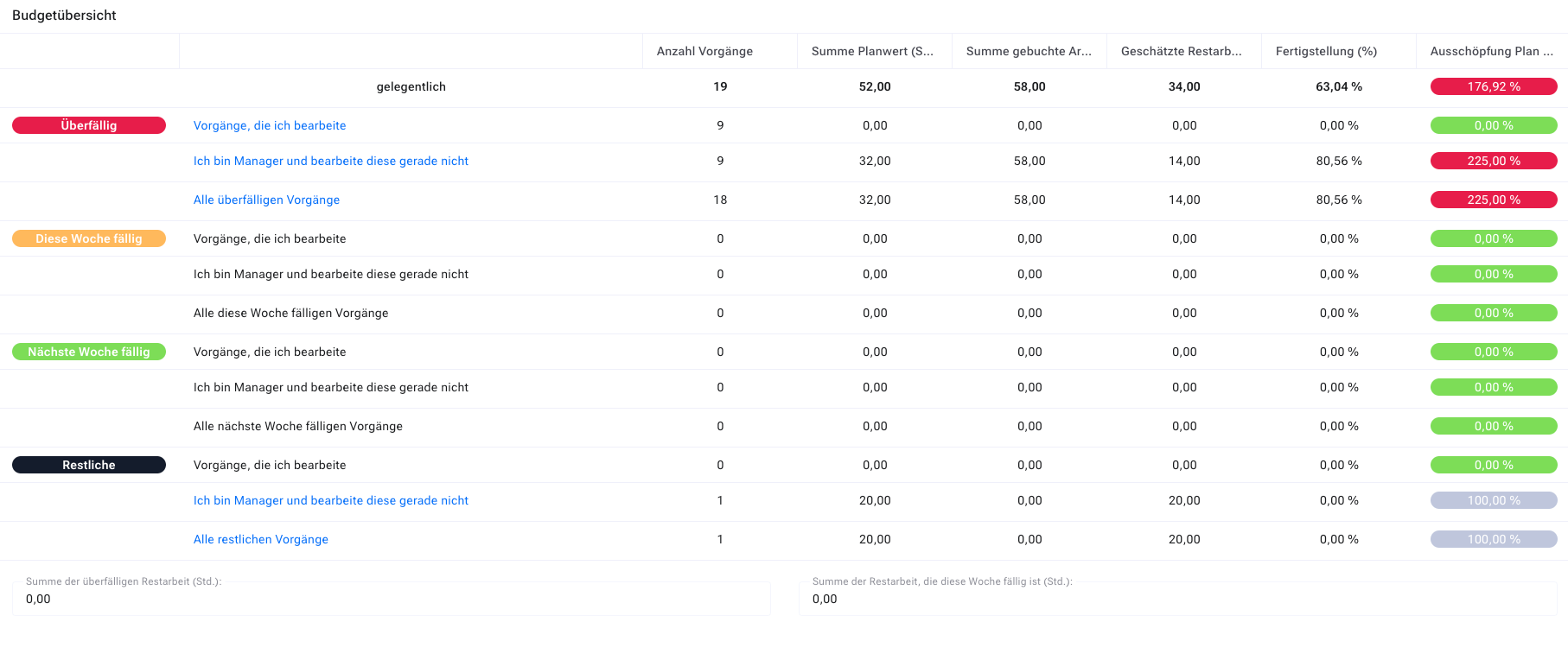
The grouping category is shown in the header of the second column from the right.
You can restrict the displayed priorities by applying a corresponding priority filter in the budget overview configuration. This way you can, for example, monitor only the high-priority tasks and disregard those with low priority.
Grouped by state#
This widget configuration is the same as the one for grouping by priority, except that the state values are displayed.
You can set the displayed states by applying a corresponding state filter in the budget overview.