
JasperReports report templates#
You create a JasperReports report using a JasperReports report template. A report template can have its own filter configuration or use the filtered set of items from the item overview.
Reports are based on data sources and report templates. The data source determines the items you get in a report. The report template defines the layout and the visual appearance of the item data.
The report template engine lets you preprocess data with XSLT stylesheets. The stylesheets are part of the template and run on the server before the formatting part of the report template is executed. This allows great flexibility in processing and presenting items.
Report templates take a list of items and format them in the way defined in the template. Most of the examples that ship with Allegra are template reports in PDF format. There are reports with and without history, grouping, localization, and charts.
There are two ways to access reports: through the Actions button in the item overview or through the “Reports” toolbar button. In the first case, if the report template allows it, you are not asked which items you want to create a report for. In the second case, you are always prompted to use filter criteria for the report.
Go to
Items> [Filter] >Reportsin the action menu of the item browser, or go directly toReports.
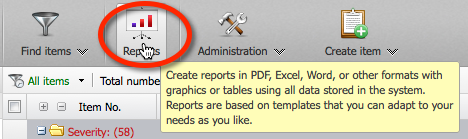
Report from the main menu#
Open one of the folders on the left. On the right you get a list of report templates in that folder. Clicking the small preview gives you a larger view.
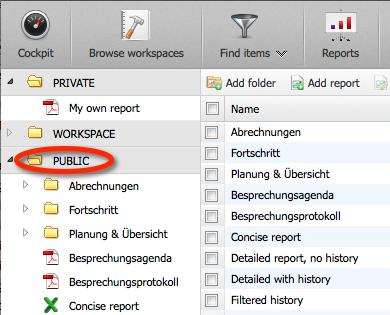
Report directly from the item overview#
Select the report template you want and click the
Create reportbutton.
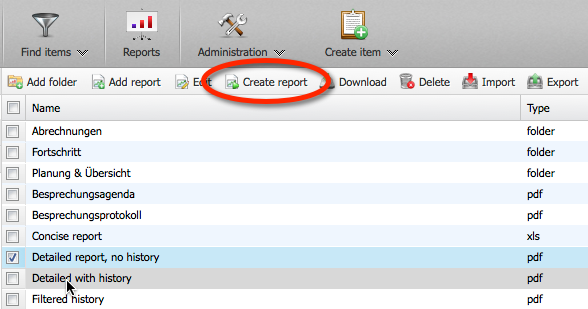
Choosing the report template#
Depending on the report template you selected, you now have to specify a filter. You create the report by clicking the “Create report” button. If you click the “XML data source” button, you can download an XML file that contains sample data for this kind of report template. You can use this XML file as test data when you modify the report template locally on your computer.
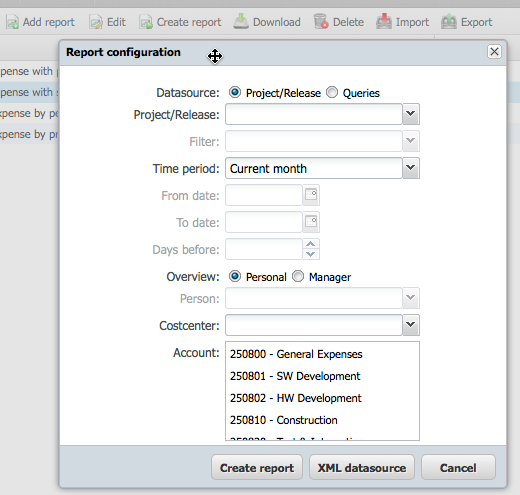
Configuring the data source#
- Report template repositories
- Loading a report template
- Adding JasperReport templates
- JasperReport template design overview
- Step 1: Downloading existing template from server
- Step 2: Downloading sample data
- Step 3: Creating the JasperSoft Studio project
- Step 4: Configuring the Data Adapter
- Step 5: Designing the report template
- Step 6: Deploying report templates on the server
- Advanced Preprocessing with XSLT Style Sheets
- Uploading a report template
- Removing report templates